
Settings — Staff permissions
Let Client Staff issue refunds, create payment requests, manage promo codes, send marketing, manage subscriptions and book visits, and limit which catalog categories each staff member sees.
Settings — Staff permissions decides what Client Staff can do beyond the basics (refunds, payment requests, promo codes, marketing, subscriptions and booking visits) and which catalog categories each staff member sees. Left menu → Settings → Staff permissions. Client Admin only.
What you can do here
- Let Client Staff refund, invoice, book visits and more
- See what each permission unlocks, and where
- Limit which catalog categories a staff member sees
Let Client Staff refund, invoice, book visits and more
Use this when your front desk or care team needs a button only admins have, without making them a Client Admin.
Tick the permission
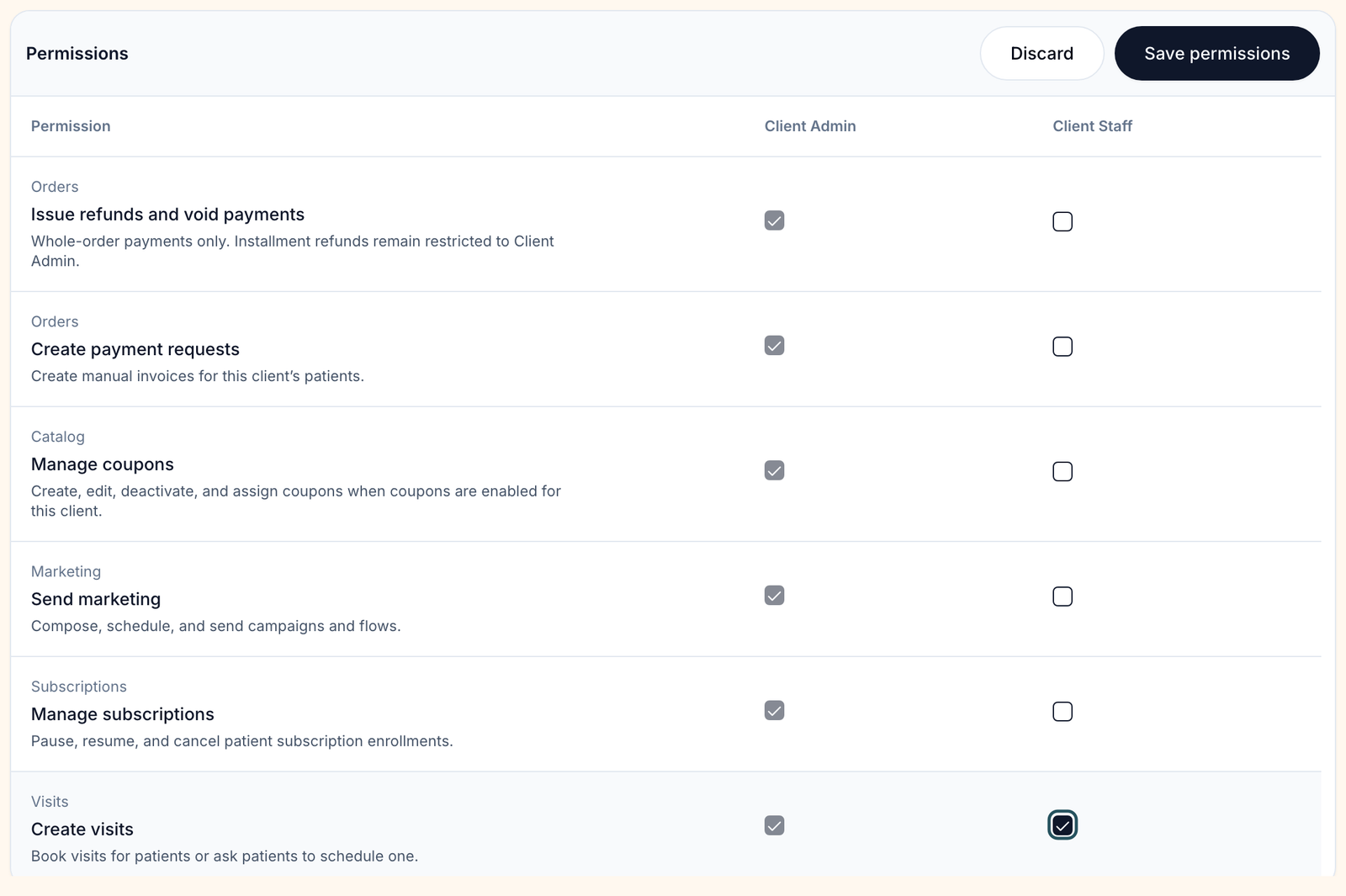
In Permissions, tick the box in the Client Staff column. The Client Admin column is always on and can't be changed.
Save
Click Save permissions (top right of the table). Discard undoes ticks you haven't saved.
Tell your team
The new buttons appear for every Client Staff member. If one doesn't, ask them to reload the page.
You'll know it worked when the toast reads Staff permissions updated and Save permissions greys out again.
Who can do this: Client Admin. Permissions apply to all Client Staff at once; there are no per-person permissions. To give one person everything, invite them as a Client Admin from Dashboard → Users.
See what each permission unlocks, and where
Use this to answer "why don't I have the button my admin has?"
| Permission | Page | What Client Staff get |
|---|---|---|
| Issue refunds and void payments | Orders | Refund in the order's row menu and status pill, including voiding a payment that hasn't settled. Installment orders stay with Client Admin. |
| Create payment requests | Orders | The Create order button (top right) to invoice a patient. |
| Manage coupons | Products, Labs, Visits | The Promo Codes button: create, edit, deactivate and assign codes. |
| Send marketing | Marketing (open /marketing; it has no menu item) | Compose, schedule and send campaigns and flows. |
| Manage subscriptions | Subscriptions and the patient profile | The Subscriptions menu item appears; staff can pause, resume and cancel enrollments. |
| Create visits | Patient profile Visits tab; Messages | Schedule on the Visits tab and Create visit in a conversation's actions. |
Without any permission, Client Staff can still work Patients, Messages, Orders (bulk select, cancel and hold orders), Prescriptions, Forms and Support, and view the catalog. They never see Billing, Reports or any Settings page except their own Notifications.
In a clinic: front-desk staff who take payments and book appointments usually need Create payment requests and Create visits. Selling online: a support lead usually needs Issue refunds and void payments, Manage coupons and Manage subscriptions.
Limit which catalog categories a staff member sees
Use this when a staff member should only see some product, lab or visit categories, for example one service line.
Pick the staff member
In Catalog visibility, open Staff member and choose a person.
Choose categories
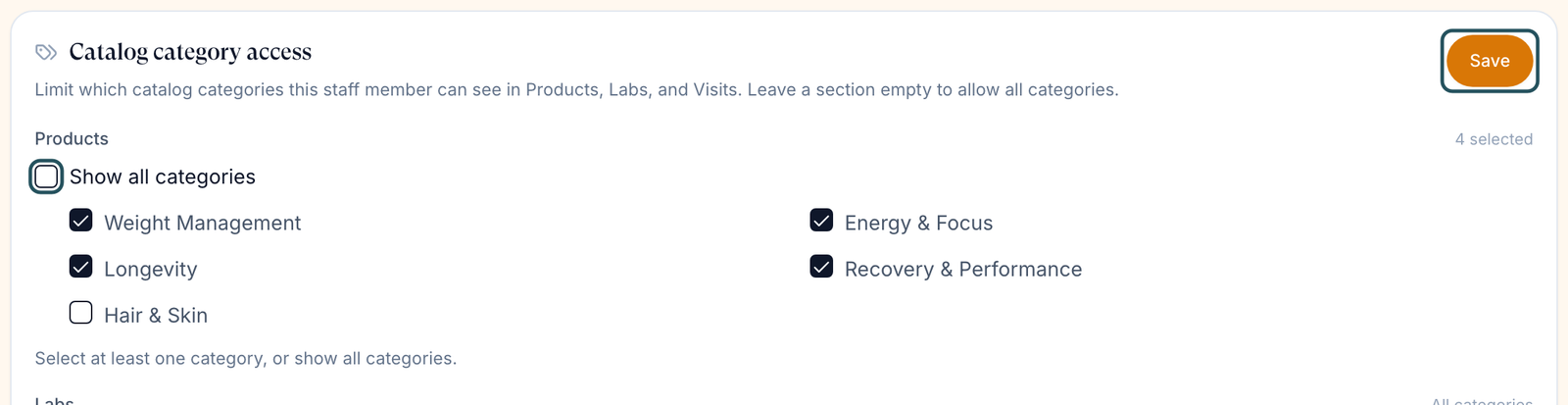
Under Products, Labs or Visits, untick Show all categories, then untick the categories they shouldn't see. At least one must stay ticked.
Save
Click Save on the Catalog category access card. Tick Show all categories again to undo before saving.
You'll know it worked when the toast reads Category access updated and the section shows how many categories are selected instead of All categories.
Who can do this: Client Admin. This is a display filter: it doesn't hide patients, orders or prescriptions. Categories come from your catalog; with none, the card reads No catalog categories exist yet.
What can go wrong
| What you see | Why | Fix |
|---|---|---|
| A staff member can't click Schedule, or sees Your Client Admin has not enabled visit creation for Client Staff. | Create visits is off | Tick it and Save permissions. |
| Staff have no Promo Codes button | Manage coupons is off | Tick it. It's no longer in Portal experience. |
| Staff don't see Subscriptions in the menu | Manage subscriptions is off | Tick it; the menu item appears for them. |
| A staff member with the refund permission can't refund an order | It's an installment order, or it isn't refundable | A Client Admin refunds installment orders. |
| The refund or payment-request box was ticked before anyone here set it | It carried over from a setting your provider network made earlier | Untick it and Save permissions if staff shouldn't have it. |
| Staff see Send email or Send reminder on Orders but it fails | Known problem: only Client Admins can email patients from Orders; no permission covers it | Ask a Client Admin to send it, or use Message patient. |
Questions people ask
How do I give my CX lead refunds, promo codes and subscription control without making them an admin?
Tick Issue refunds and void payments, Manage coupons and Manage subscriptions, then Save permissions. Every Client Staff member gets them.
What's the difference between Client Staff and Client Admin?
Client Admins set up the account: billing, settings, the catalog and the team. Client Staff handle patients, messages, orders and prescriptions, plus anything ticked here.
Can I give one staff member refunds but not another?
No. Permissions cover all Client Staff. Only catalog visibility is per person.
Can a Client Staff user have their own availability and appointment calendar?
No. Availability belongs to providers. With Create visits, staff can book visits into providers' open times.
Related
Was this helpful?