
Settings and admin
Settings — Developers
Create API keys, configure webhooks, inspect requests, and open the API documentation.
Questions people ask
Should we use the V1 or V2 API?
V2. Build new work on the V2 API and V2 Guide tabs.
Is there a sandbox we can test in?
Ask your provider network to put your account in sandbox mode: nothing goes to pharmacies or labs. Set the processor to None as well if you don't want real charges.
In sandbox mode, how do I get a visit approved or a lab result without a real provider or lab?
As a Client Admin, open the Sandbox tab here, or use Simulate… on the visit or order. Pick a step under Next step; real webhooks fire to your endpoints. Records that went live can no longer be simulated.
How do we test a webhook like prescription.sent without a real prescription?
Use the Webhook simulator on Webhooks: pick the event and send a signed sample to your endpoint. Real events only fire when the real thing happens.
Where do I find a product's ID?
On Products, row menu ⋮ → Copy ID.
Where to find it
Sidebar → Settings → Developers (/settings/developers).
Access: Client Admin only.
What you can do here
- Create an API key
- Rename, regenerate or revoke a key
- Send events to your server (webhooks)
- Check what your integration did
- Test safely: sandbox mode vs test mode
- Give your developer the API docs
Create an API key
Use this when your developer, website, Zapier or CRM needs to talk to GEN Health.
Open API keys
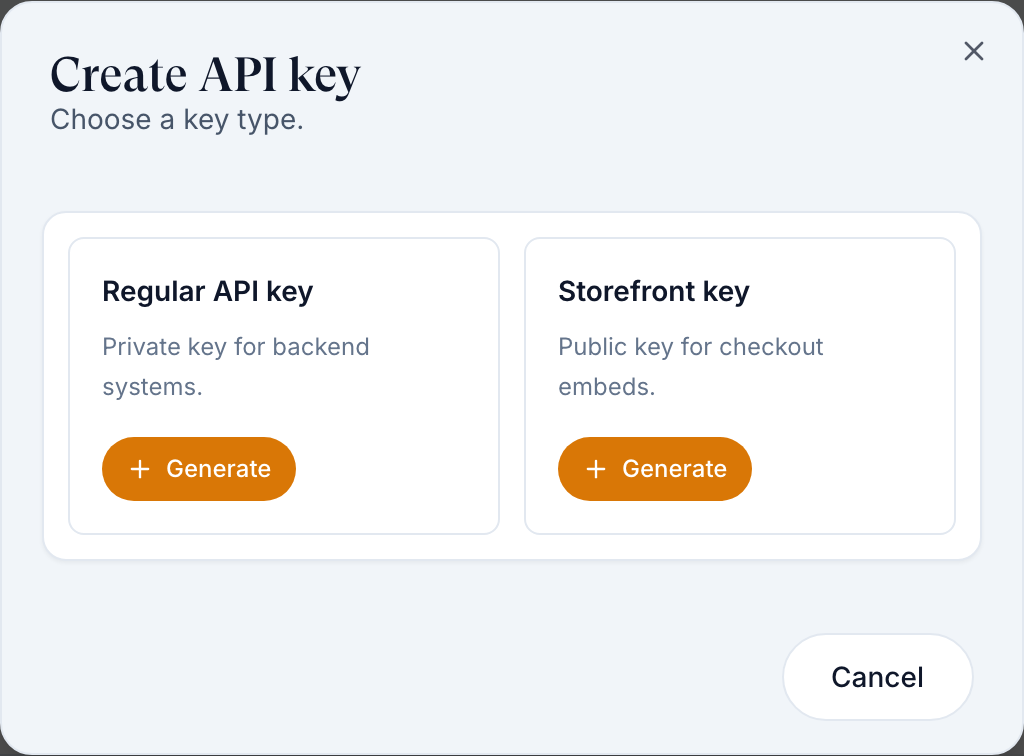
Click the API keys tab, then Create key (top right).
Pick the type
Regular API key is private, for your server. Storefront key is public, for checkout embedded in your website. Click Generate on the key type you need; this creates the key.
Copy it now
Copy your key now shows the full key once. Store it in your password manager or your developer's secrets, then click Done.
Check the result: the toast reads API key generated and the key is listed as Active.
Access: Client Admin.
Never put a regular API key in a web page, an email or a chat. If one leaks, Regenerate it.
Rename, regenerate or revoke a key
Use this when a key leaked, someone left, or you want a clearer name.
Open the row menu
Click ⋮ on the key: Rename (type the new name, then click Rename key), Regenerate (new value; the old one stops working) or Revoke (stops it for good).
Allow your websites
For a storefront key, Edit origins opens Edit allowed origins. Type every website address allowed to embed checkout in Allowed origins, comma separated, such as https://www.yourbrand.com, https://shop.yourbrand.com, then click Save origins.
Check the result: the toast reads API key regenerated, API key revoked or Allowed origins updated.
Access: Client Admin.
Send events to your server (webhooks)
Use this when your server, CRM or Zapier should hear about new patients, payments, visits and prescriptions as they happen.
Add an endpoint
On the Webhooks tab, click Add endpoint. Fill Name and URL (HTTPS and reachable from the internet). Leave Enabled on.
Choose events
Choose All events to include every event, including future additions. Choose Selected events to tick groups such as orders or prescriptions.
The lab group includes:
- Lab issue flagged — a lab order needs staff attention.
- Lab issue acknowledged — staff acknowledge an open lab issue.
- Lab issue resolved — a lab issue is closed.
Filter dashboard events
When All events or any dashboard event is selected, two optional fields appear: Dashboard section keys (for example welcome-kit, refill-reminder) and Interaction names (for example goal_selected, open_form). They limit dashboard events sent to this endpoint.
Create it
Click Create endpoint, then copy the Signing secret; your developer uses it to check each delivery came from GEN Health.
Test it
Row menu ⋮ → Send ping. The Webhook simulator below the list sends a signed sample of any event.
Check the result: the toast reads Ping delivered (HTTP 200).
Access: Client Admin. Up to 10 endpoints.
Check what your integration did
Use this when your developer says a call failed or a webhook never arrived.
Open Request Log
It lists recent API calls, webhook deliveries and Hosted Checkout payment failures. Filter by Type and Status, then click a row to see the request and response.
See the trend
Analytics shows Requests, Success rate, Avg duration and webhooks delivered or failed, from the latest 200 log entries.
Check the result: the failing call shows with its status code.
Access: Client Admin.
Test safely: sandbox mode vs test mode
Use this before launch. The two names sound alike but are separate switches.
Test mode: no real charges
Your payment processor is None (Settings → Payments, tile Test mode — no real charges). Checkout says This checkout is in test mode. No live payment will be processed. and orders are marked paid with no charge. It changes payment only.
Sandbox mode: nothing goes to pharmacies or labs
Your primary provider network or GEN Health enables sandbox mode for the whole account. The left menu shows SANDBOX MODE.
- Orders, forms and visits work, including orders created through the API.
- Prescriptions are not sent to the pharmacy. Lab orders are not sent to the lab.
- Webhooks, patient emails and texts still go out. A connected payment processor still charges cards.
Go live
Click SANDBOX MODE → Request go-live. Your provider network approves it. Approval deletes the orders, visits and lab orders placed in sandbox mode, paid ones included, so there's nothing to cancel.
Check the result: the SANDBOX MODE badge is gone and a real processor tile is active.
Access: Client Admin requests go-live; only your primary provider network or GEN Health turns sandbox mode on or off.
Give your developer the API docs
Use this when your developer asks how to create orders, build checkout or handle refills through the API.
Open Documentation
Click Documentation (top right). A new tab opens with V2 API, V2 Guide, V1 API, Webhooks, Hosted Checkout and Patient Migration. Send that link to your developer.
Check the result: the docs open with your brand at the top.
Access: Client Admin opens it; anyone with the link can read it.
What's on this page
Use Overview → Quick links to open Manage API keys, Configure webhooks, Request log, API reference or Hosted checkout & SDK. Available links depend on your account. Documentation opens the public docs in a new tab.
| Control | What it does |
|---|---|
| Overview tiles | Setup at a glance. Storefront reads Needs setup until a storefront key exists. |
| Skip account setup | Patients created through the API skip account setup. Use it only if your API sends their onboarding details. |
| Use source custom field | Shows a patient custom field, such as source, in the Patients page Source column. |
| Sandbox tab | Shown to a Client Admin while the account is in sandbox mode. The Sandbox records table lists your sandbox visits and lab orders, newest first, with Record, Type, Status, Patient and Updated. Refresh reloads it. Click a row, or Simulate…, to open the simulator. Empty: No sandbox records yet. |
| Simulator (Simulate visit or Simulate lab order) | Act as the Sandbox Provider to fire real webhooks. Next step lists each step you can run, the webhook events it fires, and why a step is unavailable. Run one (for example approve, defer or deny a visit, or post lab results). Webhook events then lists each event with a delivery pill: Pending, Sent, Delivered, Failed or No endpoint. With no endpoint it says No webhook endpoint and offers Add endpoint. Patient emails and texts still go to the test patient. |
Statuses you'll see here
| Status | What it means | Who acts next | What you do |
|---|---|---|---|
| Active (key) | The key works | No one | Nothing |
| Revoked / Legacy | Stopped, or an older key format | You | Create a new key and switch to it |
| Disabled (endpoint) | Switched off; gets nothing | You | Edit → Enabled |
| Auto-paused | 10 deliveries in a row failed | Your developer | Fix the server, then enable it again |
What can go wrong
| What you see | Why | Fix |
|---|---|---|
| Storefront is returning 0 products | Only active, priced products shown on the storefront are listed. | On Products (Config view), set a price and tick Storefront. |
| Webhook deliveries fail (404, DNS errors) | The URL isn't reachable or your server returned an error. | Read the status code in Request Log, fix the server, then Send ping. |
| API orders never reach the pharmacy | Your account is in sandbox mode. | Request go-live. |
| You lost a key | It is shown only once. | Regenerate it, or create a new key. |
| Questions about payloads, vault IDs or order flows | These are API questions, not settings. | Read the V2 Guide, then raise a GEN Health ticket (Technical issue / bug). |
Related
Was this helpful?