
Setup and catalog
Labs
Set patient prices and visibility for lab panels, attach lab requirements, and follow results.
Questions people ask
Why does the patient price appear cheaper than the cost?
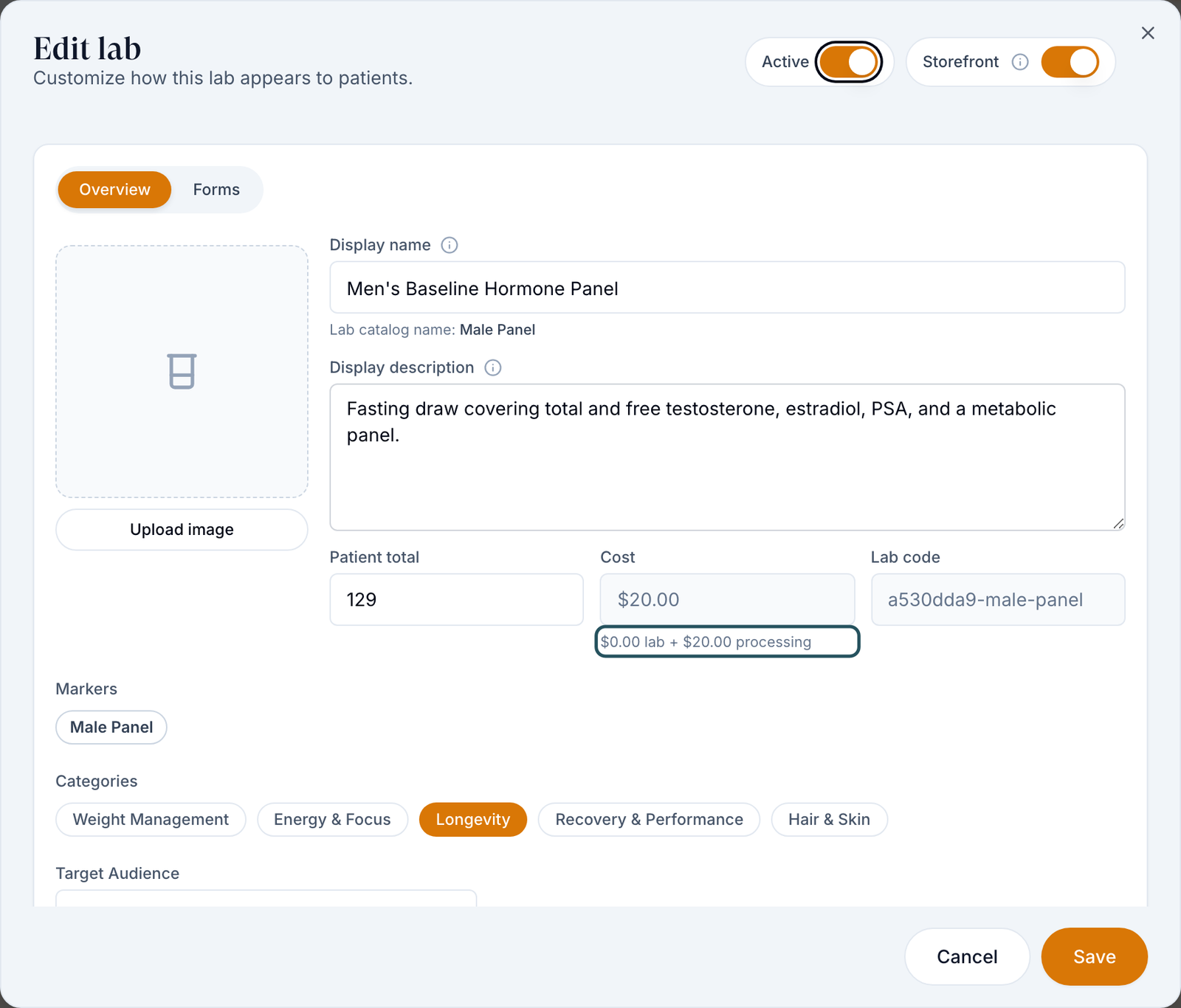
Patient total is yours to set; Cost is what you're charged. Hover Cost for the split, and price above it.
Where does the patient go for a blood draw?
For walk-in panels, use a participating collection centre for the lab named on the requisition in the patient’s portal. Check the collection instructions and confirm the centre accepts that requisition before the patient travels. Kits ship to the patient.
Can we add biomarkers to a panel?
Not to an existing panel. Build a new one with Create Lab; it goes through Pending approval.
If a client already has lab work, do they have to buy a lab?
No. They can upload recent results for your provider network to review.
Where to find it
Sidebar → Labs (/labs).
Access: Client Admin manages prices. Client Staff can edit names, images and visibility. A lab integration and platform payment method are required.
What you can do here
- Price and publish a lab
- Add a lab panel
- Make a product require a lab
- Follow a lab from purchase to results
- Offer a treatment once results are back
Price and publish a lab
Use this to sell a panel on its own, or to make it available to products.
Clear the payment block
If the page reads Please update your account payment method to enable labs., click Set up payment method. GEN Health charges each lab's processing fee to that card, not the patient's.
Open the lab
Row menu ⋯ → Edit details. The Edit lab dialog opens.
Price it
Read Cost (for example $0.00 lab + $20.00 processing), then type a higher Patient total.
Set who sees it
Set Display name, Categories, Target Audience (Any, Male, Female) and Unavailable states.
Turn it on
Switch on Active and Storefront, then click Save.
Check the result: Patient Price shows your price and the lab appears under Storefront only. Config view shows the Active and Storefront ticks for every lab.
Access: Client Admin (Client Staff: everything except price, audience and states).
Selling online: choose Test kit panels (shipped to the patient) or Walk-in (the patient takes a requisition to a participating Quest or Labcorp collection centre). In a clinic: On-site collection panels let you draw blood yourself. The All methods filter shows which you have.
Add a lab panel
Use this when the panel you need isn't in your list.
Start
Click Create Lab and answer Which lab is this panel for?
Choose the panel
Use a panel the lab publishes, or build one from markers, and follow the steps.
Check the result: the lab appears in the list. A panel you built shows Pending approval while the lab company reviews it, then Ready to activate.
Access: Client Admin and Client Staff, once a lab is activated for your account. Otherwise the dialog reads No activated labs are available. A Super Admin must activate a lab in Integrations before you can create one.: raise a Support ticket to GEN Health.
Make a product require a lab
Use this when a treatment (for example TRT) needs recent bloodwork first.
Open the product
Products → row menu → Edit details.
Require it
Switch on Requires labs, tick the Required lab options, then Save. Switch on Lab First Consultation to charge for the lab first and the product only after approval.
Check the result: the product row shows the flask icon (Labs required). Patients then upload recent results or buy one of those labs before review.
Access: Client Admin. The options listed are the labs your provider network approved for that protocol; only the network can add more.
Follow a lab from purchase to results
Use this when a patient asks what happens next, or a lab order seems stuck. All of it happens on Orders.
Release it, if you review first
With Review lab orders before sending on (Settings → Portal experience), click Review lab → Release to lab.
Collection
Kits ship to the patient; walk-in patients take their requisition from the portal. After an on-site draw, open the order and click Mark draw complete.
Uploaded results
If the patient uploaded their own results, your provider network reviews them. Client Admins and Client Staff can follow the order’s status but cannot accept or decline the upload.
Results arrive
The order reads Results Received. Click Review Results → Mark as Reviewed; results also appear on the patient's Labs tab.
Check the result: Orders shows the lab’s current collection or review status.
Access: Client Admin. Client Staff can also use Mark draw complete. Uploaded-result decisions belong to your provider network.
Offer a treatment once results are back
Use this to suggest the next product after a lab.
Open it
Row menu → Linked products.
Pick products
Tick the follow-on products, then Save.
Check the result: the dialog no longer says it uses the network's defaults.
Access: Client Admin.
Statuses you'll see here
| Status | What it means | Who acts next | What you do |
|---|---|---|---|
| Pending approval | The lab company is reviewing a new panel | Lab company | Wait; it can't be activated yet |
| Ready to activate | Approved, not switched on | You | Switch on Active |
| Red ! by the name | No patient payment processor | You | Connect one on Billing |
| Pending (Processing) on Orders | Paid, but the processing fee failed on your card | You | Update your platform payment method |
What can go wrong
| What you see | Why | Fix |
|---|---|---|
| The provider network has not approved any labs for this product. | The network hasn't added labs to that protocol. | Ask your network to approve panels, then activate them here. |
| Approved labs required or Platform payment method required | No lab option ticked, or no platform card on file. | Edit product; or Add payment method. |
| "Labs needed" still blocks scheduling after the patient uploaded labs | The uploaded result has not yet cleared the order’s lab requirement. | Ask your provider network to check the uploaded result and the order’s lab requirement. |
| No labs available near you | No centre within 25 miles of the patient's primary address. | Correct the address on the patient's Profile, or offer a test kit. |
| Your lab is still being set up (patients see Your lab is still being set up) | The lab hasn't finished setting up this order, so there are no times to book yet. | Click Try again after a little while. |
| Your lab is being processed (patients see Your lab is being processed) | This lab doesn't use in-app scheduling. | Watch the order for status updates; results show under Labs when ready. |
| A kit order shows an error | The courier needs a valid patient phone number. | Fix the phone on the Profile tab, then contact Support. |
Related
Was this helpful?