
Request a Good Faith Exam (GFE) for a patient
Start a Good Faith Exam (GFE) with Request clearance, send it to the patient or use this device, and read the result under Recent clearances.
A Good Faith Exam (GFE) is a provider's sign-off that a treatment is appropriate for a patient. You request one from your dashboard with Request clearance: enter the patient, pick the treatments, and choose how the patient fills in their forms. A provider from your network then reviews the forms, or sees the patient over video, and records a decision you can see on your dashboard.
Questions people ask about GFEs
Where do I start a GFE?
Dashboard → Request clearance (Start a Good Faith Exam for a patient.). Client Admins and Client Staff both have it. There's no GFE item in the left menu.
Why is Request clearance greyed out?
Setup isn't finished. A Client Admin has to add at least one location and tick the treatments offered there under Manage defaults. Until then the dashboard reads An admin must enable treatments before clearance requests can be created. See Review-only clients and GFE clearance defaults.
Can patients start a GFE from our website?
No. There is no public GFE link. Each exam starts from Request clearance, which either emails the patient a private link or opens the forms on your own device.
How long does the patient have?
An emailed link (Send to patient) works for 7 days. An on-device session (Use this device) lasts 30 minutes. After that the patient sees This link is no longer available.
The patient lost the email. Can I resend it?
No resend button exists. Once the old request expires, start a new request. While a request is still open, a new one for the same patient and the same treatment is refused with An active clearance already includes one of these treatments.
Why does one request need a video visit and another doesn't?
Your provider network marks some treatments Requires live visit. If a request includes any of them, the patient needs a live visit with a provider after the forms. Otherwise a provider reviews the forms without meeting the patient.
Where do I see the result?
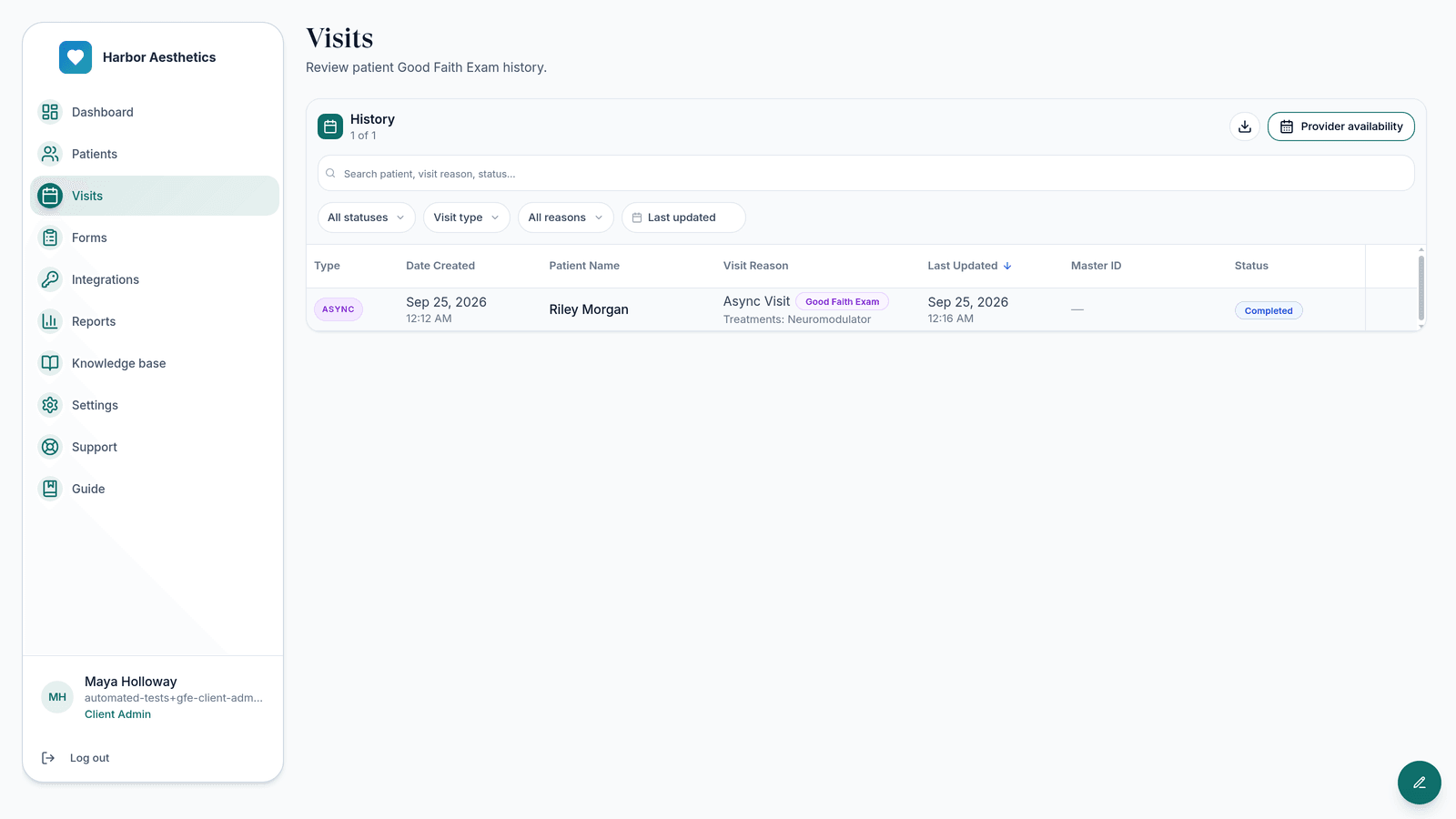
Under Recent clearances on your dashboard, and on Visits (View all). The patient doesn't receive a certificate.
Where to find it
Left menu → Dashboard → Request clearance. Visible to: Client Admin and Client Staff on a Review Only client. Setup (Manage defaults) is Client Admin only.

Request a GFE
Patient
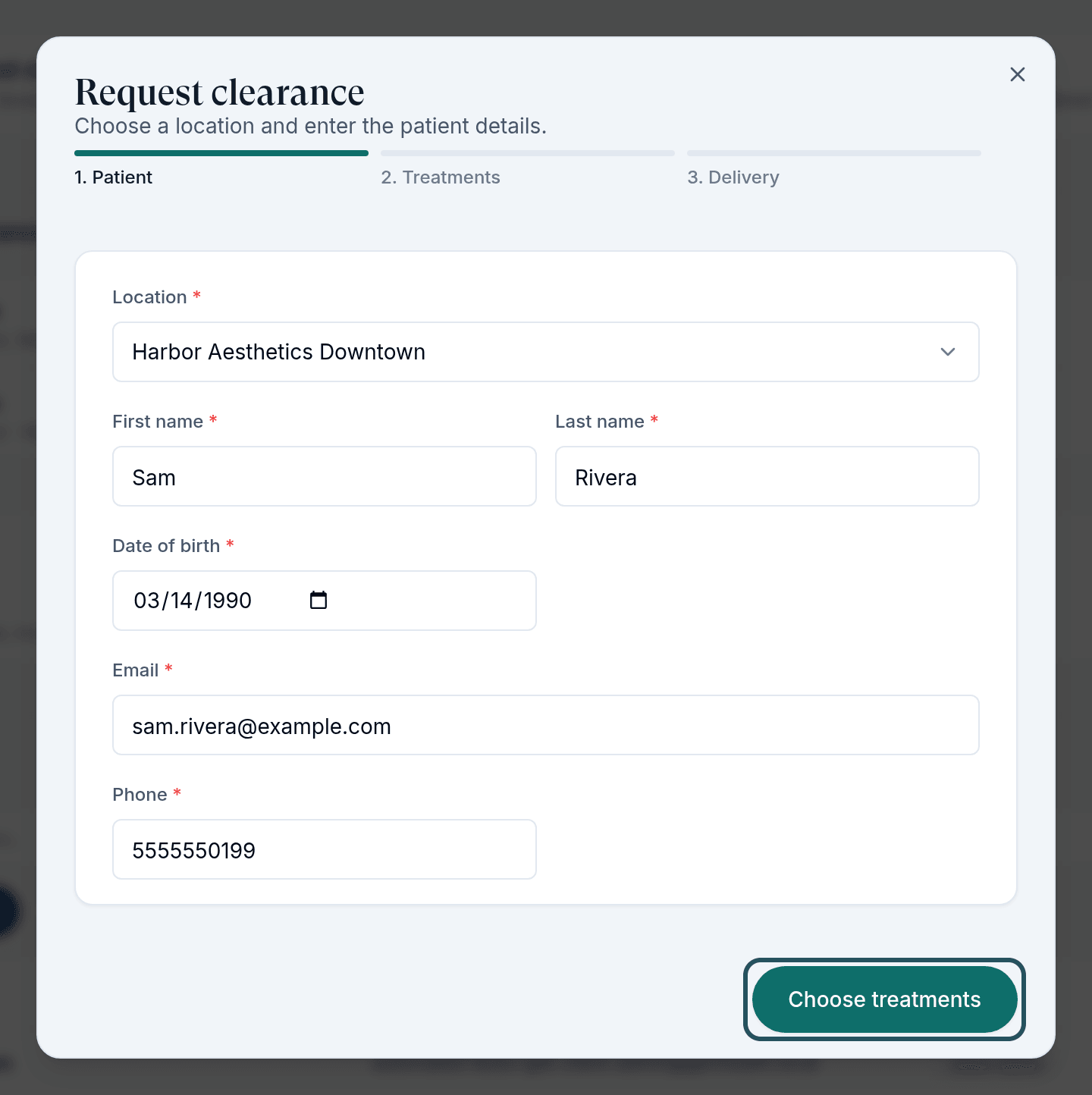
Click Request clearance. Choose the Location where the treatment will happen, then fill in First name, Last name, Date of birth, Email and Phone. Every field is required. Click Choose treatments.
Treatments
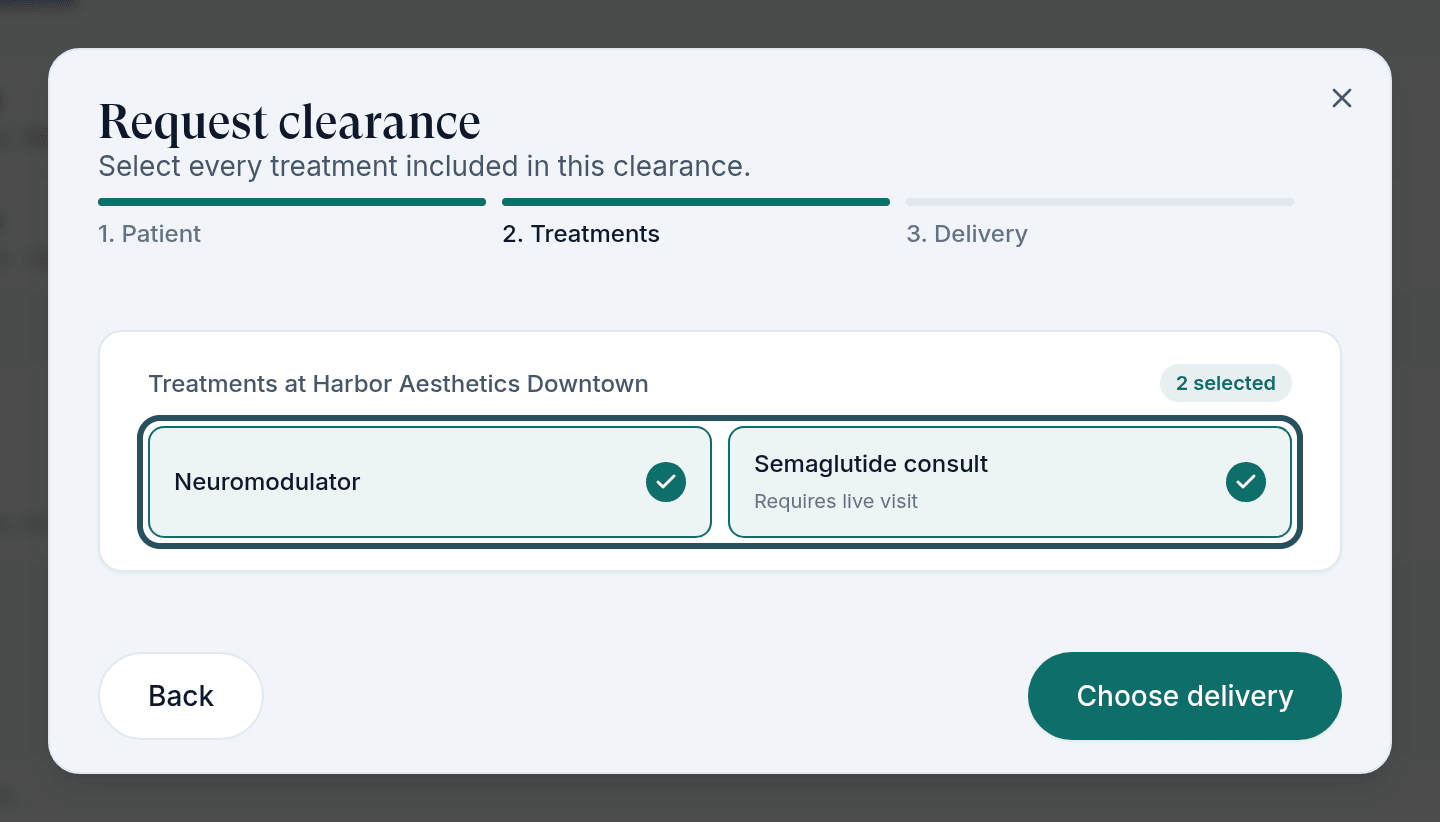
Tick every treatment this clearance covers. You see only the treatments enabled for that location. A treatment marked Requires live visit makes the whole request a live visit. Click Choose delivery.
Delivery
Choose how the patient completes the forms. Send to patient emails a secure link, and the toast reads Clearance sent to patient. Use this device opens a private 30-minute kiosk session in a new tab for a patient who is with you.
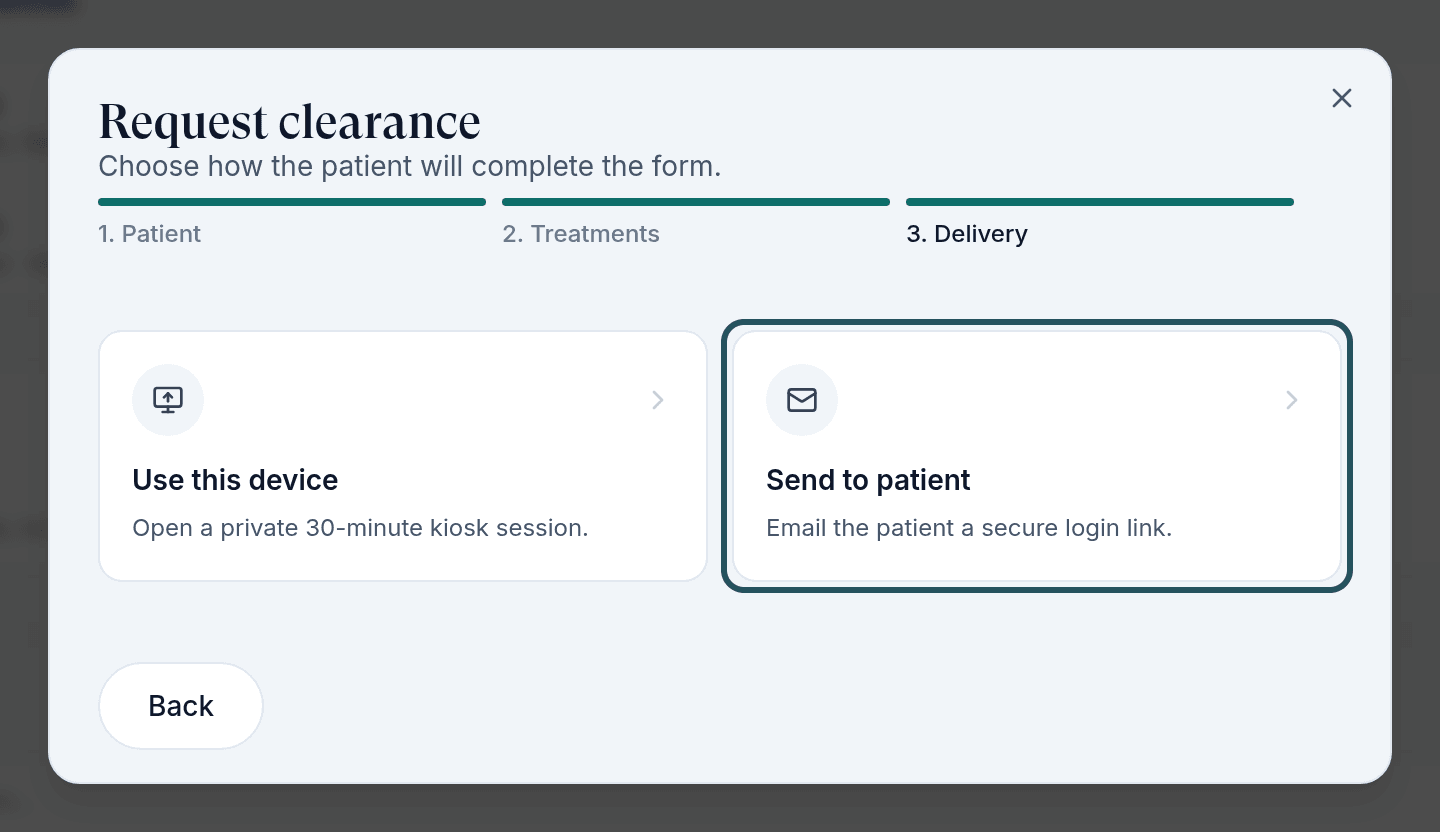
In staging testing on 24 September 2026, Use this device opened a tab that showed This link is no longer available for every request. Use Send to patient until this is fixed; the patient can open the email on your device if they are with you.
What the patient sees
Sign in from the email
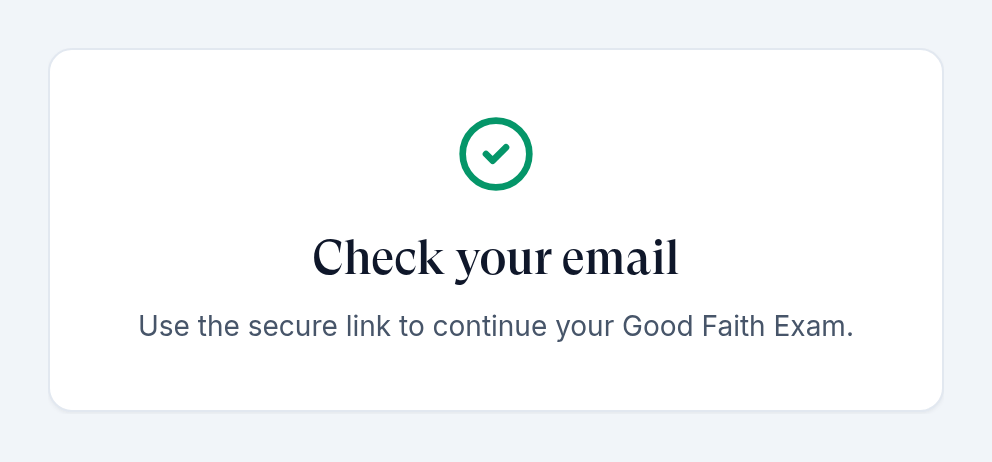
The link opens Continue your Good Faith Exam. The patient enters the email address you used and clicks Send secure link, then opens the sign-in link from Check your email.
Account setup
First-time patients confirm their language, upload an ID, take a selfie, and check their details, height and weight. They can skip allergies and medications. Then they see Account setup complete! Check your pending forms below.
Forms
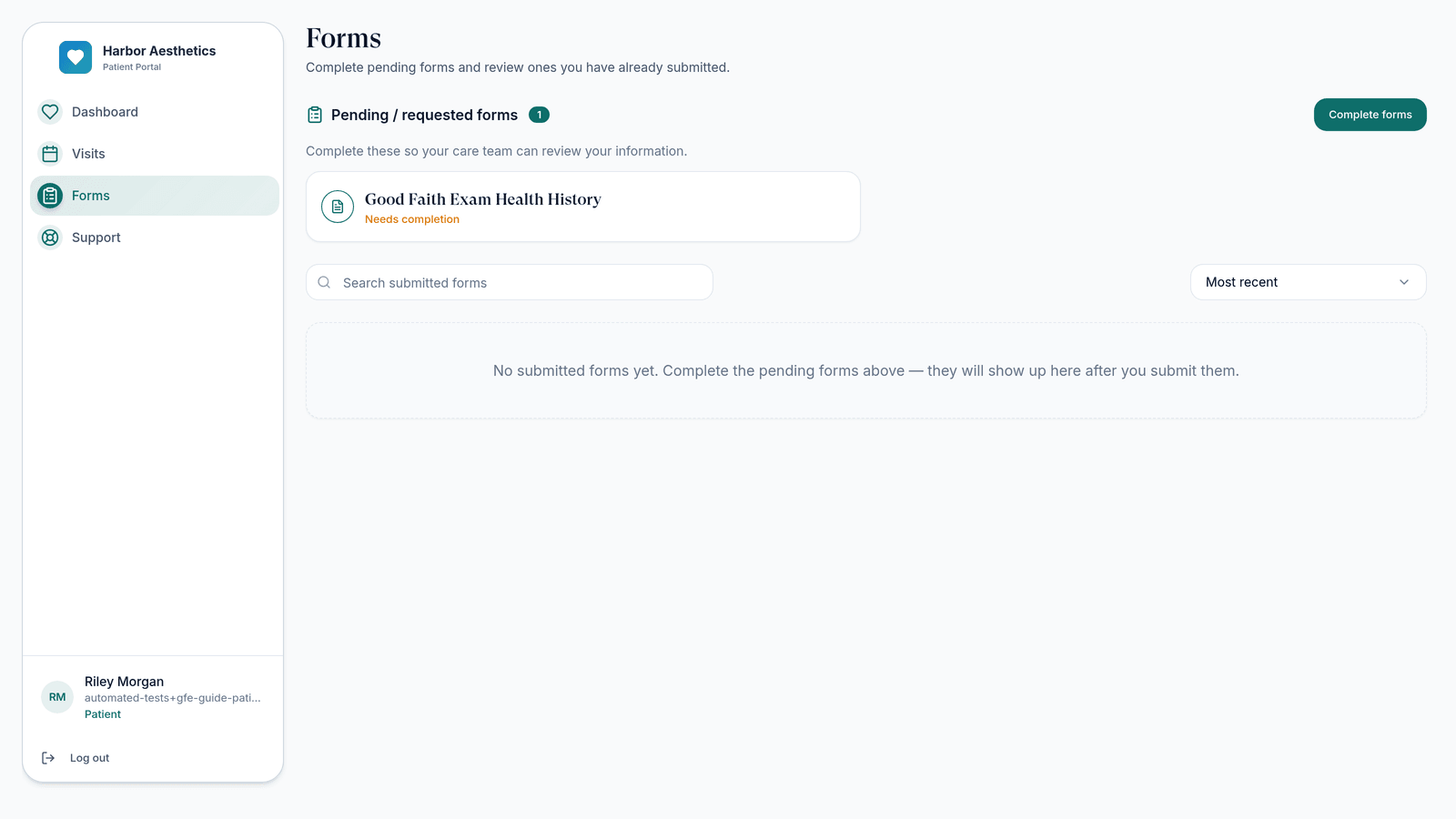
Under Forms, Pending / requested forms lists the GFE form. The patient clicks Complete forms, answers, and clicks Complete & Finish.
Live visit, booked or on demand
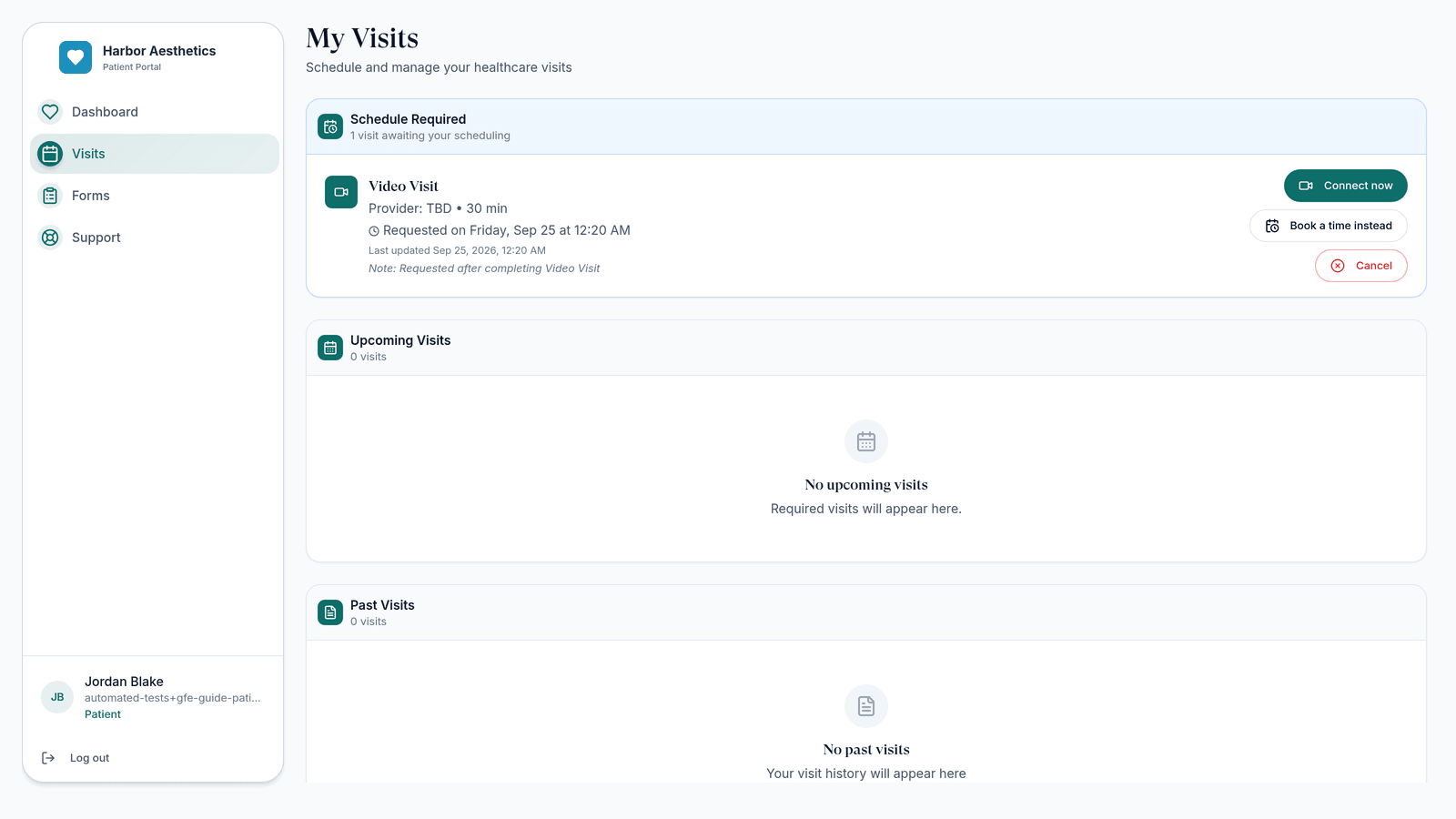
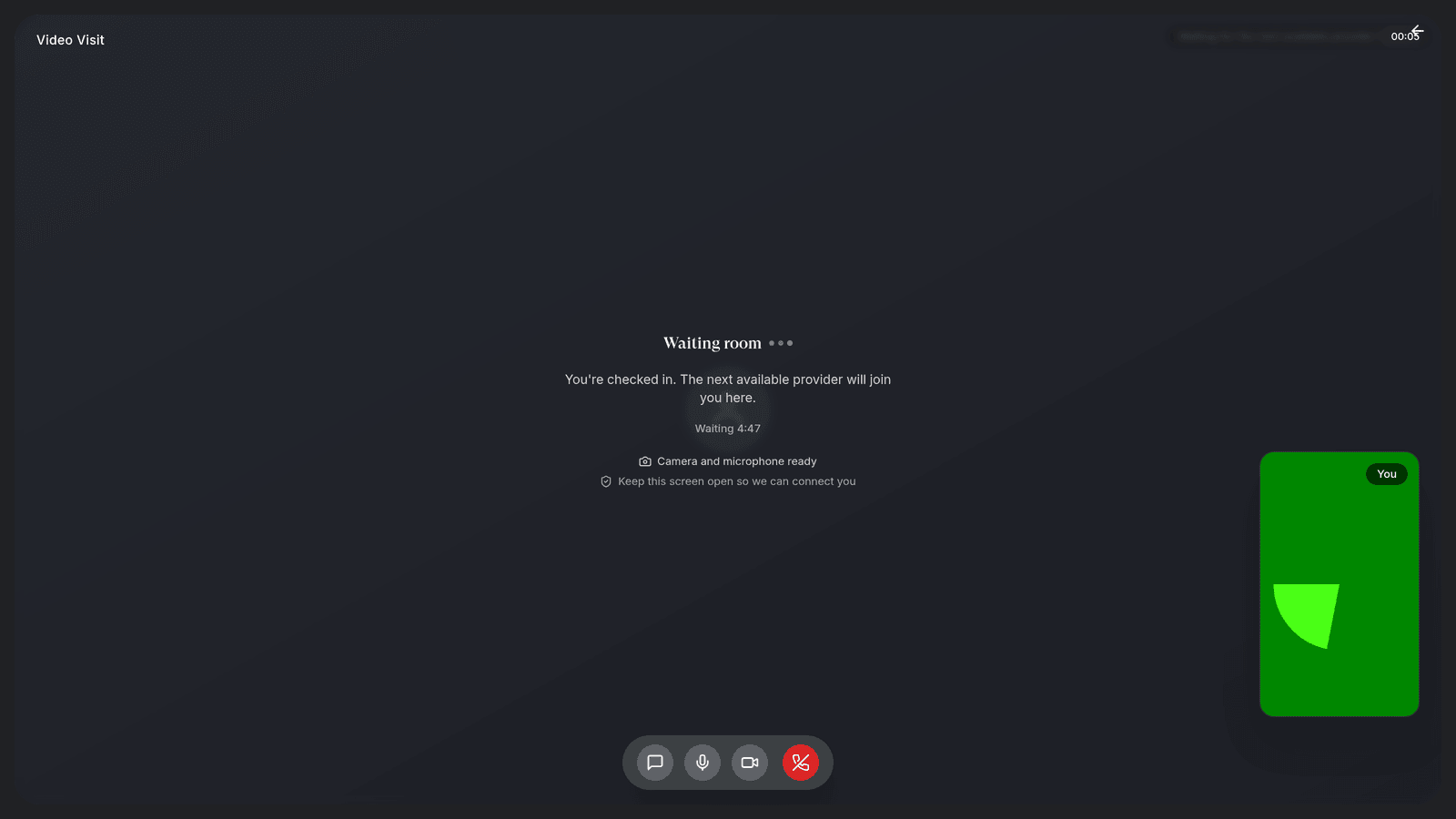
If a treatment requires a live visit, the patient's Visits page shows Schedule Required. When your network has on-demand visits turned on, Connect now puts them in a video waiting room (You're checked in. The next available provider will join you here.); Book a time instead schedules one.
See the result
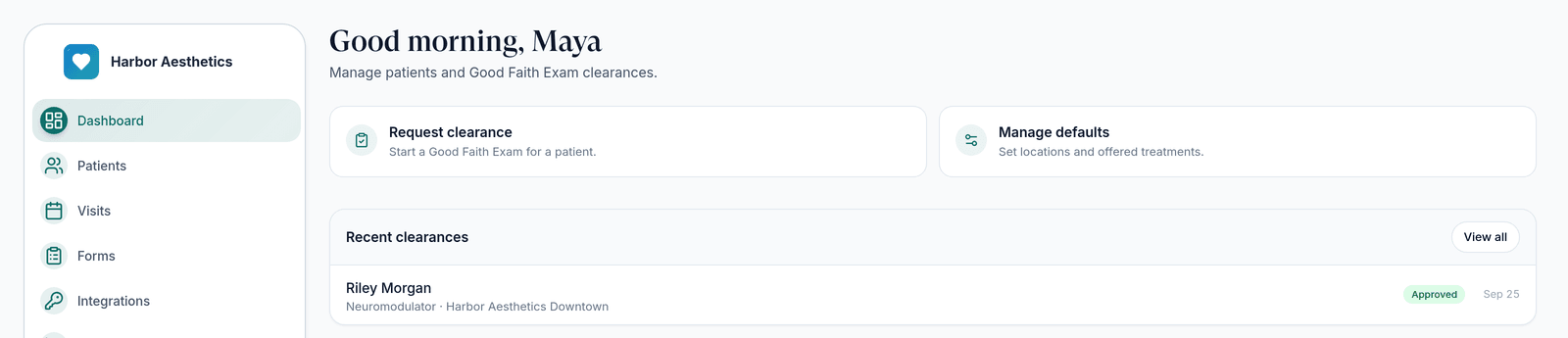
Recent clearances on your dashboard lists each request with the patient, treatments, location and a status. View all opens Visits, where a GFE row shows a Good Faith Exam badge and the treatments.
Statuses you will see
| Status | What it means | What to do |
|---|---|---|
| In review | Requested; the patient hasn't finished, or no provider has decided yet. | Wait, or remind the patient. |
| Approved | Every requested treatment was cleared. | Go ahead with treatment. |
| Partially approved | Some treatments were cleared, some were not. | Open Visits to see which. |
| Not approved | No treatment was cleared. | Don't treat. Read the provider's note. |
What can go wrong
| What you see | Why | Fix |
|---|---|---|
| Request clearance greyed out | No location, or no treatment enabled. | A Client Admin finishes Manage defaults. |
| No treatments are enabled for this location. | Nothing is ticked for the location chosen in step 1. | Enable treatments for that location, or pick another location. |
| The dialog stays on Delivery after you choose an option | The patient already has an open clearance for one of the treatments. | Wait for it to finish, or request different treatments. |
| Patient sees This link is no longer available | The link expired, was already used, or came from the kiosk option (see the warning above). | Start a new request with Send to patient. |
| Toast: Allow pop-ups to open the kiosk, or open it manually. | The browser blocked the kiosk tab. | Click Open kiosk in the toast, or allow pop-ups. |
| Patient's View visits button shows Page not found | A known issue. | Tell the patient to use Visits in the left menu. |
Next
Was this helpful?