
Daily operations
Orders
Find what an order needs next, inspect payment and tracking, and handle reminders, refunds or cancellations.
Questions people ask
Does cancelling an order refund the patient?
No. Refund separately; partial refunds are allowed.
How do I change the shipping address on an order?
Before the pharmacy has it, edit Mailing / shipping address on the patient's Profile tab (no PO boxes). After that, open an OnlyScripts ticket.
A sandbox order is not moving. How do I move it along?
Sandbox orders never reach a pharmacy or lab. As a Client Admin, click ⋮ → Simulate… and run the next step. If it says This record is live. Only sandbox records can be simulated., the order is real.
It says Approved. Why hasn't it gone to the pharmacy?
Check payment and the network's review window (2 hours by default). A linked order hold or required approval can also keep it queued. Check Prescriptions.
Where to find it
Sidebar → Orders (/orders).
Access: Client Admin and Client Staff. Some actions require an additional staff permission, as noted below.
What you can do here
- Find why an order is stuck
- Give the patient tracking
- Remind patients to pay
- Mark an order paid
- Invoice a patient
- Refund or void a payment
- Cancel or hold an order
- Release a held lab
Find out why an order is stuck or on hold
Use this when a patient asks "where is my order?"
Read the status
The Status pill says whose move it is (see Statuses). The Action needed filter shows orders waiting on your team.
Read the History
Click the row. In Order Details, the top History line names the blocker, for example Patient action needed: complete forms.
Check held visits
Open Messages → Notifications. Each Visit alert names what to fix, such as a PO box address or missing driver license, with a button like Send intake form.
Recheck
After fixing, click Check again.
Check the result: the alert clears and the order moves to provider review.
Access: Client Admin and Client Staff.
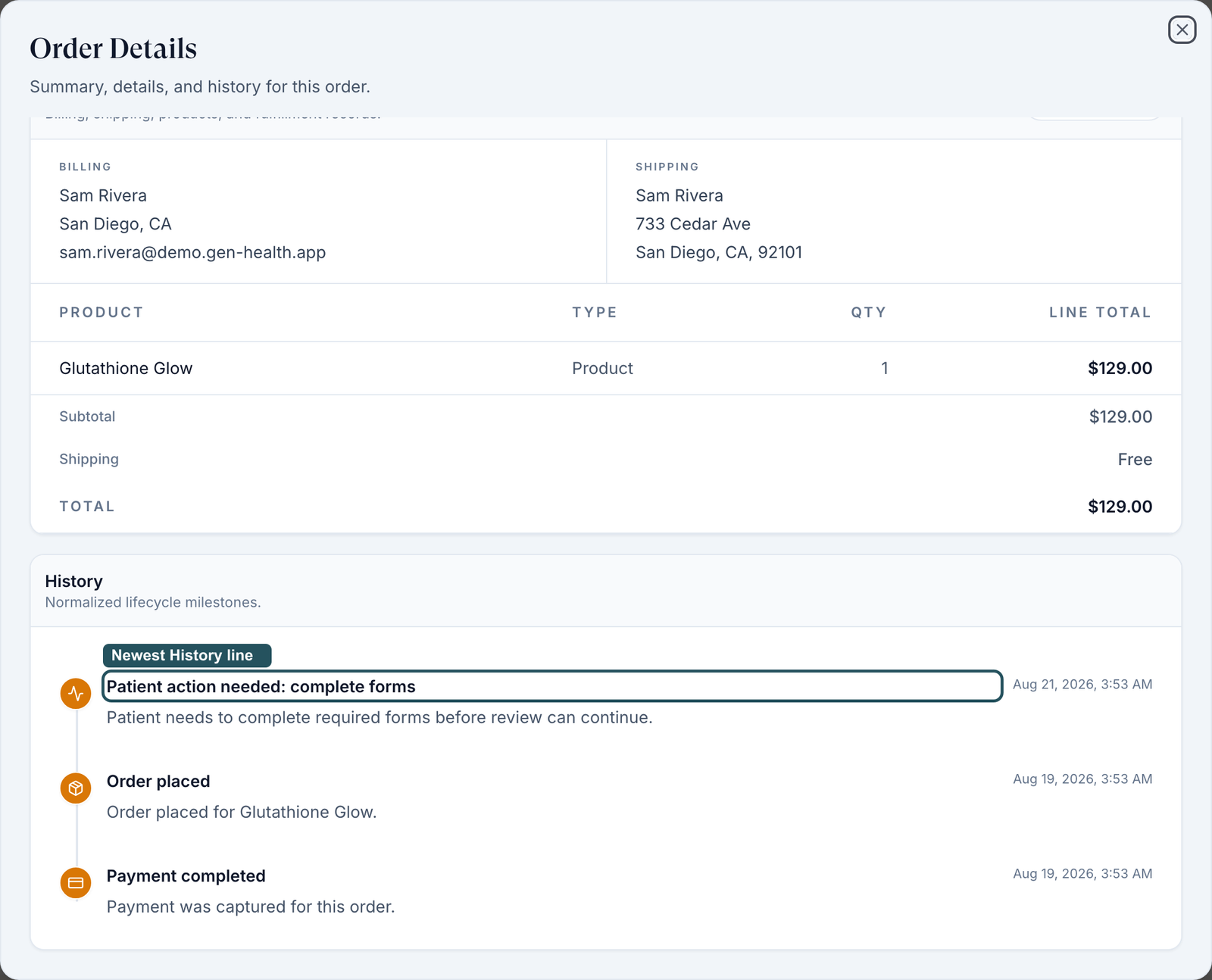
Who handles what: review statuses belong to your provider network (message them); pharmacy statuses to OnlyScripts (Support ticket).
Give the patient a tracking number
Use this when the patient asks where their package is.
Look under the status
If a Tracking number appears under the pill, click it.
Or open the order
Fulfillment shows the carrier and number. Lab kits have Track shipment.
Or add it yourself
In Order Details, beside Fulfillment, click Add tracking or Edit tracking if a number exists.
- Enter the Tracking number.
- Leave Carrier as Detected from the number, pick a carrier, or choose Other and enter a Carrier name. This field is optional.
- Add an optional Tracking link starting with https://.
- If the order has shipped and the option is offered, tick Mark order as shipped. Click Save tracking.
The patient sees the carrier link on their order.
Check the result: the carrier page opens. No tracking yet means tracking is not shown here. For a pharmacy order, ask the receiving pharmacy to confirm shipping.
Access: Client Admin and Client Staff.
Remind patients to pay
Use this when orders sit at Pending Payment.
Turn on Bulk
Click Bulk, then Select all unpaid (n) or tick rows.
Send
Click Send reminder, check the list, then Send N reminders.
Check the result: the toast reads Payment reminder sent for N orders.
Access: Client Admin (see What can go wrong for staff).
Mark an order paid
Use this when the patient paid you directly, by terminal, cash or phone.
Open the row menu
Click ⋮ → Mark as paid.
Type confirm
Type confirm; no card is charged.
Record it
Click Mark as paid.
Check the result: the toast reads Payment recorded. Order progression has resumed.
Access: Client Admin, on product, lab and payment-request orders (not affiliate accounts).
In a clinic: there is no card reader here. Charge your terminal, mark the order paid, and refund on the terminal.
Request a payment (invoice a patient)
Use this to bill for something outside your catalog.
Start
Click Create order (top right) and pick the patient.
Describe it
Fill Order title, then each line under Line items (Add item for more) and Shipping.
Send
Request payment emails the patient a payment prompt; Save order does not notify them.
Check the result: the toast reads Payment request sent to patient.
Access: Client Admin; Client Staff with Create payment requests in Staff permissions.
Refund or void a payment
Use this to return all or part of a payment.
Open it
Click the status pill → Issue Refund, or ⋮ → Refund.
Fill it
Enter Refund Amount ($) (up to Max refundable) and a Reason.
Issue it
Click Issue Refund. Unsettled card payments offer Void payment instead.
Check the result: the status reads Refunded or Partially Refunded.
Access: Client Admin; Client Staff with Issue refunds and void payments in Settings → Staff permissions.
Cancel an order, or put it on hold
Cancel stops an order; a hold pauses it until you release it.
Cancel
⋮ → Cancel order, then confirm. Several at once: Bulk → Cancel orders.
Hold
Status pill → Put on Hold, add a reason, click Put on hold. To release, click the On hold pill → Release hold.
Check the result: the pill reads Cancelled or On hold.
Access: Client Admin and Client Staff.
Cancelling never refunds, and neither step recalls a prescription the pharmacy already has.
Release a held lab, or mark a draw complete
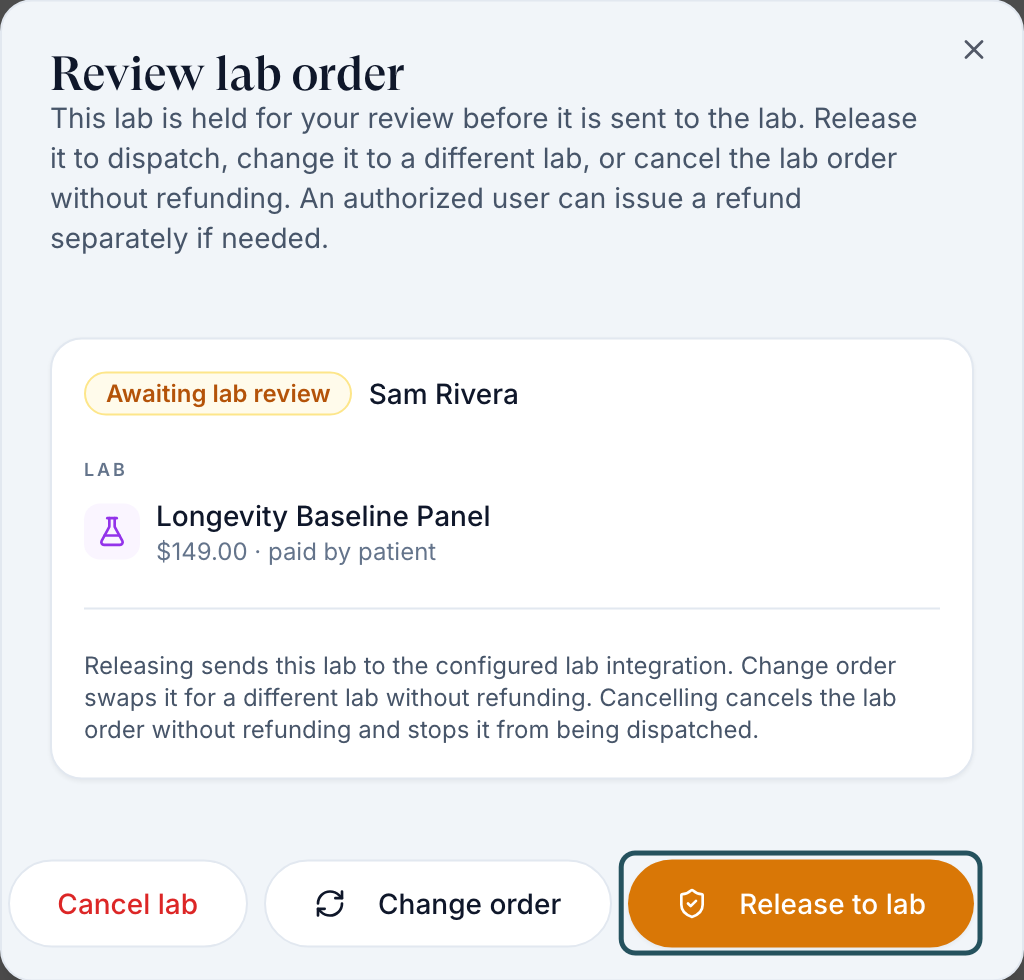
Use this when a lab shows Awaiting Lab Review.
Open it
Click Review lab in the Action column.
Decide
Release to lab, Change order or Cancel lab. None of them refunds.
Check the result: the toast reads Lab order released — sending to the lab.
Access: Client Admin. Client Staff see Awaiting review.
In a clinic: after an on-site draw, open the order and click Mark draw complete (both roles).
What's on this page
| Control | What it does |
|---|---|
| Tiles at the top: Total Orders, Collected payments, Approved order value | Counts and totals across all your orders, not just the rows shown. Collected payments reads All time · before refunds. If the orders fail to load, the tiles show —. |
| Awaiting Rx review | Prescriptions held for your price check; click Review. |
| Needs medication badge and Choose a medication dialog | The badge sits under the status pill on a custom-protocol order whose medication was deleted from the formulary. Client Admin only; open it from the protocol alert link. The dialog says Refills stay paused until you save a replacement. and names each product and the deleted medication. Choose a formulary medication for every product, then click Save medication; the toast reads Medication saved. If the hold is already cleared, the dialog reads No medication to replace and This protocol no longer has an open medication hold.; click Close. |
| Status pill labels | Shipped, Delivered, Error and your own labels. Nothing ships or charges. |
| Lab issues filter | Shows only orders with an open lab issue; the count sits beside the label. |
| Lab issues panel (Order Details) | Lists each open issue and, under Closed issues, the resolved ones. Acknowledge marks the issue as seen. Resolve opens Resolve lab issue?: add an optional Resolution note, then Resolve. It closes the issue for every open diagnostic on the order. If the panel fails to load, it says Unable to load lab issues; click Try again. |
| Replacement for #… and Replaced by #… chips | On a failed Junction lab kit that Super Admin has allowed a free replacement for, the original order shows Replaced by # and the new order's ID once it is ordered; the replacement order shows Replacement for # and the original's ID. They sit under the status pill and in Order Details; click one to open the linked order. In Order Details on a lab order, a line reads Replacement allowed · waiting for patient, Replacement ordered, Replacement revoked or Replacement closed. You can read it; only Super Admin allows or revokes a replacement. |
| State column and All states filter | Shows the patient's US state: the ship-to state on the order, else the state on the patient's profile (— when neither is set). Pick one or more states in the filter to narrow the list. The column is hidden on mobile. |
| Row ⋮ menu | View order opens Order Details. View patient opens the patient's profile and is greyed out when the order has no patient. Edit protocol appears on custom-protocol orders and is greyed out, with a tooltip, when the protocol is locked. |
| Search is updating notice | Appears when some orders are not searchable yet. It says how many of your orders are searchable and that totals include all orders. It goes away once every order is searchable. |
| No orders yet, No matching orders | No orders yet reads Orders will appear here when they are created. No matching orders means your search or filters match nothing; click Clear filters. |
| Export CSV | Downloads the rows shown, including the State column. The status column exports as two columns: Status (payment) and Stage (where the order is in review and fulfilment). A Replacement for column holds the original order's ID on a replacement lab order. |
| Download receipt and Send receipt email | On paid orders, in the row ⋮ menu and in Order Details → Summary. Download receipt saves the receipt as a PDF; the toast reads Downloading receipt…, then Receipt downloaded. Send receipt email emails it to the patient; the toast reads Sending receipt email…, then Receipt emailed to the patient's address. Not shown on unpaid orders or form requests. |
| Payment allocation (Order Details → Summary) | On an order the patient paid, in whole or part, from their wallet balance. Wallet is the amount taken from the wallet and External payment is the amount charged to a card or other method. Refunded to sources appears once any part has been refunded and shows the total returned to both. |
| Update tracking / Update status / tracking (prescription block in Order Details) | Opens a dialog with Status, Tracking Number, Carrier and Tracking URL. Status starts on Keep current status. When the connected pharmacy reports the status, the button reads Update tracking and the dialog shows tracking only. Click Save changes. |
| Link lab result (row ⋮ menu and Action column) | Appears on a product order that is still waiting on required labs. The dialog reads Linking a result unlocks this order and notifies the patient. Choose Link existing result (Choose a result already on this patient's chart.) or Upload result (Add a PDF or image with the draw date.). For an existing result, pick it and click Link result; Back returns to the choice. If the result may not satisfy the requirement, Link this result with warnings? lists each warning first. With no result on file, the dialog reads No lab results on file and Upload a result to unlock this order. If it fails to load, it says Unable to load lab results; click Try again. A linked result shows in Order Details under Lab evidence as Client staff linked this result. |
| Simulate… | Client Admin only, while the account is in sandbox mode, on sandbox orders. In the row ⋮ menu and in Order Details. Opens Simulate visit or Simulate lab order, where you pick a step under Next step to act as the Sandbox Provider; real webhooks fire and Webhook events shows each delivery. |
Statuses you'll see here
| Status | What it means | Who acts next | What you do |
|---|---|---|---|
| Pending Payment | Not paid | Patient | Remind, or mark paid |
| Pending Forms | A required form is unfinished | Patient | Resend it from the profile |
| Pending Review / Under Review / Deferred | With a provider, or they need more | Provider network | Message them if it sits |
| Approved | Provider said yes; prescription in progress | Network or pharmacy | Follow it on Prescriptions |
| Sent to Pharmacy | The pharmacy has it | Pharmacy | Wait for tracking |
| Shipped / Delivered | As reported by the pharmacy | Carrier | Share tracking |
Other statuses: Words and statuses.
What can go wrong
| What you see | Why | Fix |
|---|---|---|
| Shipped never becomes Delivered | Some pharmacies never report delivery. | Use the tracking link, or set Delivered yourself. |
| Staff get Only Client Admin can email patients | Known problem: staff see Send email and Send reminder, but only admins can send. | Ask a Client Admin, or use Message patient. |
| No Refund | Unpaid, marked paid by hand, paid through Whop, or no staff permission. | Refund in your processor, or ask a Client Admin. |
| Cancel order greyed out | Already shipped, delivered, cancelled, refunded, voided or awaiting lab review. | Labs: Review lab. At the pharmacy: OnlyScripts ticket. |
| Patient says they paid; order says Pending Payment | The charge failed or went to another order. | Check Billing → Transaction History; otherwise send Support the order ID. |
| Unable to load orders | The orders request failed. The table is empty and the tiles show —. | Click Try again to load current orders and totals. |
| Order summary unavailable | The totals request failed. Order rows and counts are still available. | Click Try again in the notice to load the financial summary. |
| The export is incomplete. Narrow the filters and try again. | Too many orders match to export in one go. | Narrow the filters, then click Export CSV again. |
| Unable to download this receipt. or Unable to send this receipt. | The receipt request failed, or you were signed out (Authentication required). When the server gives a reason, the toast shows that instead. | Try again; sign in again if it repeats, then send Support the order ID. |
| Choose a formulary medication for every product. or Could not save this medication. Try again. | A product in the Choose a medication dialog has no replacement picked, or the save failed. | Pick a formulary medication for each product, then click Save medication again. Your entries stay in the dialog. |
| You do not have access to this order. or Unable to load order details. Please try again. | Order Details could not open. The first message means the server refused your account for that order; the second means the request failed or you were signed out. | Close the order and open it again; sign in again if it repeats. If the first message persists, ask a Client Admin, then send Support the order ID. |
Related
Was this helpful?