
Daily operations
Patient profile
Open one patient’s details, forms, visits, orders and prescriptions, and leave comments for your team.
Questions people ask
A sandbox visit or lab order for this patient is stuck. How do I move it along?
As a Client Admin in sandbox mode, open the Visits tab and click the row ⋮ → Simulate…. For a lab order, right-click its row on Orders → Simulate…, or use Settings → Developers → Sandbox. Pick a step under Next step to act as the Sandbox Provider; real webhooks fire. Patient emails and texts still go to this test patient.
Can we change a patient's login email from our side?
Yes. Edit Email on the Profile tab; the patient signs in with the new address from then on.
New patient was set up with the wrong provider. How do we fix it?
Change Last provider on the Profile tab; the next completed visit updates it again. To move an open visit, ask your provider network.
She's trying to complete forms. What else does she need to do?
Open Forms for Pending Form Requests, then the Orders tab History. A missing ID photo is a common blocker: patients re-upload it from their portal, or you can Upload it for them on Documents as Patient ID Front.
Can a parent client open the profile of an affiliated client's patient?
Yes, for a Client Admin of the parent client and a patient of a direct affiliated (child) client. Client Staff open only their own client's patients.
Where to find it
Sidebar → Patients → click the patient. Patient names elsewhere in the app also open the profile.
Access: Client Admin and Client Staff. A Client Admin can also open the profile of a patient of a direct affiliated client; Client Staff cannot. Some actions require an additional staff permission, as noted below.
What you can do here
- Update an address or phone
- Help a patient who can't sign in, check out or see forms
- Get a patient approved for a product
- Book a visit or ask the patient to schedule
- Pause, resume or cancel a subscription
- Leave a note for your team
Update an address or phone
Use this when a patient moves or changes number.
Open the Profile tab
It opens first, with Profile Overview at the top.
Change the field
Edit Phone, or the Mailing address fields: Street address, Apt, suite, etc. (optional), City, State, ZIP code.
Click out of the field
Each field saves when you leave it; there is no Save button.
For a driver’s license, complete both Driver's license number and Issuing state on the Profile tab. It saves after both are set and you leave the field or choose the state.
Check the result: a spinner, then a green tick, shows next to the field's label.
Access: Client Admin and Client Staff.
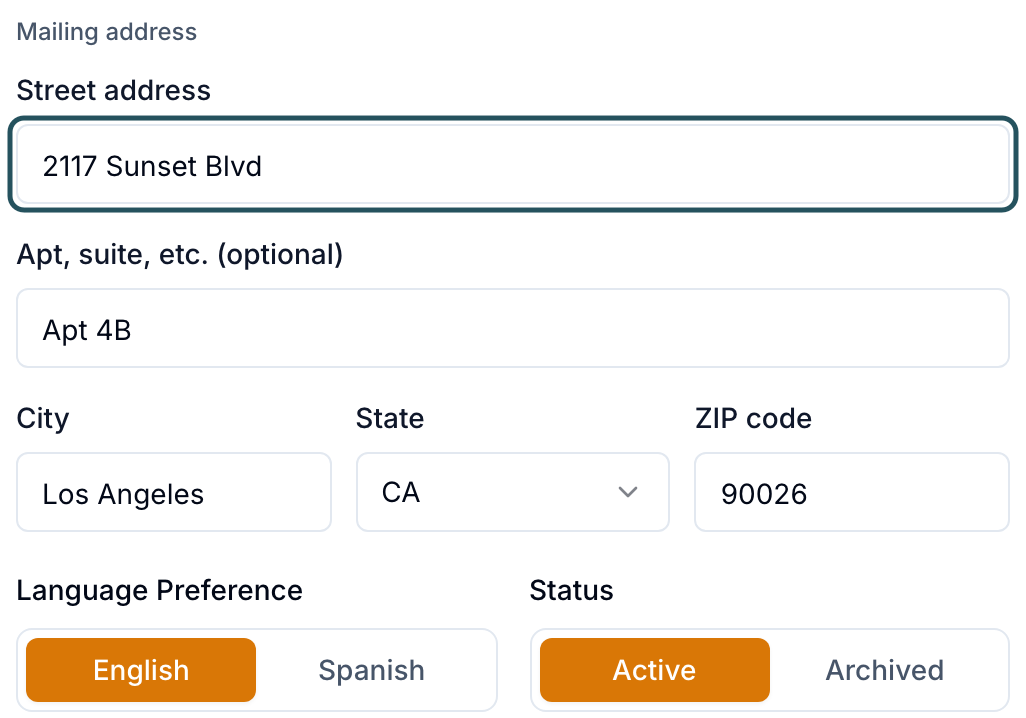
A PO Box puts pharmacy orders on hold. A new address doesn't reach a prescription the pharmacy already has: raise a ticket in Support to OnlyScripts (or your pharmacy). Billing address comes from checkout and can't be edited.
Help a patient who can't sign in, check out or see forms
Use this when a patient says "I can't log in", "checkout won't let me finish" or "I don't see my forms".
Check the status badge
Next to the name. Pending: invite not accepted. Deactive: Patient actions → Activate. Archived: Restore under Status on the Profile tab.
Send a fresh sign-in link
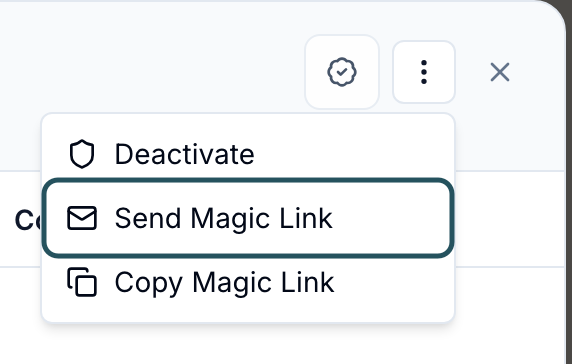
Patient actions (⋮, top right) → Send Magic Link (valid 3 hours), or Copy Magic Link to paste into their conversation.
Check their forms
Forms tab: Pending Form Requests lists what is still open. Request Form sends forms again.
Check the order
Orders tab → click the order; the newest History line names the blocker. Holds such as a PO box or missing driver license are in Messages → Notifications.
Check the result: the toast reads Magic link sent to and the patient's email.
Access: Client Admin and Client Staff.
Get a patient approved for a product
Use this when a provider should review a patient for a product first, such as a transferred patient.
Click Request product approval
The icon at the top, left of Patient actions.
Pick the products
Tick them under Products for approval.
Choose the review
Async review: a provider reviews from the queue, and you choose whether to charge the async review fee. Live (sync) review: the patient books a video visit, with no visit charge. Add a Note for the provider (optional).
Send it
Click Send for review.
Check the result: the toast reads Approval request sent for provider review, or the patient will complete the required forms first.
Access: Client Admin and Client Staff.
To send a product offer (a checkout link), use Products → row menu → Send to Patient. Forms tab → Request Form → Product approval sends only a product's intake and consent forms.
Book a visit or ask the patient to schedule
Use this when a patient needs a video visit.
Click Schedule
Visits tab, top right.
Choose how
Ask Patient to Schedule lets the patient pick the time. Book Visit for Patient books a provider's slot now.
Pick the visit and finish
Pick the visit type, click Continue, answer Is this related to a specific order? and Do you want to charge the patient for this visit?, then click Create Request.
Check the result: the visit shows on the Visits tab.
Access: Client Admin. Client Staff only when a Client Admin ticks Create visits in Settings → Staff permissions.
Pause, resume or cancel a subscription
Use this when a patient asks to skip, restart or stop a plan.
Click the subscription badge
In the header, next to the status: Active subscription, or Subscription · and its state, such as Paused.
Choose the action
Open ⋮ on the subscription, pick Pause (billing stops), Resume (a new cycle starts today) or Cancel (final), then confirm.
Check the result: the toast reads Subscription paused., Subscription resumed. or Subscription cancelled.
Access: Client Admin. Client Staff only with Manage subscriptions in Settings → Staff permissions. No badge means no active subscription.
Leave a note for your team
Write the note
In the Comments column on the right, type in Add a staff comment….
Choose who reads it
Internal is your team only; Shared also shows it to your provider network. Click Post comment.
Check the result: the toast reads Comment posted. Patients never see comments.
Access: Client Admin and Client Staff. You can edit or delete your own.
What's on this page
| Tab | What it does |
|---|---|
| Profile | Contact details, Language Preference (English or Spanish, saved when you pick one), Driver's license (Driver's license number and Issuing state, both optional), Status, Last provider, health history |
| Simulate… (Visits and Labs tabs) | Client Admin only, in sandbox mode, on sandbox records. Opens Simulate visit or Simulate lab order to run the Next step as the Sandbox Provider and see the Webhook events it fires. |
| Allergies (on Profile) | A comma-separated list for clinical context, for example Penicillin, Peanuts. It saves when you click away. |
| Protocol steps (custom protocol dialog) | Shows the order the patient follows: Patient intake, Provider visit (live video visit or async review), Client review (you confirm the order before the patient pays; if it is off, the patient pays as soon as the provider prescribes), then Pharmacy, labelled After the patient pays. Payment alone does not confirm pharmacy submission; a linked order hold or required approval can keep the prescription queued. Added protocols ask the patient only for new intake forms. If the forms fail to load, click Retry intake forms. A product that was removed from the catalogue shows as No longer available. |
| Forms | Submitted forms (View), open requests, Request Form. A submitted form can open with a warning banner: Unverified — awaiting sign-in means the patient submitted it signed out and has not signed in to confirm it, so none of its details were applied to their profile. Details differ — review means the patient confirmed it, but the name or date of birth they entered differs from their profile; those were not changed, so update the profile if the submitted values are correct. If a form's answers don't load, it reads Couldn't load the form responses with This doesn't mean the patient left the form blank. If retrying doesn't help, contact support before reviewing. Click Try again. |
| Products for approval (Request product approval dialog) | Each product row can show icons for what it needs: Live visit required or Labs required. Hover an icon to read the label. |
| Visits | Every visit and its status; Schedule. A visit that is waiting on the patient, or booked and not yet finished, has Copy visit link and Send visit link in its row menu (⋮, or right-click the row). Copy visit link puts the patient's link on your clipboard; Send visit link emails it to the patient. Finished visits don't offer either, and a visit that must be scheduled in an outside system offers only Copy visit link. |
| Orders | Their orders, with Date, Items, Type, Amount, Status (payment, with the stage beneath) and Order # columns. Find one in Search orders… or filter by All types and All stages; click one for Order Details. If the orders fail to load, the count reads Orders unavailable; click Try again to load this patient’s orders. A replacement lab kit shows a Replacement for #… or Replaced by #… chip that opens the linked order. Export CSV adds a Replacement for column. |
| Prescriptions | Row ⋮ → View details for pharmacy status |
| Labs | Lab Results, Lab Orders (a replacement kit carries a Replacement for #… or Replaced by #… chip), Request Lab, Upload Lab |
| Documents | Upload images and PDFs, including ID photos; Add Note |
| Messages | The patient's conversation |
| Activity | What happened on this record |
| Wallet | Client Admin only, and not for accounts on the GFE-only model. Shows the patient's stored Balance; product and lab checkout use it when it covers the full amount. Click Adjust balance, choose Add or Remove, enter the Amount (USD) and a Reason, then click Add or Remove. The toast reads Added to wallet or Removed from wallet. A balance can't go below $0.00. The Activity table lists each change with its date, type, amount, balance, reason and who made it. |
What can go wrong
| What you see | Why | Fix |
|---|---|---|
| No Schedule button on Visits | Client Staff without Create visits | Ask a Client Admin to tick it in Staff permissions. |
| Changing the email created a second account | Known problem: a checkout after an email change can create a duplicate account | Raise a ticket in Support with both emails; GEN Health merges them. |
| A driver's license won't save: Enter the license number., Use up to 20 letters, numbers, or hyphens. or Choose the issuing state. | The number and state must be entered together, and the number is up to 20 letters, numbers or hyphens | Fix the field the message names, then click out of it. If a toast reads Unable to save patient. Please try again., try again. |
| A medication won't save without a dosage | Dosage is required for each medication row | Enter a dosage, or clear the medication name. |
| A document was uploaded to the wrong patient and has no Delete | Only MSO Consultation Notes can be deleted from here | Raise a ticket in Support with the patient's name. |
| Unable to check lab requirements. Please try again. on the Details step of Create Visit | The lab check for that visit option didn't load | Click Try again. Checking lab requirements. shows while it runs. |
| You do not have access to this patient when you open a profile | The patient belongs to a client you can't reach. Client Staff reach only their own client; a Client Admin also reaches direct affiliated (child) clients | Ask a Client Admin of the patient's client, or of its parent client, to open it. |
Related
Was this helpful?