
Daily operations
Prescriptions
Track a prescription, read a failure reason, and request a prescription or refill from your network.
Questions people ask
What does "Queued for review" mean?
The prescription is written and waiting out your network's review window. It can send automatically after the window ends, but a linked order hold or required approval can keep it queued. The countdown does not confirm pharmacy submission.
Can a returning patient refill without doing the intake again?
Yes: Request prescription → Refill request. A provider still approves it; whether a visit is needed depends on your network's rules.
Where to find it
Sidebar → Prescriptions (/prescriptions).
Access: Client Admin and Client Staff. Clinical corrections and prescribing remain with the provider network.
What you can do here
- Find where a prescription is
- Fix a prescription that failed
- Request a prescription or refill
- Start a refill for a patient
- Change a patient's refill reminder
- Void a prescription
Find where a prescription is
Use this when a patient asks "where is my prescription?" or an order says Approved but nothing has shipped.
Find and read the row
Search by medication, patient or email, then read the status (see Statuses). Queued for review shows a countdown, for example Sends in 1h 45m. A linked order hold or required approval can keep it queued after the countdown ends.
Open it
Click the row. Prescription Details shows Pharmacy and Submitted, plus Tracking when a tracking number is available. Where it's offered, Update tracking on the Summary card sets the shipment tracking and the pharmacy status the patient sees.
Check the result: you can tell the patient which step it is on and who has it.
Access: Client Admin and Client Staff.
Who handles what: approval, quantity and directions: message your provider network. Pharmacy delays and shipping: Support → Create Support Ticket → OnlyScripts card. Anything broken in GEN Health: the GEN Health card.
Fix a prescription that failed
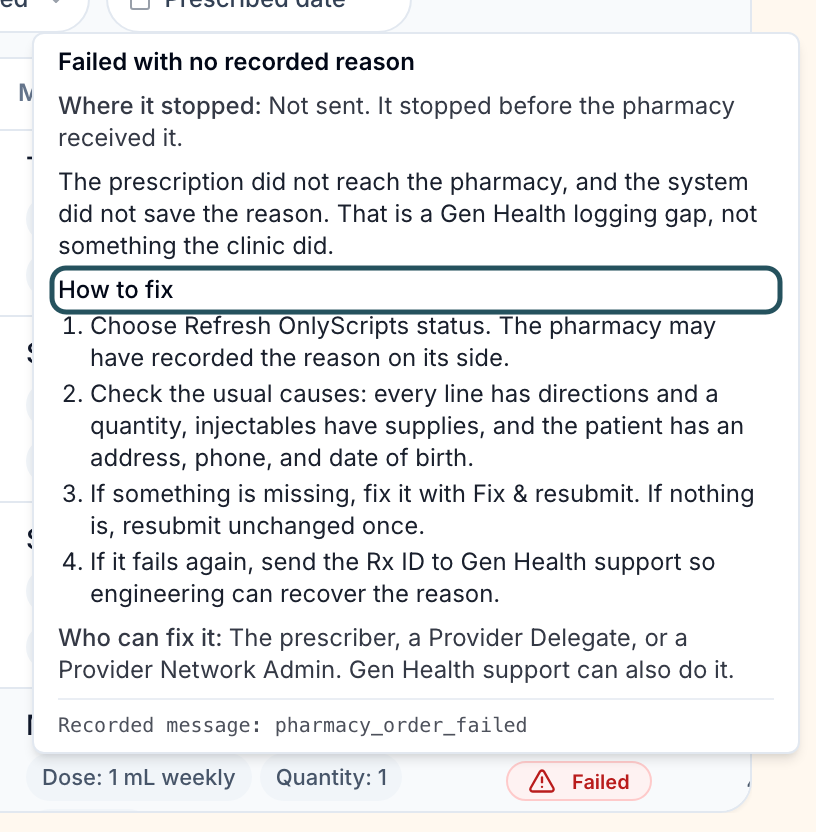
Use this when a status shows a warning triangle, or reads Failed, API Submission Failed or Pharmacy order failed.
Pharmacy payment failure is different from a submission failure. If OnlyScripts already has the prescription, do not write or resend a replacement.
If the medication, quantity or directions are disputed, contact the prescribing Provider and pharmacy before retrying payment or updating the OnlyScripts card. A card update may allow OnlyScripts to retry the existing charge.
OnlyScripts retries failed charges on the existing prescription. On Orders, open the order and use Refresh Rx when offered to check OnlyScripts status.
If payment still fails a day after the pharmacy card is fixed, send the Rx ID to GEN Health Support.
Read the cause
Hover the triangle. The card names the problem, How to fix it and Who can fix it.
Fix patient details
Missing phone or address, or sex other than Male or Female: correct it on the patient's Profile tab.
Fix pharmacy payment
Resolve any medication, quantity or directions dispute with the prescribing Provider and pharmacy before updating payment or retrying the charge.
For No payment method on the pharmacy account or Payment Failed, a Client Admin opens Messages → Notifications → Other notifications. Use that prescription’s Update payment method, then Try again, when offered.
If the Client’s card applies, use Integrations → Pharmacies → Update OnlyScripts payment method. If unclear or still failing, ask OnlyScripts and your network; GEN Health Support can investigate the Rx ID.
Send it again
For a submission failure only: Open the prescription. If a Submission stuck card shows, click Retry submission. Otherwise ask your network to review the failure before resubmitting. Do not use this step for a pharmacy-held payment failure.
Video scope: This clip shows how to inspect an error.
- Client Admin and Client Staff use Retry submission only when the Submission stuck card offers it.
- Fix & resubmit is a provider-network correction for a failure before pharmacy acceptance.
- For a pharmacy-held payment failure, recover the charge on the existing prescription. Do not create or resend a replacement.
Check the result: a successful submission retry moves to Sending, then Sent to pharmacy. For a pharmacy payment failure, check the existing prescription’s refreshed payment status.
Access: Client Admin and Client Staff. Prescriber, license, DEA and clinical-statement causes are fixed by your provider network.
Request a prescription or refill
Use this to ask your provider network to prescribe for a patient you saw, or to renew a past prescription.
Start
Click Request prescription (top right).
Patient
Pick the patient, or a row under Or pick from recent orders.
Encounter
Choose Needs a visit, Visit outside the system, Refill request or Manual entry. For a refill, pick the old prescription under Choose a prescription; no new intake is asked.
Prescription
Complete medication, quantity, days supply and directions. Add any Clinical difference statement the pharmacy asks for.
Fulfillment
Choose Request payment from patient or Send directly to pharmacy, set Patient price, then click Request prescription.
Check the result: the toast reads Prescription request received and is being prepared. The row shows Pending Approval until a provider approves it.
Access: Client Admin and Client Staff. The button is greyed out, with the reason on hover, when no provider network is linked or the network has turned requests off.
Start a refill for a patient
Use this when a patient is due and you want them to refill now.
Open the prescription
Click the row.
Start it
In Refill actions, click Start refill. The same button is in Order Details on Orders.
Check the result: a new refill shows Refill started. The patient was notified to review and submit their forms.; a reused refill shows Patient already has an open refill. They were notified to complete their forms. A new refill appears on Orders. If a refill is already open, the system can reuse it and prompt the patient to finish that refill.
Access: Client Admin and Client Staff, when Start refill is offered. Eligibility also depends on the linked order, prescription and any subscription cycle.
Change a patient's refill reminder
Use this when one patient needs a reminder at a different time from your product default.
Open the prescription
Find Patient messaging rules.
Add the rule
Use Refill preset to add an email 14 days before the last day of supply. For different timing, click Add rule.
- Set an Amount in Hours or Days.
- Choose an Anchor: Creation date, Write date, Submission date, Last day of supply or Delivery date.
- Choose Before or After. Before is available only for Last day of supply.
- Set the channels and message, then click Save rule.
Use the pencil to edit a rule and the trash icon to delete it. Switched-off rules show Disabled.
No messaging rules means none are set; use Add rule. If the card says Messaging rules could not be loaded, use its retry action.
Check the result: the card counts one more active rule.
Access: Client Admin and Client Staff. The default for everyone is on the product's Refill reminders tab.
Void a prescription
Use this only when the row offers Void prescription. Availability depends on the prescription’s state and whether it has already been signed or sent.
Open the row menu
Click the row's actions menu → Void prescription.
Confirm
Fill Void reason, then click Void prescription.
Check the result: the toast reads Prescription voided. Voiding does not refund; refund on Orders.
Access: Client Admin and Client Staff on eligible records. An unshipped prescription is not necessarily voidable. Signed ScriptSure prescriptions cannot be voided here. If the action is unavailable, ask your provider network to review it. A request at Pending Approval cannot be voided; ask your network to cancel it.
What's on this page
| Control | What it does |
|---|---|
| Update tracking (Summary card in Prescription Details) and Update tracking / Update status / tracking (prescription block in Order Details) | Opens a dialog with Status, Tracking Number, Carrier and Tracking URL. Status starts on Keep current status; pick another to change it. When the connected pharmacy reports the status, the dialog reads The connected pharmacy reports this prescription's status. You can still add or update its tracking. and shows tracking only. Click Save changes; it stays greyed out until something changes. |
| Ask the patient (Missing patient details card) | Appears when the patient's record lacks details the pharmacy needs. Fill the fields and click Save, or click Ask the patient to send the request. A confirmation appears on the card, for example Asked. They get an email and a notification in their portal. If patient emails are off or there is no email on file, it says only the portal notification was sent. The button then reads Ask again. |
| Submitted form (opened from a prescription) | If the patient's answers don't load, the form reads Couldn't load the form responses with This doesn't mean the patient left the form blank. If retrying doesn't help, contact support before reviewing. Click Try again. |
Statuses you'll see here
| Status | What it means | Who acts next | What you do |
|---|---|---|---|
| Pending Approval | Your request waits for a provider | Provider network | Message them if it sits |
| Queued for review | Written; waiting for the network's review window (2 hours by default). A linked order hold or required approval can keep it queued. | No one if only the timer remains | Before submission, use Void prescription only when offered. If already sent or acceptance is unclear, ask your network and the pharmacy or OnlyScripts to confirm any needed cancellation. |
| Awaiting patient payment | Waiting for patient payment. A linked order hold or required approval can still prevent submission. | Patient | Send a reminder from Orders |
| Saved | Stored, not sent | Provider network | Ask them to send it |
| Sent to pharmacy / Processing | The pharmacy has it | Pharmacy | Wait; a triangle means a problem |
| Submitting | Being sent to the pharmacy now; the patient sees Processing | No one | Wait, then check the updated status. If an error appears, read its reason before acting. |
| On Hold / Action Required / Need Clarification | The pharmacy needs an answer | Network or you | Hover the status; message your network |
| Failed / Pharmacy order failed | Read the recorded failure reason to see where submission or fulfillment stopped. | You or network | Fix it |
| Payment Failed | The pharmacy charge failed. If the pharmacy already has the prescription, keep payment recovery on that existing prescription. | Client Admin; ask OnlyScripts/network if the payment arrangement is unclear | Recover the payment; do not create a replacement Rx |
| Shipped / Delivered | As reported by the pharmacy | Carrier | Share Tracking |
| Ready for pickup | As reported by the pharmacy | Patient | Tell the patient it is ready |
Patients don’t see most failures; their portal says Processing. More in Words and statuses.
What can go wrong
| What you see | Why | Fix |
|---|---|---|
| Order says Approved, nothing here or at the pharmacy | The provider approved but has not finished writing the prescription. | Message your network with the patient and order. |
| No payment method on the pharmacy account | OnlyScripts has no card to charge for the medication. | Resolve any medication, quantity or directions dispute with the prescribing Provider and pharmacy before updating payment or retrying the charge. Use Update payment method on the prescription’s payment alert when offered. Use the Client’s Integrations card only if it applies. If unclear or still failing, ask OnlyScripts/network or GEN Health Support with the Rx ID. Do not create a replacement. |
| Pharmacy does not dispense to this state | The paired pharmacy doesn't ship to the patient's state. | Pair an eligible pharmacy on Formulary. Ask your network to check the existing prescription before sending anything again. If a pharmacy accepted it, wait for confirmed cancellation before the prescribing team sends a replacement. |
| Patient paid for 3 months but got one vial | Quantity comes from the provider's prescription. | Ask your prescribing network and pharmacy to verify the intended quantity and supply and reconcile the existing prescription before any correction or replacement. |
| Request prescription won't submit | A required field is empty, often directions. | Open each step and complete the fields it flags. |
Related
Was this helpful?