
Setup and catalog
Forms
Build intake and consent forms, assign them to patients or products, and review submissions.
Video note: These recordings show an earlier form builder. Use the written steps for the current tabs and controls.
Questions people ask
Should I be using the forms I've created, or the network's?
The network's are required for its products and run automatically. Add your own only for extra questions or consents.
We need a generic intake questionnaire URL.
Build the form, then copy its public link.
How do I see what forms a patient is missing?
Open the patient's Forms tab, or their order on Orders; Request Form resends them.
Where to find it
Sidebar → Forms (/forms). Use Patient intakes, Clinical intakes, Patient consents or Submissions.
Access: Client Admin manages forms. Client Staff can read forms and work in Submissions.
What you can do here
- Build an intake form
- Attach a form to products, or require it for everyone
- Collect a signed consent
- Share a form as a public link
- Turn a PDF into a form
- Review submissions
What is on this page
| Tab | Use it for |
|---|---|
| Patient intakes | Your intake forms and quizzes. |
| Clinical intakes | Network-required clinical intakes and the client wording or mappings available to your account. |
| Patient consents | Your consent forms. |
| Submissions | Patient answers and incomplete public-form starts. |
Build an intake form
Use this to ask questions your provider network's forms don't cover.
Network forms and your forms: Your provider network sets the clinical requirements. Patient intakes and Patient consents hold forms you manage. Clinical intakes shows network intakes and the client wording or mappings available to your account. A product’s Forms tab lists its attached forms.
Start
On Patient intakes, click Add, then Simple form for a blank form with questions on one page. Choose Quiz that recommends products for step-by-step questions, contact details, then the products that fit.
Name it
Click New Intake Form and type the name.
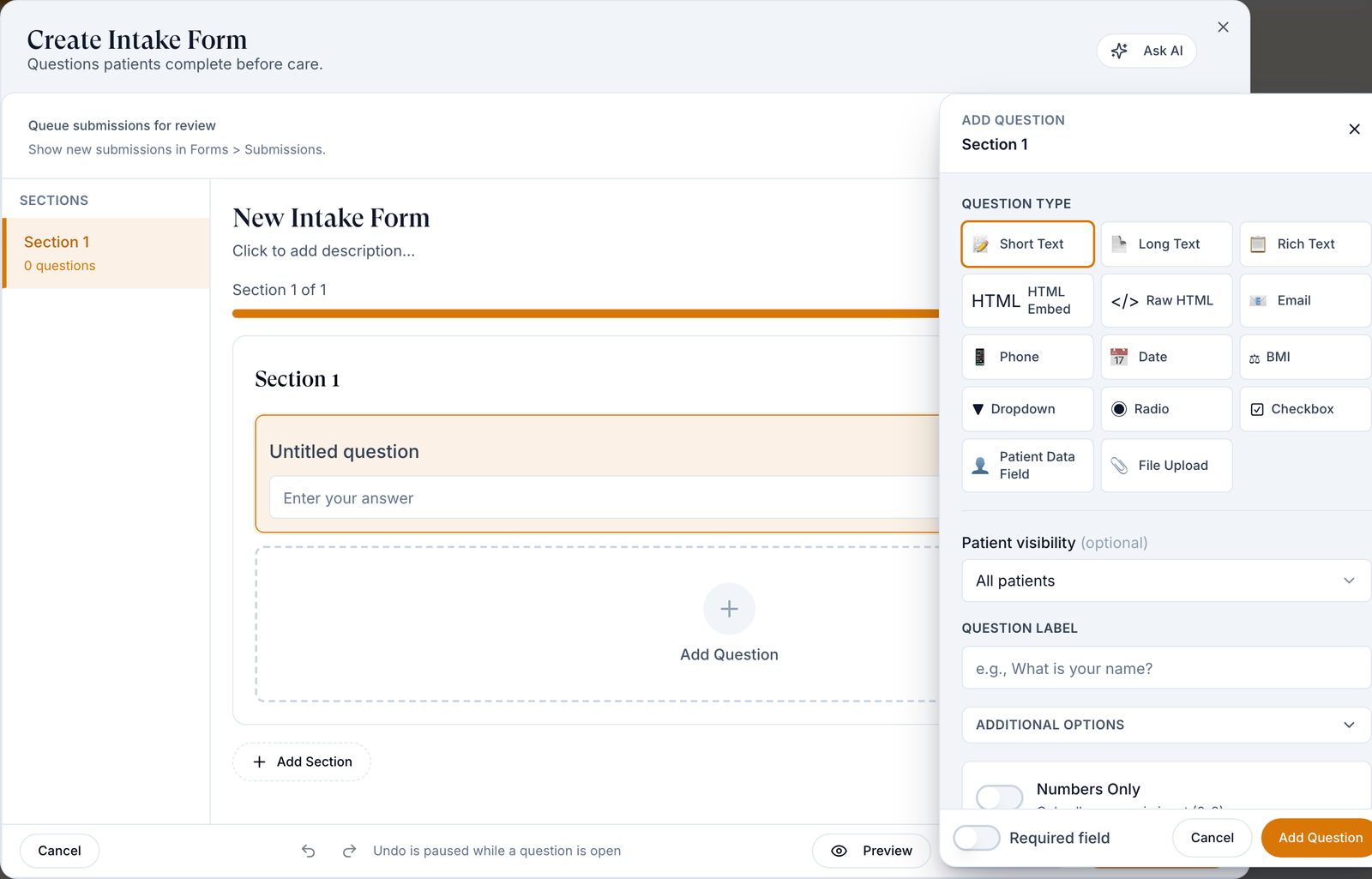
Add a question
- Click Add question.
- Choose a type, such as Short text, Dropdown or Date. Use Search question types to narrow the menu.
- In the question’s side panel, fill the top field, Type the question.
- Switch on Required if needed.
Add more
Click Add question again for the next one. Add section in the outline starts a new page.
Publish
Open Preview in the top bar, then choose:
- Publish to make a new form available, or Save draft to finish later.
- Publish changes for an already-published form. There is no separate save; patients receive edits only after you click it.
To take a published form off patients’ screens, open the arrow beside the button and choose Move to draft. Confirm Move this form to draft?, or choose Keep it published to cancel. Publish again to restore it.
Check the result: the toast reads Intake form published, or, on a first publish, the Your form is live panel opens with the public link (see Share a form as a public link). Next, target it, or nobody is asked to fill it in.
Access: Client Admin.
Attach a form to products, or require it for everyone
Use this to decide who must complete a form.
Open targeting
Click Click to assign in the Product column, or row menu ⋮ → Manage Targeting.
Choose who
Require for ALL patients, or Require for specific products or categories and tick them under Products or Categories.
Save
Click Save targeting.
Check the result: the toast reads Form targeting updated and the Product column names the products. Visits take forms under Attached forms on Visits.
Access: Client Admin.
Collect a signed consent
Use this for an acknowledgement each patient signs once.
Build it
On Patient consents, click Add → Create it on your own. Add a Rich text question with your wording and switch on Require Signature or Require Acknowledgment.
Require it
Publish, then Manage Targeting → Require for ALL patients.
Check the result: new patients are asked to sign. Signed copies are saved to the patient's Documents.
Access: Client Admin.
Share a form as a public link
Use this for a sign-up or pre-screen from an ad or your website, with no account needed.
Turn it on
Row menu → Turn on public link. A form's first publish turns it on for you, unless you already turned it off.
Copy it
- In the row menu, choose Copy public link. Open public link shows the patient view.
- If the row has Copy link, it copies the same public link.
- In a published form’s builder, click Share for Copy link, Open link and the QR code: Scan to open the form on a phone.
Check the result: the toast reads Public link copied. Turning the link on shows Public link enabled. The link never expires; use Turn off public link when the campaign ends.
After a patient submits, their answers are saved and the page reads Check your email (unless you set your own success title) with We sent a sign-in link to their address; sign in from it to continue. It adds Your answers are saved. The details you entered are added to your account only after you sign in. They open the link to continue. Go to login is also on that page.
Access: Client Admin.
Turn a PDF into a form
Use this to start from an existing paper form.
Upload
Click Add → Upload a PDF, name it and choose the file (PDF or image, up to 10 MB).
Check it
Click Generate Form, then read every question the builder filled in before you publish.
Check the result: the builder opens with the questions in place.
Access: Client Admin.
Review submissions
Use this to act on answers before a provider sees them, or to chase unfinished public forms.
Open the queue
Click Submissions. Patient submissions lists answers from forms with Queue submissions for review switched on in the builder.
Act on one
Click Review, then Request forms, Request prescription or No action.
Check the result: the row's Status changes from pending. In-progress form starts lists people who began a public form and stopped.
Access: Client Admin and Client Staff. Request prescription appears only if your network allows client requests.
Every setting on this page
The builder's top bar switches between Build, Logic map and Preview. Form settings holds the form-level options, and an issues button appears when something needs fixing before you save or publish. On the list, a funnel's row has Copy link and Insights shortcuts, and a form's Storefront appearance reads Publish the form first until it is published. The question library is titled Required questions, with a Find a question search box. The Outline on the left lists every question; drag Resize outline or Resize side panel to change the widths. In a question's side panel, Visibility sets who sees it (Add condition, under Shown when) and Answer logic sets which answers disqualify the patient or open follow-up questions. Question text holds the wording in both Build and Logic map, and a Help text group holds the line shown below the question and the placeholder. On a choice question, Answer source switches between Custom answers and Catalog, Layout sets how answers are drawn, and Answers lists each answer. Open an answer to edit its Answer text or click Remove answer; New answer and Add answer add one. The Clinical intakes tab lists the intakes your provider networks require from your patients; click a row to reword your own version of one. It reads No clinical intakes yet until a network requires one. In that editor, a question's Maps to group says which network question the answer becomes, so the network still gets what it needs. When two or more yes/no questions each answer a network question, Combine questions in the question's side panel merges them into one checkbox. In the Text group of the question menu, Message to care team is a long-text question whose answer goes to the patient's care team in Messages when their visit is created; its side panel reads Posted to the patient’s care team in Messages when their visit is created. Blank answers aren’t sent. It isn't offered when you edit a clinical intake. The form assistant has a Whole form option for letting it change every section. On a quiz that recommends products, the assistant's suggestion buttons before your first request include Copy network intake, which rebuilds your provider network's intake as one question per step, and Branch by answer, which adds a decision tree that sends each answer down its own steps. On the Logic map, hover an answer and drag its plus onto a step or a product. Preview a patient lets you pick answers on the map plus the patient's Sex assigned at birth (Not set, Female or Male), age, height and weight; Steps this patient never sees grey out. Reset answers and patient clears the choices and Stop previewing closes the panel. While the form assistant is changing the form, a pill reading AI is editing this form appears at the top of the canvas and the canvas is locked until it finishes. On a step-by-step form, Form settings → Patient experience → Display offers Static, which reads One step at a time. The next one replaces it, with the entrance you pick. On the Submissions tab, if a patient's answers don't load when you click Review, the form reads Couldn't load the form responses with This doesn't mean the patient left the form blank. If retrying doesn't help, contact support before reviewing. and a Try again button.
| Setting | Where | What it does |
|---|---|---|
| Question text | A question's side panel | The question patients read; type it here or on the form |
| Answer source | A choice question's side panel | Custom answers are choices you write; Catalog shows products, labs, or visits |
| Answer text | Answers, in an open answer | Renames the answer; it keeps its follow-ups and rules, and applies when you leave the field or press Enter |
| New answer | Answers | Wording of an answer to add with Add answer |
| Description | Answers, in an open answer, on a step-by-step form | An optional line under the answer |
| Help text | A question's side panel | A line shown with the question |
| Combined question | Combine questions dialog | The wording of the single checkbox that replaces the questions you ticked |
| Answer for none of them | Combine questions dialog | The answer that clears the others (optional) |
| Embed code or URL | An Embed question | The page or code the form shows inside the question |
| Fit height to content | A Custom code question | The block grows with what the code draws |
| Message | A quiz's When the patient finishes | The text patients read after they finish, beside the Title |
| Patient data field | Save to patient profile on a question | Which field on the patient's profile receives the answer |
| Show why it fits | A quiz's product cards | Adds a line such as Because you said Lose weight to each matched card |
| Network question | Maps to on a question in a clinical intake | The provider network question this answer becomes. Your own question (not sent to the network) keeps it out of the network's data |
| How the answer converts | Maps to, once a network question is chosen | How your answer turns into the network's. For choice questions, Each answer means pairs each of your answers with a network answer (or No network answer); Answers here that mean yes ticks the answers that count as yes, and Also reads ticks the other questions a calculated answer is worked out from |
| Multiply by and Then add | Maps to, for a number that is rescaled | The factor and offset that turn your number into the network's, for example your unit into theirs |
Statuses you'll see here
| Status | What it means | Who acts next | What you do |
|---|---|---|---|
| Draft | Saved, never published; no patient sees it | You | Publish it |
| Published / Unpublished | The Status switch: live, or taken down | You | Flip the switch, or use Publish / Unpublish in the row menu |
| Draft / Published / Unpublished / Archived | The badge under the form's name in the builder's top bar | You | Click Publish, or Publish changes on a published form, to put your edits live |
| pending / reviewed / actioned / dismissed | Where a submission stands | Your team | Review the pending ones |
| Unverified — awaiting sign-in | A banner on a submitted form. The patient submitted it signed out with their email and has not signed in to confirm it, so none of its details were applied to their profile | The patient | Nothing; the details apply after they sign in from the emailed link |
| Details differ — review | A banner on a submitted form. The patient signed in, but the name or date of birth they entered differs from their profile; those were not changed | Your team | Update the profile if the submitted values are correct |
| Asked / Converted / Worked out | In a clinical intake's Check before publishing list, the network question is answered by your question as is, by a conversion, or by a calculation | Nobody | Nothing |
| Needs a fix / Not asked | The network question is only partly answered, or no question answers it. A Blocks publishing: line under Maps to marks what holds publishing back | You | Fix the mapping or add the question back, then Check again |
| Left out | An optional network question you removed | You | Nothing, or Add back under Network questions you left out |
| AI is editing this form | The form assistant is changing the form on the canvas; the canvas is locked meanwhile | The assistant | Wait for it to finish, then review the changes |
What can go wrong
| What you see | Why | Fix |
|---|---|---|
| A form you just saved is missing from the list | The status filter starts on Published, which hides drafts. | Click the × on Published, or pick Draft. |
| Your edits to a published form don't show for patients | A published form has no save step; edits go live only when you publish them. | Click Publish changes before you close the builder. |
| The form assistant reads Your message was not sent. Your prompt and conversation are still here. Try again. | The request did not reach the assistant. | Click Try again. |
| Published, but no patient is asked for it | It has no targeting. | Target it. |
| Patients answer two similar forms | Your form repeats the network's. | Deactivate yours; the network's can't be removed here. |
| Patient told you are not eligible to continue | An answer matched a Disqualifies switch or Disqualify when rule on your form or the network's. | Check your rules; ask your network about theirs. |
| The builder's issues button lists Visibility rule is incomplete | A condition under Visibility has no value, or its age isn't a whole number from 0 to 130 (Finish every patient condition: pick a value, and use a whole age from 0 to 130.). | Finish or remove the condition; this blocks saving. |
| Uploading an image reads Save the form once, then upload images. | The form has no saved copy yet. | Click Save draft, then upload again. |
| Publishing a clinical intake reads Form name is required | The name field is empty. | Type a name, then publish again. |
| Publishing a clinical intake reads We couldn’t check this version. Try again. | The check against the network intake didn't finish; Nothing was published. | Click Check again in a moment. |
| Saving a question to the profile reads Could not save this question to the patient profile., The question was removed before it could be saved to the profile. or Every suggested field key is taken. Create the field under Profile field. | The patient field could not be created or filled in, or the question was deleted while it saved. Your role may also lack permission to create patient fields (Your role cannot create patient fields.). | Try again, or pick an existing field under Profile field. When your role can create fields, the list ends with Create custom field…. If your role cannot create fields, ask an admin who manages patient fields to create one. |
| Combine questions reads Pick at least two questions to combine. or Write the combined question. | Fewer than two questions are ticked, or Combined question is empty. | Tick at least two yes/no questions and type the combined question. |
| Publishing a funnel reads We couldn’t check this funnel. Try again. | The check against the network intake did not finish. | Try again in a moment. |
| Moving a follow-up reads That follow-up already shows for this answer. | The follow-up is already set to show for the answer you moved it to. | Pick a different answer. |
| A patient can't get past a question or date | Known problem with some question types. | Send Support the patient, form and a screenshot. |
Related
Was this helpful?