
Daily operations
Messages
Answer patient messages, inspect held-order notifications, and contact your team or provider network.
Questions people ask
Where did the Provider Network tab go?
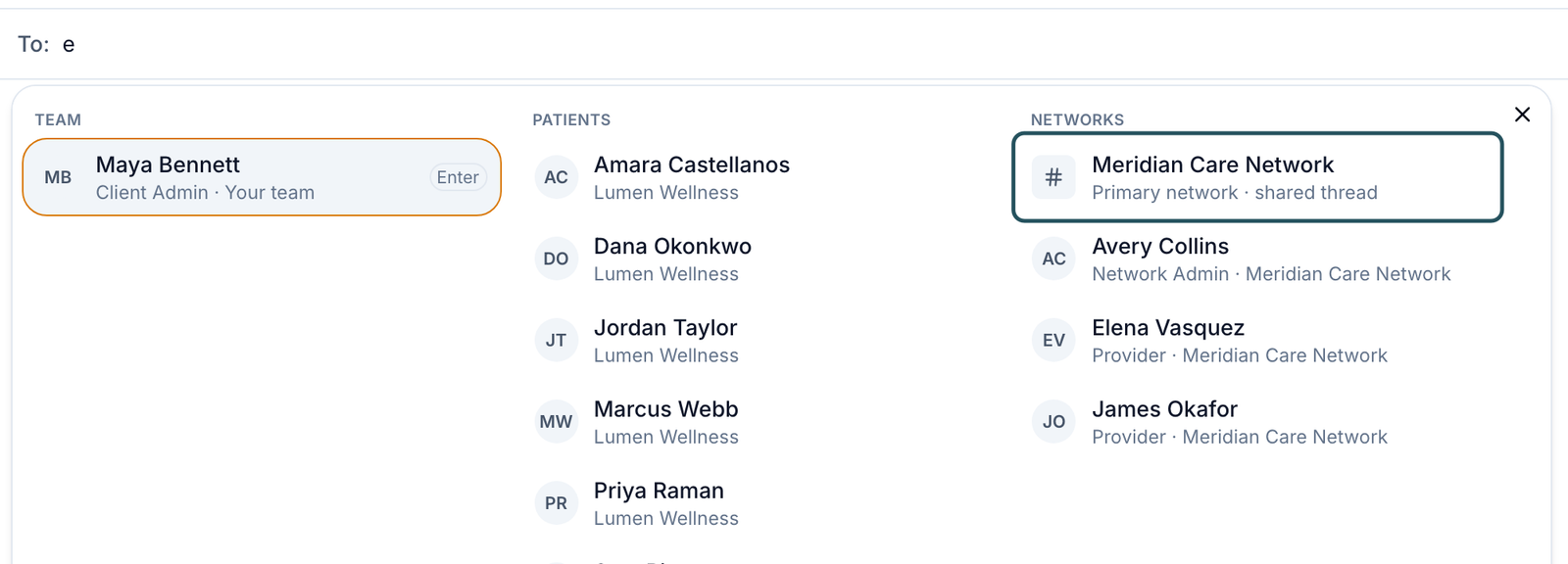
Tabs were replaced by the sidebar. Start a New message, type your network's name and pick the shared thread; after that it stays in your sidebar.
Who can add or remove people in a team channel?
Any Client Admin of your client, not only the person who created it. Client Staff can leave a channel but can't remove others. See Add people to, leave or delete a team channel.
Why are these prescriptions still pending?
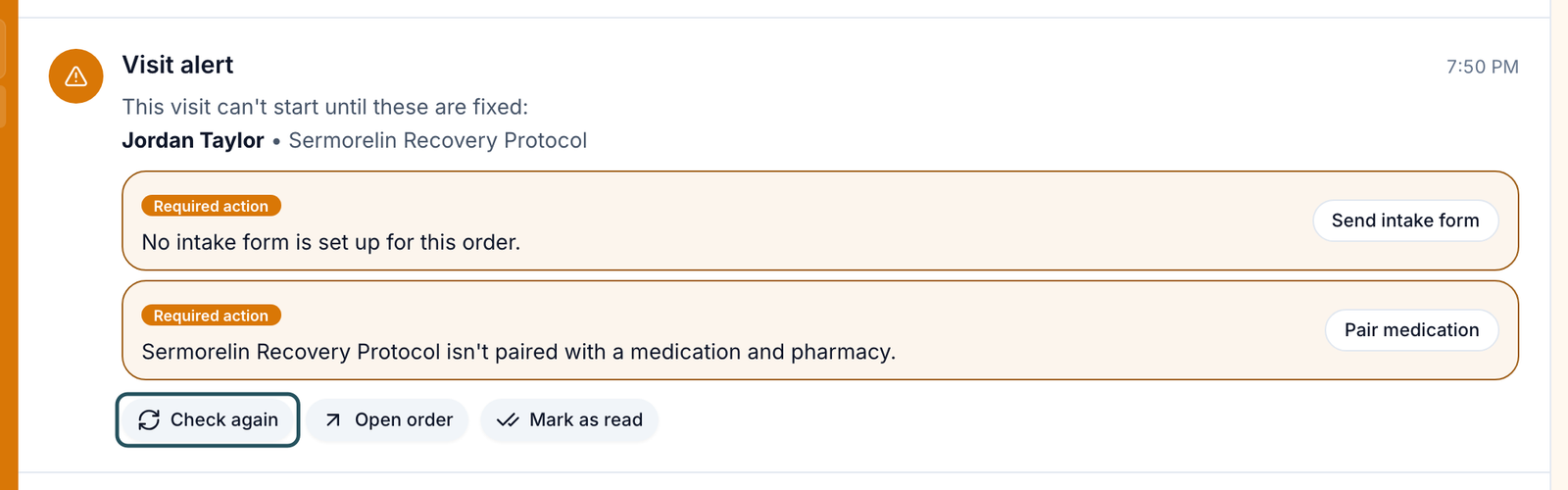
Open Notifications. If it says Pair medication, pair the product, then click Check again.
How do I send this patient a note to finish onboarding?
New message → type their name → pick them under PATIENTS. If they can't sign in, send a magic link from Patients.
Can we text patients from GEN Health?
Yes, once GEN Health assigns your account a local number; ask in Support with the area code you want. Secure texts only a link.
When our patients message, will the providers get notified?
Yes, for conversations they are part of. For anything clinical, use Request provider assistance so it reaches the provider inbox.
Where to find it
Sidebar → Messages (/messages). Open notifications on the Dashboard opens the alert pane.
Access: Client Admin and Client Staff. Messages is not available on Review Only clients.
What you can do here
- Find out why an order is on hold, and clear it
- Answer a patient
- Get a provider to answer a clinical question
- Message your provider network, a provider or a teammate
- Resolve, archive or mute a conversation
- Add people to, leave or delete a team channel
- Call a patient
- Insert or manage a saved reply
Find out why an order is on hold, and clear it
Use this first thing each day, or from the dashboard's Open notifications.
Open Notifications
Top of the sidebar. The number is how many alerts need you. Hold alerts are on the Active holds tab.
Read the alert
Each Visit alert or Order alert names the patient and product and lists every Required action.
Fix each item
Click the button under it: Edit patient, Send intake form, Pair medication, Open products, Add driver license, Set up payment or Manage pharmacies (see Hold reasons).
Click Check again
The order is rechecked at once. Open order shows its details; Mark as read clears it from your count.
Check the result: the toast reads All set. This order can move ahead. If anything is left: This order is still on hold. Fix the remaining items, then check again.
Access: Client Admin and Client Staff. Pairing products and adding pharmacies are Client Admin work.
Answer a patient
Open the conversation
Unreads shows what's new for you; patients are under Patients, or use Find a conversation.
Write and send
Type in the box at the bottom. Before clicking Send, check the text-delivery button beside it:
- Full text sends the whole message.
- Secure sends a link only.
Click that button to switch between the two modes.
Check the result: your message appears in the thread.
Access: Client Admin and Client Staff.
A patient can't message you until they have an order, unless a Client Admin turns on Allow messaging without an order in Settings → Portal experience. Unreads is per person: a colleague's reply doesn't clear yours.
Get a provider to answer a clinical question
Use this for dosing, side effects or other clinical questions.
Open Conversation actions
In the patient's conversation, click ⋮ at the top right, then Request provider assistance.
Send the request
Pick Provider assistance, Medical assistance or Other clinical concern, add an Internal note (the patient doesn't see it), and click Send request.
Check the result: the toast reads Provider assistance requested. and the conversation shows Needs provider. Escalated at the top lists every open request.
Access: Client Admin and Client Staff. The option is missing while a request is already open.
Message your provider network, a provider or a teammate
Use this for operational questions. There is no Provider Network tab any more.
Click New message
The + at the top of the sidebar.
Type a name
In To:, type part of a name. Results are grouped under TEAM, PATIENTS and NETWORKS.
Pick who
Your network's Primary network · shared thread is the Network chat; its admins and providers are listed below it. Browse message types offers Teammate, Patient, Network chat and Network staff.
Check the result: the conversation opens with the network or person in the header.
Access: Client Admin and Client Staff, unless your network switched Network chat or Network staff off.
Resolve, archive or mute a conversation
Open the row menu
Hover the conversation in the sidebar and click ….
Choose
Resolve conversation (while the patient waits for a reply; shared with your team), Archive until next reply (only you), or Mute notifications for a set time.
Check the result: it moves to Resolved or Archived at the bottom of the sidebar, until the patient writes again.
Access: Client Admin and Client Staff.
Add people to, leave or delete a team channel
Use this to change who is in a channel shared by your own team. Only teammates from your own client can join.
Open the member list
Open the channel, then Details → Members. It shows how many members there are and each person's role.
Add people
Client Admins click Add people, search under Teammates (Search your team…), tick each person and click Add followed by the number ticked.
Remove someone or leave
Click Remove beside a member and confirm Remove member. To leave yourself, click Leave beside your name and confirm Leave channel.
Delete the channel
Client Admins: hover the channel in the sidebar, click … → Delete channel, then confirm Delete channel. Members lose access immediately, and message history is no longer available in Messages.
Check the result: the toast reads 1 person added (or 2 people added), You left the channel, or Channel deleted. Removing someone shows their name followed by removed.
Access: any Client Admin of the client can add people, remove people and delete the channel. Client Admins and Client Staff can leave a channel they are in; Client Staff can't remove others. If you are the last Client Admin in the channel, leaving deletes it for everyone, and the confirmation is titled Delete this channel?
Call a patient
Start the call
In the patient's conversation, ⋮ → Call patient (or the call button on the patient profile).
Confirm
Click Start call and allow your microphone.
Check the result: the call panel opens and rings the patient.
Access: Client Admin and Client Staff, once GEN Health has set up a phone number for your account and the patient has a phone number. Ask in Support for a number.
Insert or manage a saved reply
Saved replies are reusable messages shared with your team. Inserting one fills the composer so you can edit it before sending; nothing sends automatically.
Open Composer shortcuts
Click the shortcuts button in the composer, then type in Search templates and saved replies… or pick from Saved replies.
Insert it
The text lands in the box. {{patient_first_name}} and {{provider_name}} fill in for you. Edit, then send.
Create or edit one
Click Manage, then New or the pencil beside a reply. Enter a Name and Message, pick at least one conversation type, and click Create reply or Save changes. Up to 100 replies.
Add files or forms
Where your account has them on, Files → Add file attaches up to 5 PDFs or images (10MB each). Forms to request ticks intake or consent forms for the patient to complete.
Check the result: the toast reads Saved reply created or Saved reply updated. Delete with the bin icon and confirm Delete saved reply?; the toast reads Saved reply deleted.
A staged form shows as a Form request · sent securely chip you can remove before sending. Forms go to the patient only, so remove them to post a team note. After sending, the message carries a form card; the patient clicks Go to dashboard to complete it.
Access: everyone can insert; only people allowed to manage saved replies see Manage.
What is on this page
The Notifications pane splits alerts into two tabs, each labelled with its name and a count. Active holds is open first. A tab with nothing in it reads No active holds or No other notifications.
| Tab | What it holds |
|---|---|
| Active holds | Hold alerts that are still unresolved. Work these first. |
| Other notifications | Every other alert, plus hold alerts that are already resolved. |
A Prescription alert titled Payment has not arrived sits under Other notifications when an order is still unpaid. It has Open order, Mark resolved and Dismiss. When the patient can still pay, it also has Send reminder again, which emails the patient; the toast reads Reminder sent to and the patient's name. Mark resolved opens a Tracking note box; the alert then reads Resolved. followed by your note. Dismiss only snoozes it.
On other pages, open conversations sit as bubbles at the bottom right. Hover a bubble and click × to close that conversation (tooltip: Close conversation with and the name). On a small screen the button always shows.
In a team channel, Details → Members lists everyone under Conversation members, with a role badge. Add people opens a dialog that says Only teammates from your own client can join this channel. An empty list reads No members listed with Add teammates to start the conversation.
Every setting on this page
| Field | What it does |
|---|---|
| Tracking note | Required when you click Mark resolved on a Payment has not arrived alert. Leaving it empty shows Add a note before resolving. |
Hold reasons you'll see in Notifications
| The alert says | What it means | Who acts next | What you do |
|---|---|---|---|
| The delivery address is a PO Box. / …home address is incomplete. | The pharmacy can't ship | You | Edit patient: enter a full street address |
| …needs the patient's driver license number and state. | The pharmacy requires ID | You | Add driver license, fill it in, Save driver license |
| No intake form is set up for this order. / …intake form has no answers yet. | The provider has nothing to review | Patient | Send intake form, then message the patient |
| …isn't paired with a medication and pharmacy. / …isn't linked to a product in your catalog. | Catalog setup is missing | Client Admin | Pair medication or Open products |
| …has no payment method on file. | The pharmacy payment setup needs attention | You | For a failed prescription, follow pharmacy payment recovery before updating payment or retrying the charge. For this Client’s setup, use Set up payment only if that payment arrangement applies. |
| None of your pharmacies deliver to the state | No pharmacy covers that state | Client Admin | Manage pharmacies |
What can go wrong
| What you see | Why | Fix |
|---|---|---|
| A patient says they can't send a message, or has no Messages tab | No order yet | Ask a Client Admin to turn on Allow messaging without an order. |
| A conversation stays unread after a colleague replied | Unread is per person | Open it yourself. |
| Something went wrong, taking you back to a safe place | Known problem on some conversations | Refresh. If it repeats, raise a ticket in Support with the patient's name. |
| Your network says it can't see a patient's reply | Known problem on some conversations | Raise a ticket in Support with the patient's name. |
| Unable to load your team. / Unable to add members. / Unable to delete the channel. | The request failed | Click Try again in the Add people dialog, or repeat the action. If it repeats, raise a ticket in Support. |
| No Add people, Remove or Delete channel | You aren't a Client Admin of that channel's client, or the channel is no longer active | Ask a Client Admin. Client Staff can only Leave. |
| Forms can only be sent to the patient. Remove them to post a team note. | A saved reply with forms is staged on a team note | Remove the form chip, or send in the patient conversation. |
| These forms are already on file, so no new request was sent. | The patient already completed them | None; your message still sends. |
| The reminder email was not sent. Try again. | The request behind Send reminder again failed | Click Send reminder again once more. If it repeats, raise a ticket in Support. |
| Unable to save this reply. / Unable to upload this file. / Unable to load forms. / Unable to delete this reply. / Unable to load conversation label settings. | The request failed | Try again (Try again reloads the form list). If it repeats, raise a ticket in Support. |
Related
Was this helpful?