
Reference
Support
Find a quick answer, contact the right support team, and follow up on patient requests.
Common questions
Why is an order stuck?
Read the newest entry in the order’s History to find the next action. Check an order’s next action.
Where is a patient’s shipment?
Check the order’s Fulfillment details and tracking link before contacting the pharmacy. Find shipment tracking.
Does cancelling an order refund the payment?
Cancelling an order and refunding its payment are separate actions. Cancel an order. Refund or void a payment.
How do I correct a patient’s address?
Update the patient profile and contact the pharmacy if it already has the prescription. Correct an address.
Why are no appointment times available?
Your provider network sets provider hours, licensed states and booking notice. Check appointment availability.
Where do I check a patient’s unfinished forms?
The patient’s Forms tab lists Pending Form Requests. Check forms and other account blockers.
Where do I follow a lab order and find results?
Follow the order through collection and results, then check the patient’s Labs tab. Follow a lab order.
Why is a medication missing for a product or state?
Check the product’s medication pairings and pharmacy shipping coverage. Check medication pairings. Check state coverage.
Where do I check whether a patient paid?
Find the patient’s charge before deciding what payment action to take. Check a patient payment.
How do I give a patient a receipt?
Go to Orders and open a paid order. In Summary, choose Download receipt or Send receipt email. Find the receipt controls.
How do I start a refill for a patient?
Start a refill from the prescription’s Refill actions. Start a patient refill.
How do I stop or pause repeat orders?
Open the subscription to pause, resume or cancel it. Manage a subscription.
How do I help a patient sign in?
Send a fresh magic link from the patient’s row menu. Send a patient sign-in link.
How do I get a provider to answer a patient’s clinical question?
Send a provider assistance request from the conversation. Ask a provider to reply.
A pharmacy payment failed. Should we send the prescription again?
If the medication, quantity or directions are disputed, contact the prescribing Provider and pharmacy before retrying payment or updating the OnlyScripts card. A card update may allow OnlyScripts to retry the existing charge.
If the pharmacy already has the prescription, do not create or resend a replacement. Patient checkout and pharmacy billing are separate.
A Client Admin opens Messages → Notifications → Other notifications, finds the prescription’s payment alert and uses Update payment method, then Try again, when offered.
Use the Client’s card in Integrations only if that payment arrangement applies. If unclear or still failing, ask OnlyScripts and your provider network; GEN Health Support can investigate the Rx ID.
Submission failures need different steps. See Fix a failed prescription.
Questions people ask
Should a late shipment go to GEN Health or OnlyScripts?
OnlyScripts. Pick the patient and the order so they can look it up with the pharmacy. Check the order's tracking on Orders first: many "late" orders have shipped.
Who changes a dose, quantity or directions on a prescription?
Your provider network. Only the provider can send a corrected prescription.
Why does it ask me to select a patient?
OnlyScripts tickets need the patient and the exact prescription or order so the pharmacy can find it.
Can my staff see tickets I created?
Yes. Your Support Tickets shows tickets from everyone on your team.
Where to find it
Sidebar → Support (/support).
Access: Client Admin and Client Staff.
What you can do here
Choose who to ask
Use this before every ticket. Pick the recipient who handles your question:
GEN Health: the software
Logins and access, settings, billing and payments, integrations and the API, anything broken, lab ordering problems.
Your provider network: clinical care
Reviews that sit, denials, doses and quantities on a prescription, protocols and new products, licensed states, visits and scheduling. The card shows your network's name.
OnlyScripts: the pharmacy
Where a shipment is, tracking, a pharmacy rejection or hold, medication questions (storage, vial size), pharmacy availability, an address change after the pharmacy has the order.
Check the result: the topics offered after you pick a card match your question.
Access: Client Admin and Client Staff.
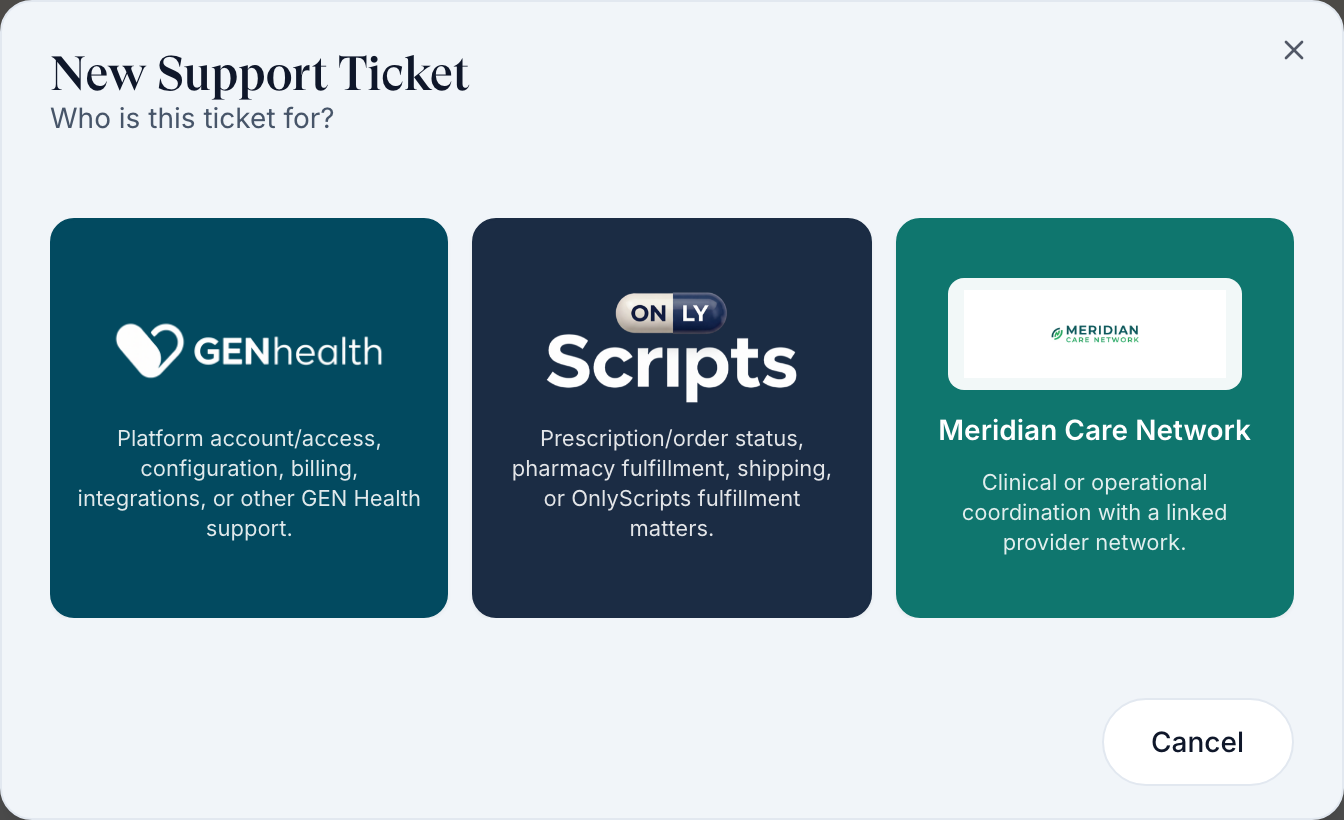
Who handles what: Ask your provider network about prescription changes.
If a pharmacy already accepted it, ask the pharmacy or OnlyScripts to confirm any needed cancellation before the prescribing team sends a replacement. Voiding it in GEN does not recall the pharmacy’s prescription.
Create a ticket
Use this when a guide doesn't solve it.
Start
Click Create Support Ticket (top right) and pick the recipient card.
Pick a topic
Click the card that fits, such as Orders & fulfillment or Technical issue / bug.
Describe it
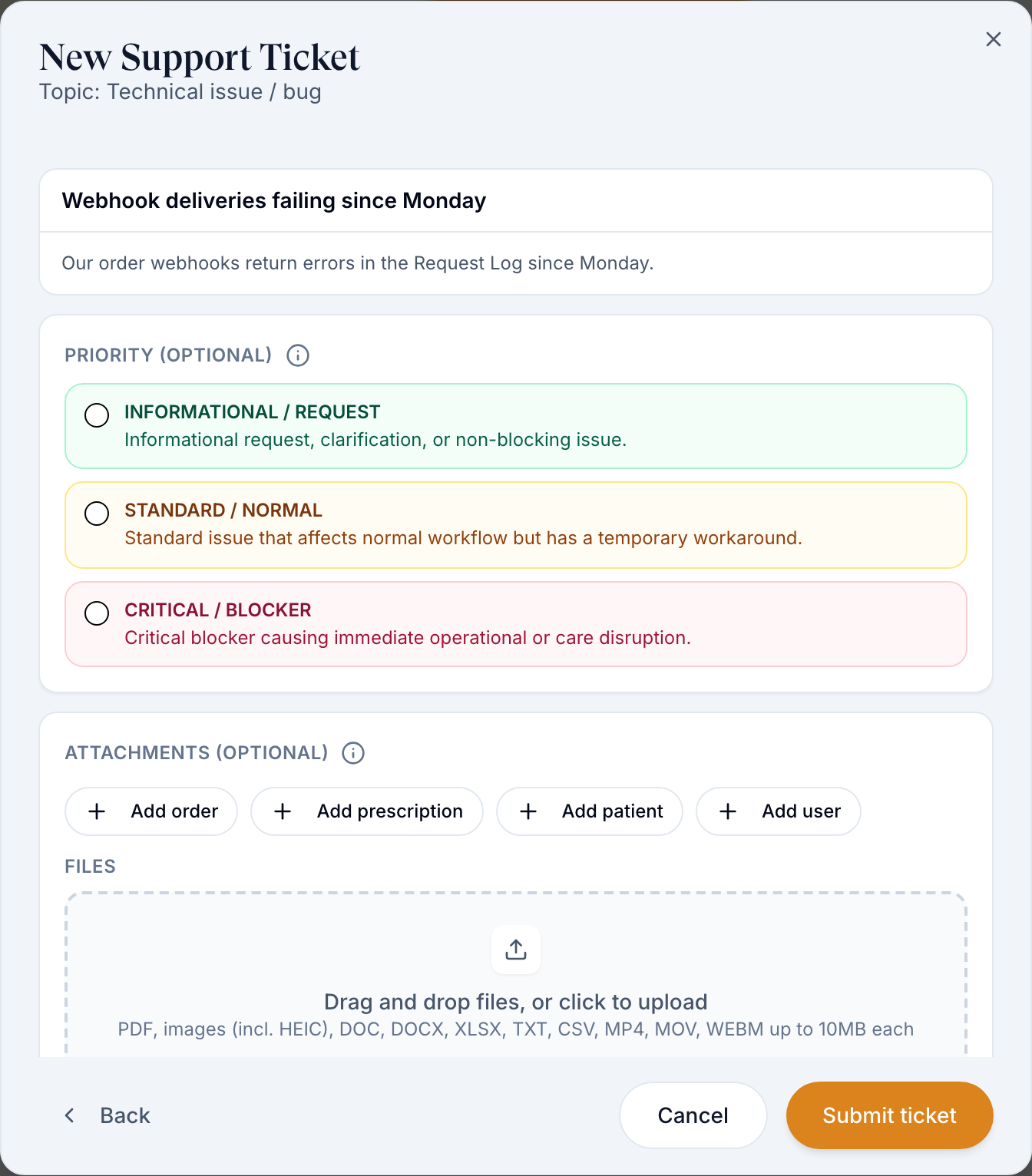
Fill Subject (one line) and Description. OnlyScripts tickets need the Patient and then the prescription or order. A Prescriptions ticket to your network needs the pharmacy.
Check related help
As you type, Related help may show the answer. This answered my question closes without a ticket.
Click Next
Pick a priority if you like (Informational / Request, Standard / Normal, Critical / Blocker) and attach records with Add order, Add prescription, Add patient or Add user, or drop in files.
Submit
Click Submit ticket.
Check the result: the ticket is listed on Your Support Tickets as Submitted.
Access: Client Admin and Client Staff.
Follow up on a ticket
Use this to answer a question from support or add details.
Open it
Click Your Support Tickets, then the ticket's row. It shows your team's tickets, not just yours.
Reply
Type in Reply to support… and attach files if needed. Response Requested means they're waiting for you.
Check the result: your reply appears in the thread.
Access: Client Admin and Client Staff.
Answer patient requests
Use this when patients send requests from their portal.
Open Incoming Requests
The tab lists requests your patients sent your team. Click one to read it.
Reply and track
Reply in the thread, set Status and Priority, and assign it to a teammate.
Check the result: the request's status changes in the list.
Access: Client Admin and Client Staff. Patients can send requests only if you add Support to their menu: Settings → Portal experience → Patient dashboard → Sidebar menu.
Statuses you'll see here
| Status | What it means | Who acts next | What you do |
|---|---|---|---|
| Submitted | Sent, not picked up yet | The recipient | Wait |
| Processing | Someone is working on it | The recipient | Wait |
| Response Requested | They need your answer; it closes itself after three days without one | You | Reply |
| Complete / Cancelled | Closed | No one | Not solved? Answer No to Was your issue resolved? to reopen it |
Other statuses: Statuses and terms.
What can go wrong
| What you see | Why | Fix |
|---|---|---|
| The new tab could not be opened. Use Open file below. or Allow this browser to open a new tab, then try again. | Your browser blocked the new tab for an attachment on a ticket. | Allow pop-ups for the site, then click Open file. If it says Unable to open the attachment, try again, or ask support to resend the file. |
| Your network hasn't replied | Networks work their own queue, and some reply slowly. | Message them on Messages with the ticket subject. |
| GEN Health replies "ask your provider network" | The question is clinical or about a prescription. | Create the ticket again with your network's card. |
| Prescription or order says Some records could not be loaded. | Known problem with the record list on OnlyScripts tickets. | Try again. If it persists, send the ticket to GEN Health with the order ID in the description. |
| A patient sees patient support is not enabled for this organization | Support isn't in their portal menu. | Add it under Settings → Portal experience. |
Related
Was this helpful?