
Daily operations
Activity
Find who changed an order, patient, visit or prescription, and export the activity history.
Questions people ask
Who changed this order status?
Pick the patient in All patients, filter All events to Order Status Updated, and read Actor.
Staff should see when a patient was emailed a visit or form request. Where is that?
Emails and texts are listed in Settings → Logs (Client Admin). Activity records the change; Logs records the message.
Is this the same as the Activity tab on a patient?
No. The profile tab covers one patient and every client role can open it. This page covers the whole organisation and is Client Admin only.
Can I give a staff member access to this page?
No. There is no staff permission for Activity; make the person a Client Admin if they need it.
Where to find it
Add /activity to your portal address and bookmark it. Activity has no sidebar item.
Access: Client Admin only.
What you can do here
Find who changed an order or a patient
Use this when a status, address or setting changed and nobody knows who did it.
Narrow the list
- Choose a patient in All patients, or paste an order or visit ID into Record ID.
- Narrow further with All events (for example Order Status Updated) and Date range.
Read the row
Newest first. Actor and Role say who did it; Event, Status and Summary say what happened.
Open the details
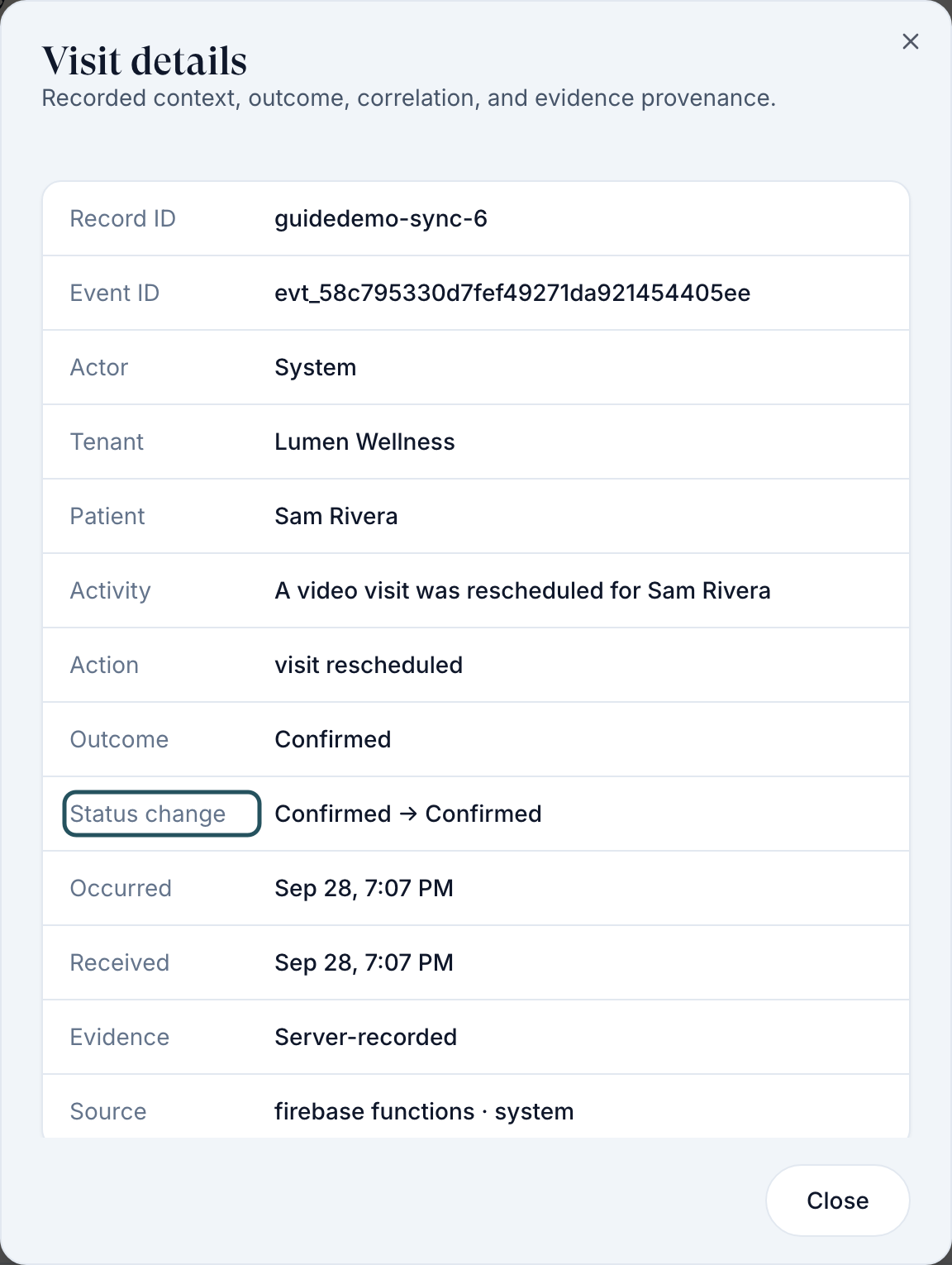
Click the value in Record. Most records open a details window with Status change (old → new), Actor and Occurred; an order opens on the Orders page instead.
Check the result: the details window shows the change and who made it.
Access: Client Admin.
See everything one person did
Click the person's name
In the Actor column (or right-click the row → View user timeline).
Read the Journey
The User activity panel lists their actions, newest first. Close it with the X.
Check the result: the User activity panel opens with their name, role and Journey.
Access: Client Admin, for your own team and patients. For other people the menu shows View user details instead.
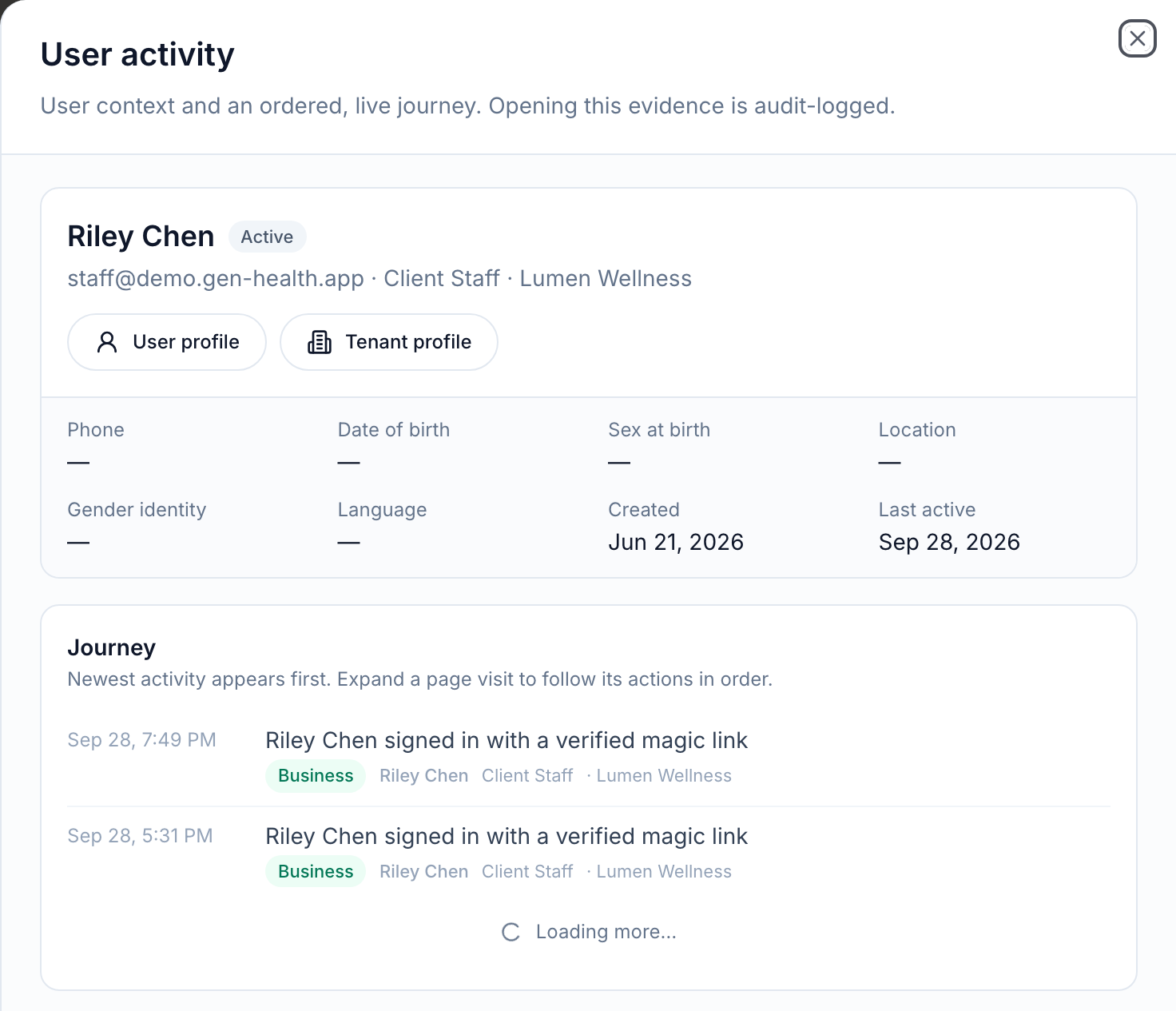
Opening a person's timeline is itself recorded. Use it when you have a reason.
Export activity
Filter first
Set the filters and Date range you need.
Click Export CSV
Top right. Every matching row downloads, not just the ones on screen.
Check the result: the button reads Exporting… and a CSV downloads.
Access: Client Admin.
What's on this page
| Control | What it does |
|---|---|
| Search activity by person, product, tenant, or event… | Free-text search across the feed |
| All categories | Business (real changes), Navigation, Interaction, System |
| All records | Orders, Visits, Chart reviews, Prescriptions, Form submissions, Products, Patients, Providers, Users |
| All roles, All users | Who did it |
| All statuses, All sources | The resulting status, and the system that recorded the change |
| Right-click a row | View order, View patient, View visit and more |
What can go wrong
| What you see | Why | Fix |
|---|---|---|
| Page not found / We couldn't find that page | You are signed in as Client Staff | Ask a Client Admin. Staff can use the Activity tab on a patient's profile. |
| Actor shows — and the summary says actor not recorded | An automatic change (a provider decision, pharmacy update or system step) | Open the record's details and read Source. |
| Clicking an order's Record leaves Activity | Orders open on the Orders page | Use the browser's back button to return. |
| Activity isn't in the left menu | By design | Bookmark the address. |
Related
Was this helpful?