
Settings and admin
Settings — Payments
Choose the patient payment processor, set default shipping, and configure payment options for API orders.
Questions people ask
What is the difference between Payments and Billing?
Both show the same Payment processor card. Billing adds the list of patient charges; this page adds shipping and the API payment options.
Where do I set the price the pharmacy charges us?
You don't; that is the pharmacy's price, shown on Formulary. The Client's pharmacy card setup is on Integrations; whether it applies to a prescription depends on the payment arrangement.
Where to find it
Sidebar → Settings → Payments (/settings/payments).
Access: Client Admin only. Affiliate accounts use the provider network’s processor and do not show its configuration card.
What you can do here
- Connect or switch the payment processor
- Offer PayPal, Klarna, Afterpay or Affirm
- Set the default shipping price
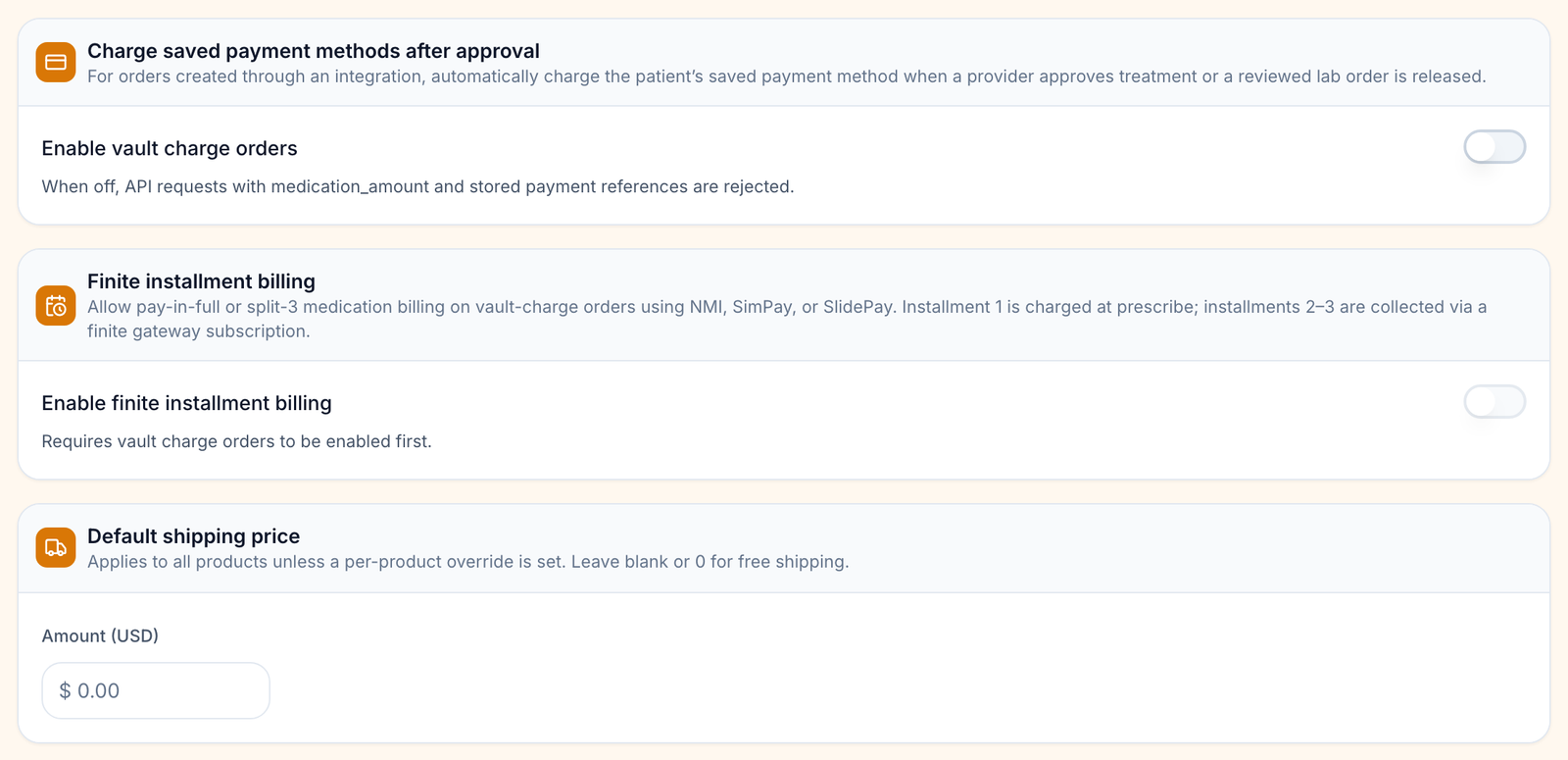
- Charge saved cards when a provider approves
- Offer pay-in-full or split-3 billing
Connect or switch the payment processor
Use this to take real card payments, or to change processor. This Payment processor card is the same one as on Billing; a change in either place applies to both.
Save the keys
Click Edit on your processor's tile, paste the keys, then Test connection and Verify and save.
Make it live
Click Activate on the tile.
Check the result: the tile gets a green outline and check mark. Field names per processor are in Billing.
Frame takes card payments. It has two key sets: sandbox keys (pk_sandbox_…, sk_sandbox_…) for test environments, and production keys (pk_production_…, sk_production_…) for live payments. Outside production, the tile rejects production keys.
Paste the Frame keys
In Frame, copy the Publishable key and the Secret key, then paste them into the Frame tile. Use production keys when you go live.
Add the webhook
- On the Frame tile, click the copy button beside Webhook URL. Check for Webhook URL copied.
- In Frame, add that URL as a webhook endpoint.
- Paste the endpoint’s signing secret into Webhook signing secret.
Frame sends payment and refund updates to this URL.
Check the result: Test connection passes and the Frame tile gets a green outline after you click Activate.
NetValve takes card payments. Its tile reads Card payments. Outside production the tile connects to NetValve's sandbox, so enter sandbox credentials there and production credentials when you go live.
Paste the NetValve credentials
Click Edit on the NetValve tile and fill in Client ID, API key and MID ID.
Add the webhook
- Send NetValve support the tile’s webhook URL, header name
X-GenHealth-Webhook-Token, and your webhook header value. - Enter that value in Webhook header value (24+ characters) on the tile.
The field is marked (optional). It is write-only and appears blank when you reopen the tile.
Check the result: Test connection passes and the NetValve tile gets a green outline after you click Activate.
Access: Client Admin.
Offer PayPal, Klarna, Afterpay or Affirm
Use this to let patients pay with PayPal, Klarna, Afterpay or Affirm beside your card processor. The Alternative payment methods card sits under the Payment processor card. Each method has its own tile, its own keys and its own switch.
Open the method
Click Set up on the PayPal, Klarna, Afterpay or Affirm tile.
- The left side explains where to get keys in the provider’s dashboard.
- Enter the keys on the right. Check whether the window asks for Sandbox or Live keys.
Paste the keys
PayPal: Client ID and Secret, plus an optional Webhook ID. Klarna: Key ID (API username) and Secret (API password). Afterpay: Merchant ID and Secret key. Affirm: Public API key and Private API key.
Check and save
Click Test connection if you want a check first, then Verify and save. The toast reads PayPal keys saved, with the method's own name.
Show it at checkout
On the tile, click Activate. It is greyed out until the keys are saved.
Check the result: the toast reads PayPal activated at checkout and the tile shows a green check and outline, with Active at checkout as its status.
Access: Client Admin. To change keys, click Edit on the tile and use Verify and update. To stop offering a method for good, click Remove and the method's name in that window, and confirm. The saved keys are deleted.
PayPal's optional webhook finishes payments PayPal confirms after the patient leaves checkout. Save your keys first; the Webhook URL appears after that.
Set the default shipping price
Use this to charge the same shipping on every product that has no shipping price of its own.
Type the amount
Under Default shipping price, type a number into Amount (USD), for example 7.50. Leave it blank or 0 for free shipping.
Leave the field
Press Enter or click elsewhere; it saves then.
Check the result: the toast reads Default shipping price updated.
Access: Client Admin. A product's own shipping price beats this one.
Charge saved cards when a provider approves
Use this if your website sends orders through the API with a saved card, and you want GEN Health to charge that card once a provider approves treatment or a reviewed lab is released.
Open your processor
Click Edit on your processor's tile.
Turn it on
Under Saved payment methods, tick Charge saved payment methods after approval, then click Save changes. The option appears only for processors that support saved payment methods.
Check the result: the toast reads Saved payment settings updated and the window closes.
Access: Client Admin. While it is off, API orders that carry a medication amount and a stored card are rejected.
Offer pay-in-full or split-3 billing
Use this to let API orders pay for medication in three installments through NMI or SlidePay.
Turn on vault charges first
Finite installment billing is greyed out until Charge saved payment methods after approval is ticked. The hint under it reads Turn on charging saved payment methods first.
Turn it on
In the same Saved payment methods group on your processor's tile, tick Finite installment billing, then click Save changes. The first installment is charged when the prescription is written; the other two are collected by your gateway.
Check the result: the toast reads Saved payment settings updated.
Access: Client Admin. Refunds on installment orders stay with Client Admin.
Statuses you'll see here
| Status | What it means | Who acts next | What you do |
|---|---|---|---|
| Green check and outline | The live processor | No one | Nothing |
| None active | Test mode — no real charges | You | Connect a processor before launch |
| Saved / Verified | Keys stored, not live | You | Activate to switch |
| Missing keys | Active without keys; checkout is broken | You | Edit and save the keys |
| Not set up (alternative method) | No keys saved for this method yet | You | Click Edit |
| Saved (alternative method) | Keys saved, hidden at checkout | You | Click Activate |
| Active at checkout | Patients can pay with this method | No one | Nothing |
| Verification failed | The provider rejected the saved keys | You | Edit, paste the keys again, Test connection |
| Other environment | The keys belong to the other environment, sandbox or live | You | Edit and paste keys for this environment |
What can go wrong
| What you see | Why | Fix |
|---|---|---|
| Typed a shipping price and nothing happened | It saves when you leave the field. | Press Enter; look for the toast. |
| Shipping charged is different from the default | The product has its own shipping price. | Change it on the product in Products. |
| Finite installment billing greyed out | Vault charges are off. | Tick Charge saved payment methods after approval first. |
| Saved payment settings did not load. in the processor window | The two saved-payment options could not be read. | Click Retry. |
| Frame says the keys are rejected | You pasted production keys outside production, or sandbox keys in production. | Use the Frame keys for the environment you are in. |
| The Activate button on a method is greyed out | No keys are saved, or they belong to the other environment. Hover text reads Add PayPal keys before activating, with the method's name, or Save PayPal keys for this environment first. | Click Edit and save keys for this environment. |
| The provider rejects your keys | Wrong environment, or the secret was mistyped. Klarna shows its secret only once. | Generate and paste a new key set, then Test connection. |
| Afterpay or Affirm doesn't show for an order | Afterpay hides when the total is outside your Afterpay order limits. Affirm declines orders below your Affirm minimum, usually $35 or $50. | Check the limits in your provider account. |
| No Alternative payment methods card | Affiliate account, or a parent client manages your checkout. | Ask your provider network or parent client. |
| No Payment processor card | Affiliate account. | Ask your provider network which processor is live. |
| A Checkout managed by your parent card instead of the processor | Your parent client configures patient checkout and processor credentials from Affiliated clients. | Ask your parent client to change the processor. |
| Looking for the card GEN Health charges you | That is a different page. | Settings → Account and billing. |
Related
Was this helpful?