
Setup and catalog
Integrations
Manage pharmacy connections and payment details, lab vendors, and tools that receive visit notes.
Questions people ask
Why is there an OnlyScripts account connected? We never signed up.
GEN Health creates it during account setup. It gives you the partner pharmacies listed here.
Where is my provider network on this page?
It isn't: Integrations has only Pharmacies, Labs and Tools. Your network shows in the Owner column on Products and as a card on Support. See Link your provider network.
Is the pharmacy card the same as my GEN Health payment method?
No. These are separate payments:
- GEN Health card (Settings → Account and billing): platform and lab fees.
- Patient checkout: your processor (Billing) collects, or the product’s provider network for an Affiliate client.
- Pharmacy billing: Integrations manages this Client’s OnlyScripts setup. Its card applies only to that payment arrangement.
Billed by pharmacy means that pharmacy handles billing under its own arrangement. If the prescription’s arrangement is unclear or a card update did not help, ask OnlyScripts/network; GEN Health Support can investigate the Rx ID.
Which pharmacy gets the prescription if several are paired?
The provider chooses among the paired pharmacies that ship to the patient's state. There's no automatic priority or fallback.
Where to find it
Sidebar → Integrations (/integrations).
Access: Client Admin makes changes. Client Staff can view the page.
What you can do here
- Check the OnlyScripts connection (the API key popup)
- Add or update the pharmacy card
- Control which pharmacy fills by state
- Use your own pharmacy account
- Set up Strive Pharmacy
- Set up Pharmetika
- Turn on a lab vendor
- Send visit notes to your EMR
Check the OnlyScripts connection
Use this when a popup asks for an OnlyScripts API key, or you wonder why OnlyScripts is connected.
Look under Pharmacies
A tick after OnlyScripts account, under Pharmacies, means you're connected. OnlyScripts routes each prescription to the pharmacy. GEN Health created the account when your first Client Admin finished account setup.
Leave the key alone
Clicking OnlyScripts account opens OnlyScripts credentials. Saved beside OnlyScripts API Key means nothing is needed: click Cancel, never Delete.
If setup isn't finished
A Finish OnlyScripts setup box means no key is saved. Raise a GEN Health ticket; use Connect OnlyScripts account only with a key they give you.
Check the result: the tick shows next to OnlyScripts account and pharmacy rows are listed.
Access: Client Admin. Client Staff don't see the OnlyScripts line.
Add or update the pharmacy card
Use this to set up the pharmacy card for this Client’s OnlyScripts payment arrangement.
For a failed prescription, follow pharmacy payment recovery before updating payment or retrying the charge. Use this Client’s card only if that payment arrangement applies.
Open it
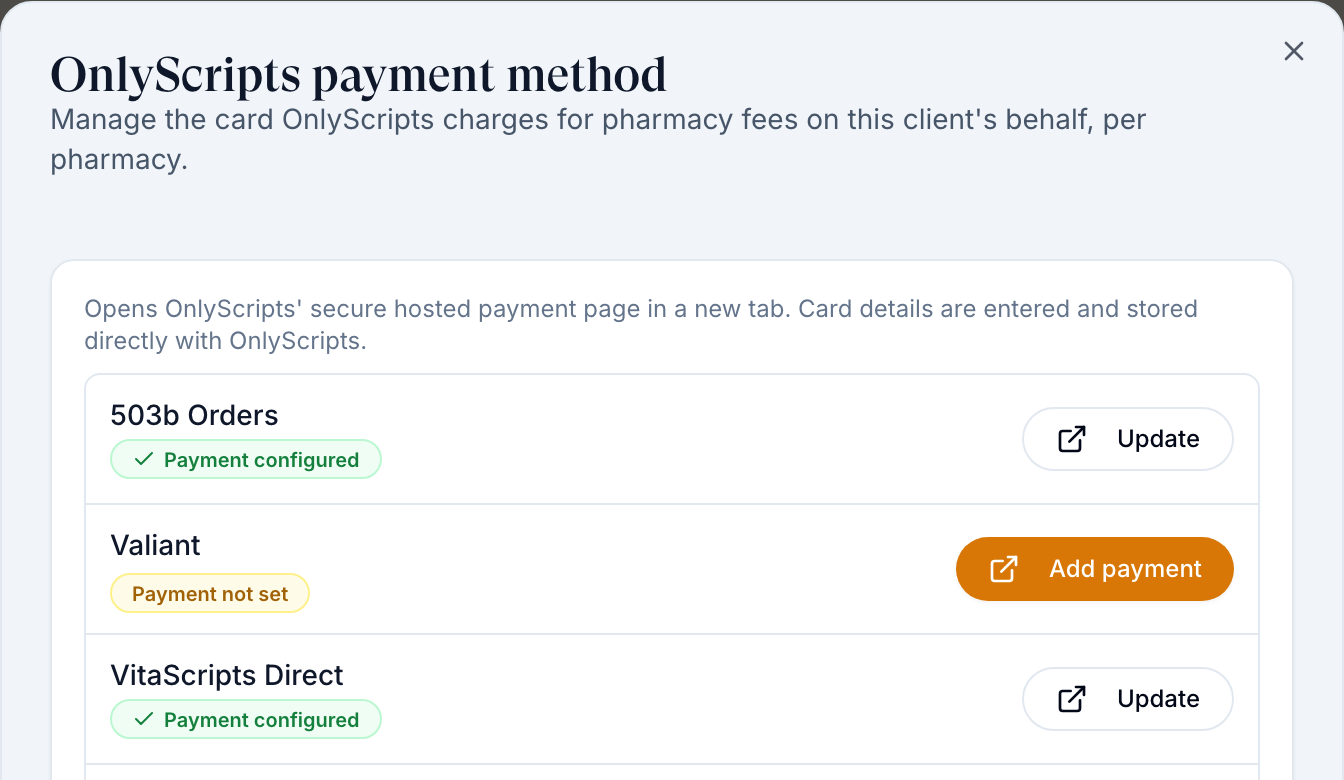
Click Update OnlyScripts payment method, top right of Pharmacies.
Find the pharmacy
Each pharmacy reads Payment configured or Payment not set; OnlyScripts keeps a card per pharmacy. A pharmacy marked Billed by pharmacy bills you directly on your own account, so it has no card and no button.
Add the card
Click Add payment (or Update payment). OnlyScripts' secure page opens in a new tab; enter the card there.
Check it
Close the tab and reopen the dialog.
Check the result: the pharmacy reads Payment configured. OnlyScripts retries failed charges on prescriptions it already holds. Do not create or resend a replacement for a pharmacy payment failure; see pharmacy payment recovery.
Access: Client Admin; Client Staff don't get this button. For a failed prescription, use its payment alert or follow pharmacy payment recovery.
Control which pharmacy fills by state
Use this when a pharmacy doesn't ship to a patient's state, or you prefer one. The provider picks from the pharmacies paired with the product that ship to the patient's state.
Check coverage
Each pharmacy shows All 50 states or a count such as 49/50 states. Hover the count to see Does not ship to: and the states.
Switch off pharmacies you don't use
Turn off a pharmacy's switch so no one can send to it.
Find products with gaps
On Products, open the Formulary filter and pick Partial state coverage.
Pair a backup
On Formulary, pair each of those products with a second pharmacy that ships to the missing states.
Say which comes first
There's no automatic priority: tell your provider network which pharmacy to use first.
Check the result: Partial state coverage no longer lists the product.
Access: Client Admin.
Changing pairings does not reroute a prescription already sent. Ask your provider network and the pharmacy or OnlyScripts to confirm what was accepted and arrange any needed cancellation. Wait for confirmation before the prescribing team sends a replacement.
Use your own pharmacy account
Use this when you have your own pharmacy contract. Get its API credentials from your rep first.
Open the key
Click the key icon on the pharmacy's row. The dialog is {Pharmacy} credentials.
Paste and save
Fill each field and click Save credentials.
Check the result: the key icon turns green (Pharmacy credentials saved).
Access: Client Admin.
Pharmacy Hub asks for an Access key, Customer abbreviation (the account code it routes orders by, for example ARSYNL) and Customer name. Pharmacist note (added to every prescription line sent) and API base URL are optional; leave the URL blank to use the production API.
Pharmetika has no key icon for a client: use Set up Pharmetika instead.
A pharmacy that requires your own account, such as Boom Rx, can't be switched on until its credentials are saved (Add Boom Rx credentials before enabling it.). OnlyScripts did not return credential requirements for this pharmacy means there's no own-account option: ask GEN Health.
Set up Strive Pharmacy
Use this when the Strive row under Pharmacies shows a Set up button (Continue setup once you've started). It opens Set up Strive: Choose how your clinic connects to Strive Pharmacy on GEN Health.
Choose your case
Pick I have a Strive account (Email Strive to connect this clinic’s existing Strive account.) or I need a Strive account (GEN Health is notified and will finish setup. Strive is not emailed.).
If you have an account: email GEN Health
The dialog reads We will email Strive and copy GEN Health. The Recipients panel shows To, Cc and Reply-To as read-only lines. Edit Subject and Message if needed, then click Send email. The toast reads Email sent to Strive.
Paste the practice UUID
- Reopen the dialog with Continue setup.
- Enter the Practice UUID for a child practice on the GEN Health account.
- Click Save practice UUID. Check for Strive Pharmacy is on.
GEN Health can also save the UUID from the child practice list.
If you need an account: pick the holders
The dialog says Confirm the account holders. GEN Health is notified, and Strive is not emailed.
- Tick the emails under Account holders. To add another, enter it under Another email (optional) and click Add email.
- If you see Enter an email like tenant+57857c50b31918@gen-health.app., correct the address.
- Click Send request.
Check for Request sent to GEN Health. The dialog says GEN Health will follow up with instructions.
Check the result: the toast reads Strive Pharmacy is on (own account) or Request sent to GEN Health (new account).
Access: Client Admin.
Set up Pharmetika
Use this when the Pharmetika row under Pharmacies shows a Set up button, or you turn its switch on before setup. It opens Set up Pharmetika: Confirm the clinic details Pharmetika uses for this brand. The partner key is already stored.
Check the clinic details
The dialog fills in what GEN Health holds. Every field is required: Brand name, Email, Phone, Street address, City, State and Postal code. Correct any that are wrong.
Create the brand
Click Create brand. The toast reads {Pharmacy} is on. Cancel closes the dialog without creating anything.
Check the result: the toast reads {Pharmacy} is on.
Access: Client Admin.
Turn on a lab vendor
Use this before you sell lab panels.
Switch it on
Under Labs, turn on the vendor's switch: BioReference, CRL, Labcorp, Quest or USSL.
Build the panels
Go to Labs and activate the panels you'll sell.
Check the result: Labs offers that vendor's panels.
Access: Client Admin. GEN Health decides which vendors appear; lab fees go on your GEN Health card.
Send visit notes to your EMR
Use this to post signed provider notes to a system under Tools, such as DrChrono or Jane.
Switch it on
Turn on the tool's switch. If a toast says Add {tool} credentials to finish enabling it., go on to the next step.
Add credentials
Click Credentials on the row, paste the key from that system and click Save credentials.
Check the result: the switch stays on with no credentials prompt.
Access: Client Admin. Tools come from your primary provider network, which also sets up ScriptSure. Once ScriptSure is connected, its dialog is titled ScriptSure team; an account that can't be changed there shows a Read only badge, and a failed load offers Try again.
What can go wrong
| What you see | Why | Fix |
|---|---|---|
| Verification failed. Credentials were saved. | The values were stored, but the vendor did not accept them. | Update the values and save again to retry verification. Partial credentials saved. Add remaining required fields to verify. means a required field is still empty. |
| Unable to load the webhook API key. Close and reopen this integration. | An integration that sends webhooks (Strive) shows a Webhook API key in its details; it did not load. | Close the integration and open it again. When the key loads, click Copy webhook API key; the toast reads Webhook API key copied. |
| Setup unavailable: Unable to load Strive setup. | The Strive setup details did not load. | Click Try again. |
| Email could not be sent., Practice UUID could not be saved. or Request could not be sent. | The Strive step did not go through. | Check the entries and try again; your edits stay in the dialog. If it repeats, raise a GEN Health ticket. Select at least one account-holder email. means no holder is ticked. |
| The Pharmetika brand could not be created. (or another reason from Pharmetika) in Set up Pharmetika | The brand was not created. | Check the clinic details and click Create brand again; your edits stay in the dialog. If it repeats, raise a GEN Health ticket. The clinic profile could not be loaded. means the details did not load: close the dialog and reopen it. |
| A popup asks you to add the OnlyScripts API key | It's the saved-key dialog; the key was created for you. | Click Cancel. If Finish OnlyScripts setup shows, raise a GEN Health ticket. |
| Dashboard Payment needed: Payment information needs updating for a pharmacy | A pharmacy payment needs attention. | Follow pharmacy payment recovery on the existing prescription. Use this Client’s card only if that payment arrangement applies; do not resend a prescription the pharmacy already has. |
| Unable to load pharmacies in the payment dialog | The pharmacy list did not load. The line under it says why. | Click Try again when it is offered. Connect the OnlyScripts account before managing payment methods. means the connection is missing: see Check the OnlyScripts connection. This client is not linked to a provider network yet. Ask your provider network to link it, then reopen this dialog. means you need your network to link you. |
| No OnlyScripts pharmacies yet in the payment dialog | Pharmacies appear here once they are switched on for this client. | Switch on a pharmacy under Pharmacies, then reopen the dialog. |
| A warning triangle next to a pharmacy | Not enabled in OnlyScripts: prescriptions can't route there. | Raise a GEN Health ticket. |
| Fix payment says you don't have access to the pharmacy | Known problem on the OnlyScripts side. | Raise an OnlyScripts ticket on Support with the order. |
| A pharmacy you want isn't listed | It isn't on your OnlyScripts account, or isn't connected yet. | Raise a GEN Health ticket, or introduce the pharmacy to GEN Health by email. |
| Provider can't pick your pharmacy, or sees only Manual entry | The product isn't paired, or its pharmacy doesn't ship to that state. | Pair a pharmacy that ships there. |
| The pharmacy asks for keys you don't have (a signing key, an NPI) | It needs your own account. | Get them from the pharmacy and save them. |
Related
Was this helpful?