
Manage Clients
See which clients connect to your network and what each connection includes.
Clients are the businesses and practices that bring patients to your network. This page covers the Clients page and connection types — and it's the first stop when patients or orders seem missing.
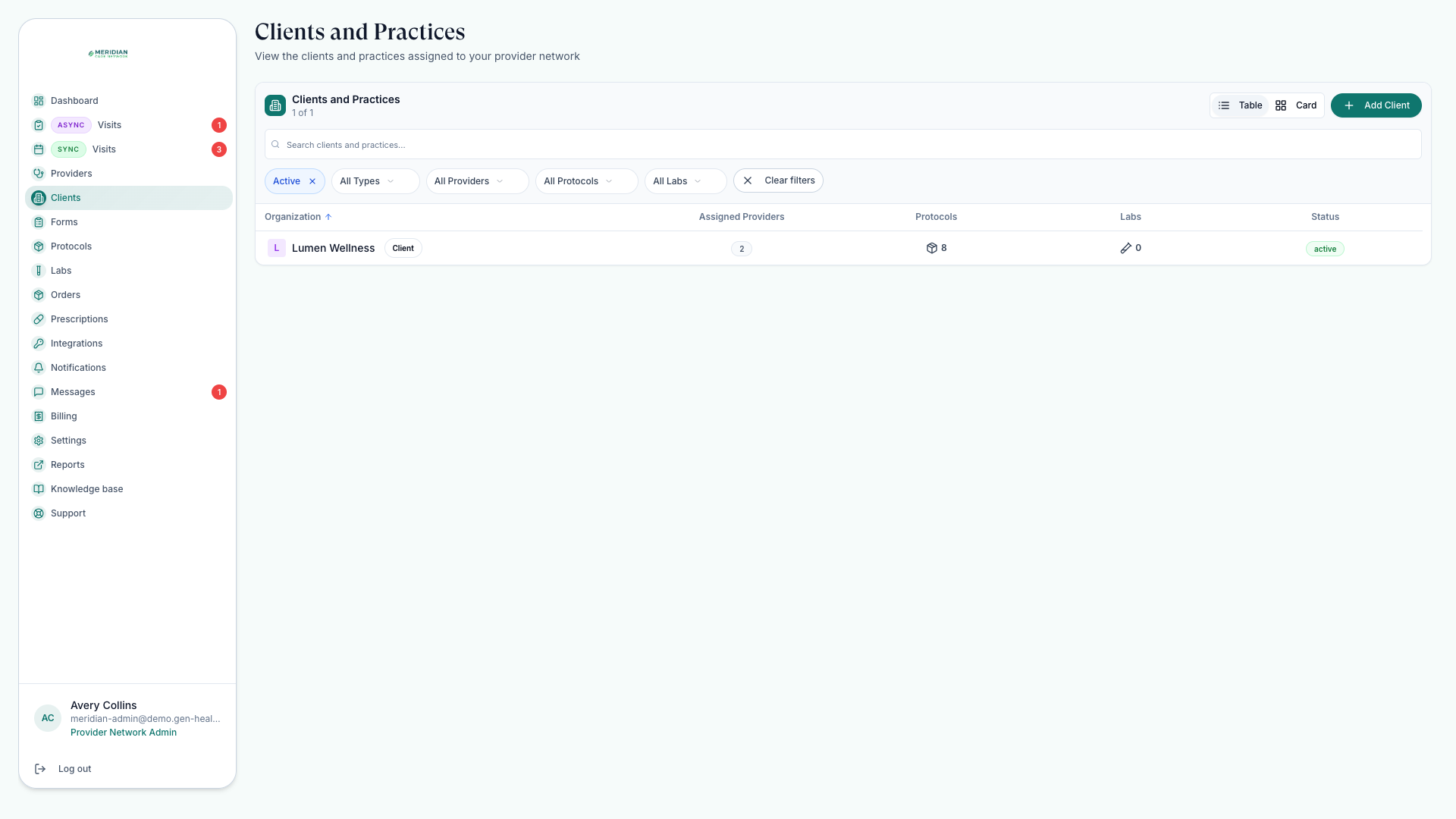
Open ClientsWhat Clients shows
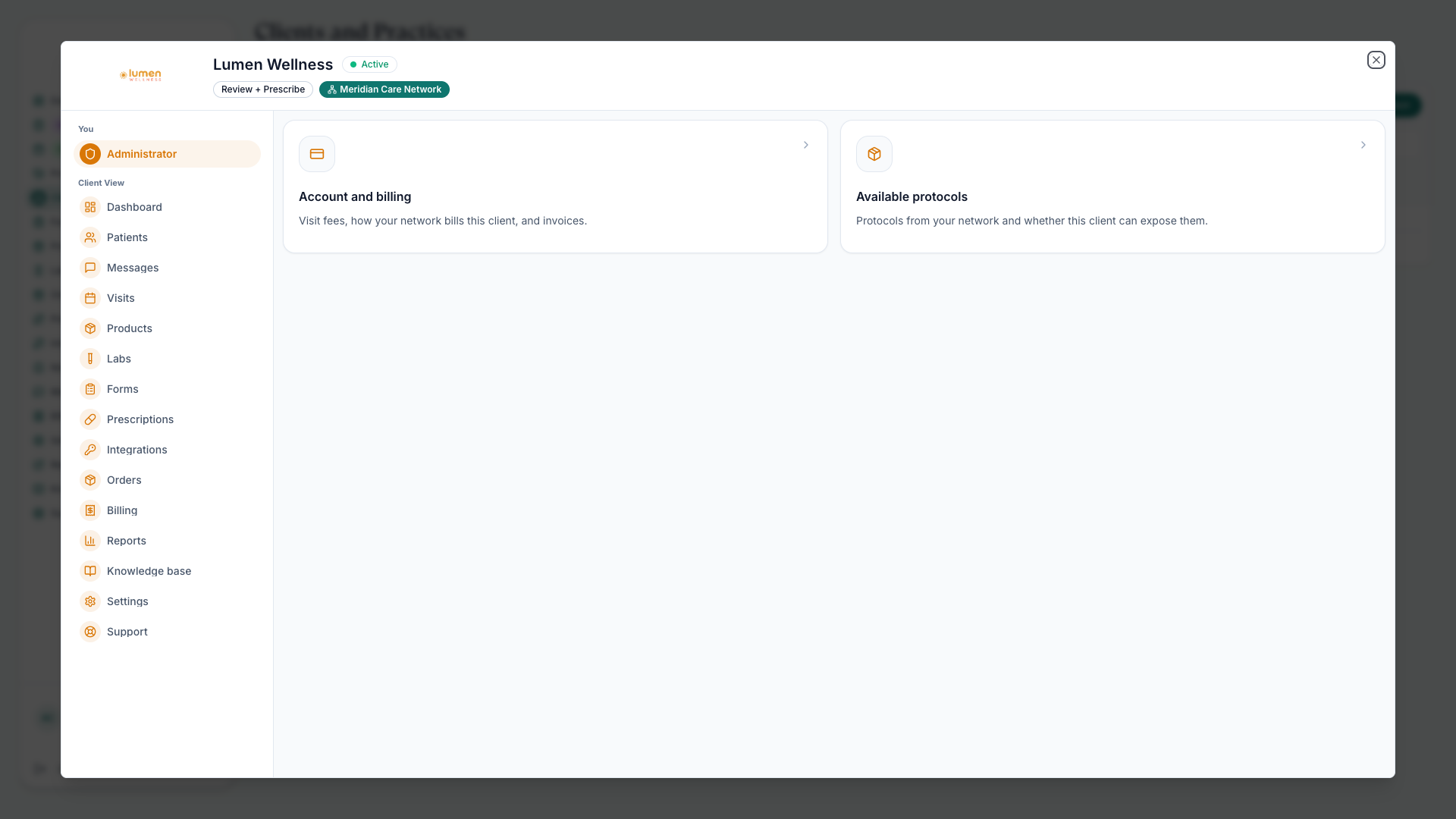
Clients lists every client and practice connected to your network. Open a client's profile to review assigned providers, protocols, labs, users, and the configuration available to your network. Who can do this: Admins manage client connections — see Roles & Permissions.
Primary vs. additional access
A client can connect to more than one network, but the connection types are not equal:
| Connection | What it means |
|---|---|
| Primary network | Your network controls billing, provider assignments, core clinical settings, and the main relationship with the client. |
| Additional network | Your network adds extra protocol and catalog access only. The client's settings, billing, labs, and provider assignments stay with their primary network. |
If you can browse a client but can't change settings or assignments, you're likely their additional network, not their primary one.
Review a client profile
Open the client
Pick the client from the Clients list.
Check providers and protocols
Confirm the client's assigned providers and the protocols they can offer patients.
Check labs and users
Review the labs available to the client and its staff accounts.
Common questions
Why can't I edit a client's labs, billing, or assignments?
Those controls belong to the client's primary network. As an additional network you contribute protocol and catalog access only.
Why don't I see a client's patients?
Patient visibility follows active links and assignments — Find Patients has the checklist.
Next step
Per client, you'll mostly manage which providers serve them and at what visit price — that's Assign Providers.
Was this helpful?