Network Settings
Configure your network profile, hours, security, branding, and operating rules.
Settings controls how your network presents itself and operates. Most of it is set once and revisited rarely; the operations section earns regular attention. Who can do this: Admins — see Roles & Permissions.
Open Settings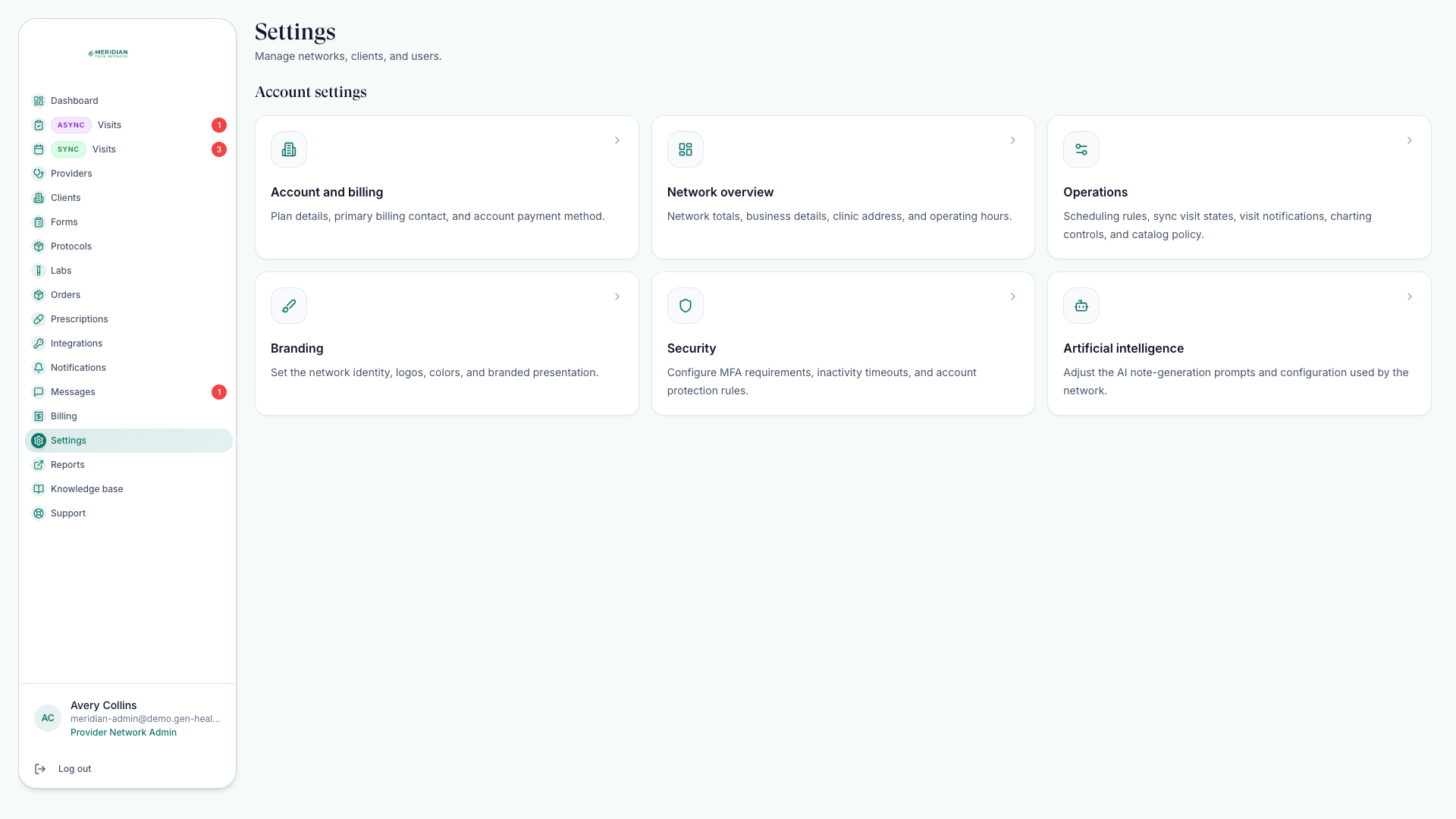
What Settings controls
Settings holds your network profile and branding, security options, operating hours, scheduling rules, visit notifications, product form requirements, and charting preferences (covered in Charting Options).
A recommended path
Account and billing contact
Set the primary billing contact, billing address, and payment method for your network's own account billing.
Network overview
Confirm display name, business details, clinic address, operating hours, and network totals.
Operations
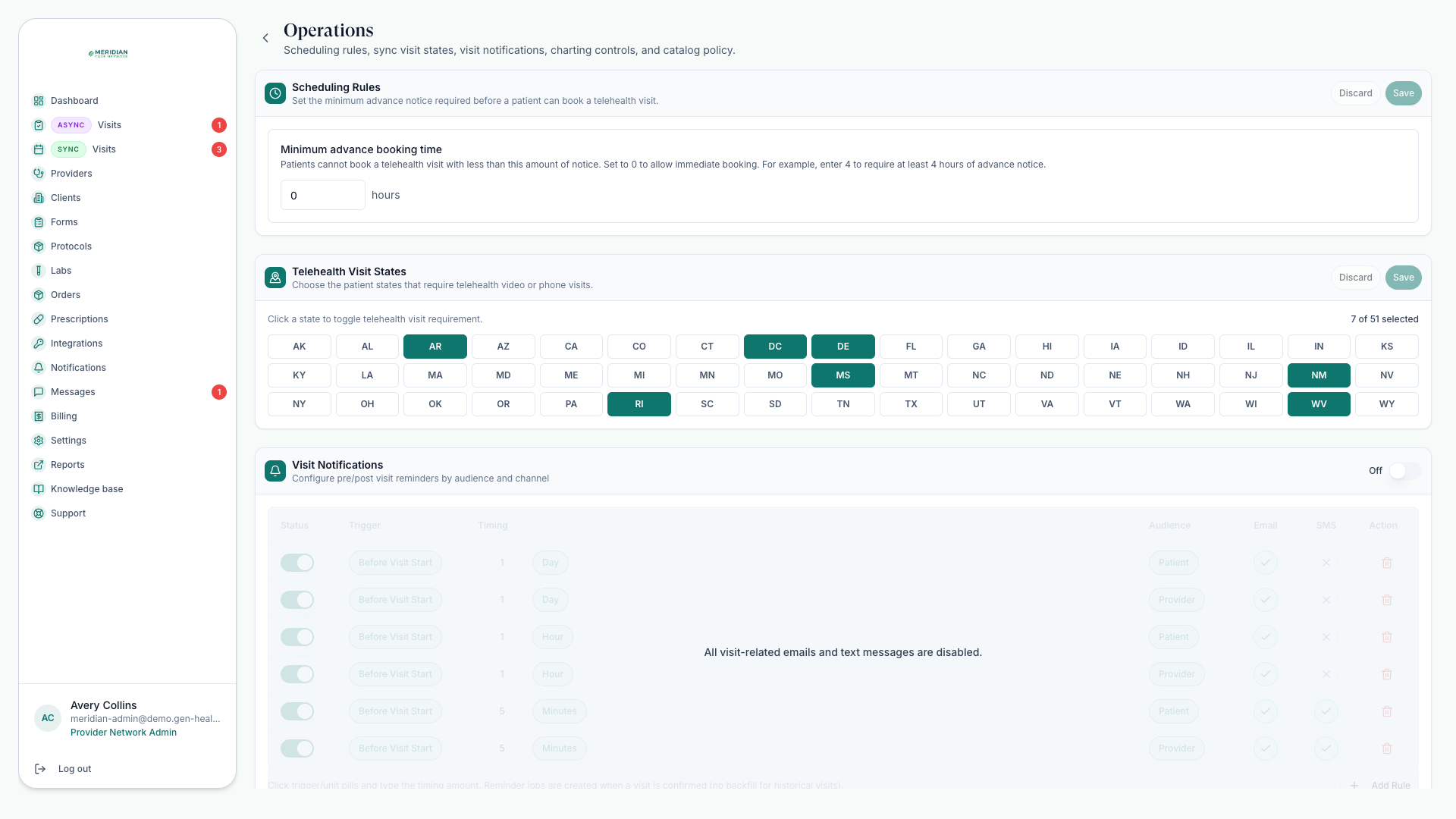
Set the minimum advance booking time, states eligible for live video and phone visits (sync visits), visit notifications, product form requirements, and the charting workflow.
Branding
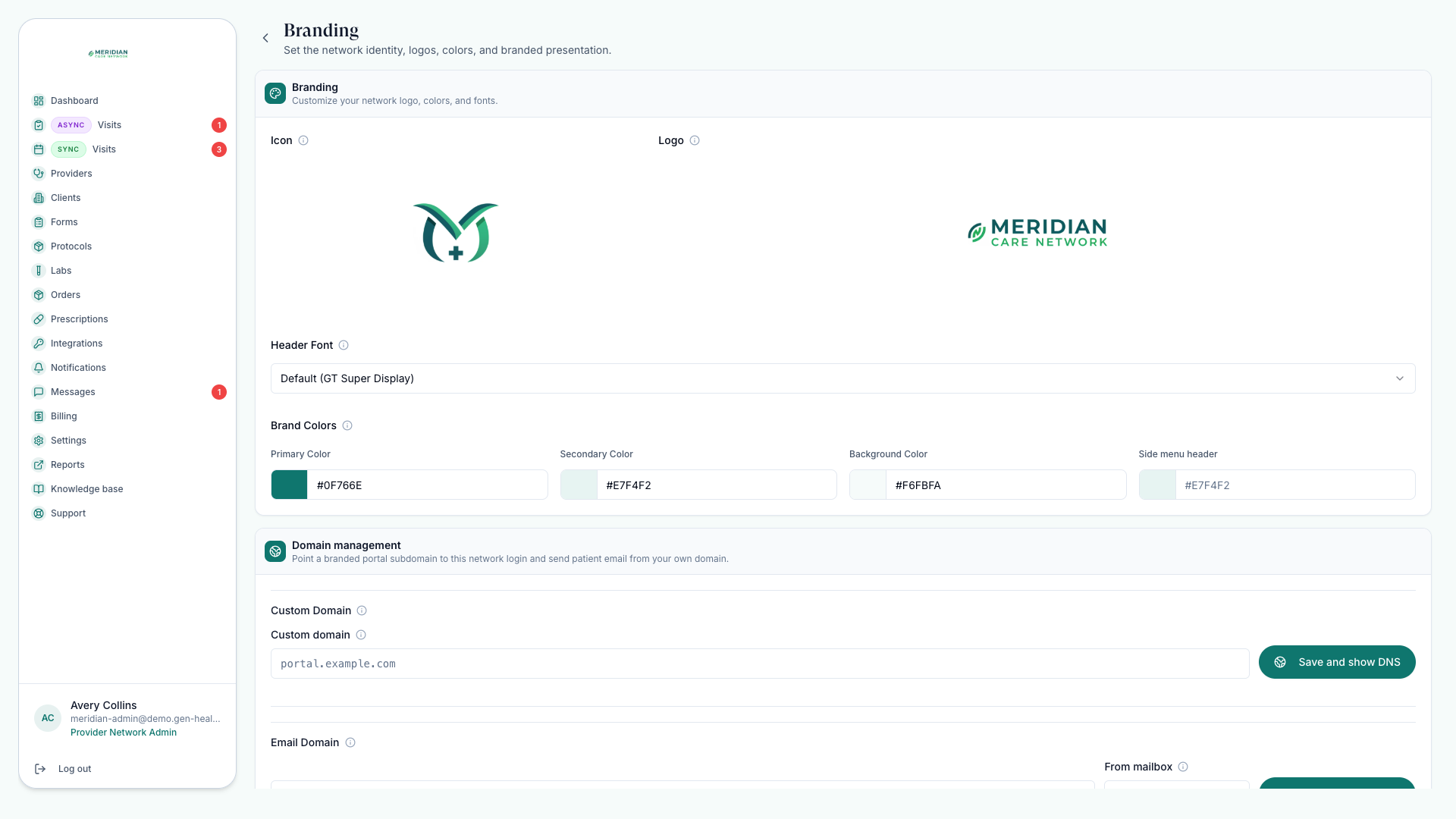
Upload your icon and logo, choose colors, and confirm the display name your team and patients see.
Security
Turn on multi-factor authentication if policy requires it and choose the inactivity timeout behavior.
AI configuration
Set SOAP and charting preferences so charting matches how your clinicians work.
Keep in mind
Operating hours and scheduling rules drive patient booking and provider availability. Payment processor credentials live on the Billing page — see Set Up Payments.
Changing operating rules can affect patient booking, provider availability, and charting behavior. Tell your team before changes go live.
Common questions
Where do I set visit prices for a linked client?
On the client's profile, not in Settings — see Assign Providers.
Where do charting options live?
In the operations area of Settings, alongside AI configuration. Charting Options explains each one.
Was this helpful?