
On-demand
The waiting room for patients who want to be seen now: connect by video or call by phone, answer the waiting prompt, why Connect is greyed out, and how admins turn it on.
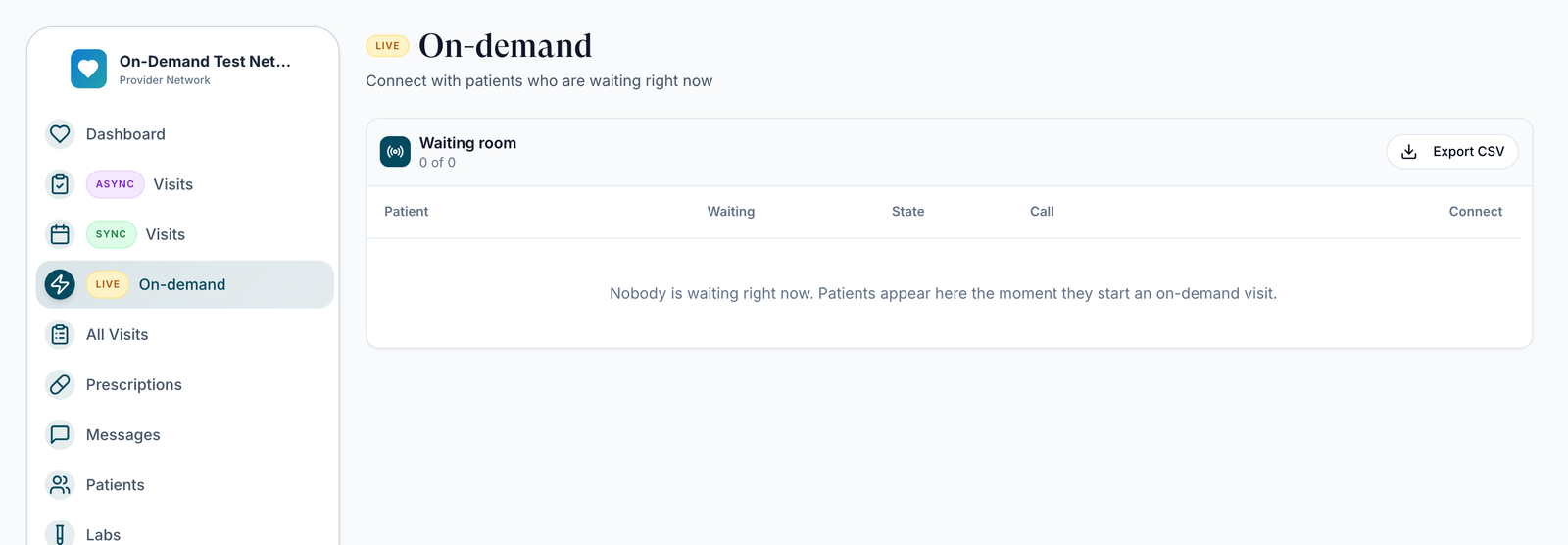
On-demand is the waiting room for patients who want to be seen now, by video or by phone, without booking a time. Left menu → On-demand (with the LIVE pill). Provider. Available once your network lets you claim network visits and at least one client offers on-demand visits.
What you can do here
Take the next waiting patient
Use this between visits, or when the waiting prompt appears.
Read the Waiting room
Each row shows the Patient, how long they've been Waiting, their State, and Call: Video, or the patient's number for a phone visit. The list refreshes itself.
Connect or call
Click Connect for a video visit, or Call patient for a phone visit. The visit is assigned to you and the chart opens; for video, the call starts. The first provider to connect takes the visit.
You'll know it worked when the charting window opens and the patient leaves the waiting room. Then chart and prescribe as usual, and finish the chart to complete the visit.
Who can do this: Provider, when granted sync-visit claiming and assigned to the patient's client.
Answer the "patient waiting" prompt
Use this when Patient waiting to connect appears on any page.
Go now
Click Open waiting room, then Connect or Call patient.
Or wait
Click Not now. The prompt stays hidden for five minutes and closes by itself once someone connects or the patient leaves.
You'll know it worked when the waiting room opens, or the prompt closes.
Who can do this: Provider with on-demand access.
Turn on-demand visits on (admins)
Use this when a provider has no On-demand item in their menu.
Let providers claim network visits
Settings → Operations: tick Enable network sync-visit claiming, then add the provider under Sync visit claiming.
Switch it on for the client
Open the client from Clients, expand On-demand visits and turn on Patients can start a visit on demand. The provider must be assigned to that client.
You'll know it worked when the provider sees On-demand with the LIVE pill after reloading.
Who can do this: Provider Network Admin, for clients whose primary network is yours.
What can go wrong
| What you see | Why | Fix |
|---|---|---|
| Connect greyed out: Not assigned to this client | You aren't on that client's provider list | Ask your Provider Network Admin to assign you to the client. |
| Connect greyed out: DEA required | The visit involves a controlled medication and you have no DEA on file | Add it in My schedule → Credentials, or leave it for a colleague. |
| Connect greyed out: Already connected | Another provider took the visit first | Pick the next patient. |
| On-demand visits are unavailable | Your network turned off your access | Ask your Provider Network Admin to restore it. |
| No On-demand item in the menu | Claiming isn't granted to you, or no client offers on-demand visits | See Turn on-demand visits on. |
Questions people ask
Is there a way to manually override scheduling so a patient can be seen right now?
That's what on-demand visits are for. Once the client offers them, the patient starts a visit from their portal and appears in your Waiting room, with no booking notice.
How do walk-in patients at a client's location get seen given the 24-hour booking block?
Have the client turn on on-demand visits. The patient starts the visit on arrival and a provider connects from On-demand, so the Minimum advance booking time doesn't apply.
Can sync visits be completed by phone?
For on-demand visits, yes: when the patient chooses phone, the row shows their number and the button reads Call patient. The chart opens so you can dial them.
Related
Was this helpful?