
Network setup
Formulary
Pair pharmacy medications with protocols (pairing or mapping), set the default sig and days supply, add custom medications, hide what you don't offer, and find out why a medication can't be prescribed in a state.
Formulary is your network's list of pharmacy medications: pair them with protocols (pairing, also called mapping), set the default directions (sig) providers start from, and hide what you don't offer. Left menu → Formulary. Provider Network Admin only.
Questions people ask
Does Hide on the formulary hide an item system-wide or only filter my view?
Network-wide. It's removed from pairing and prescribing for all your clients' orders.
Where do we adjust days supply for a custom formulary item?
Find it in the table and click Directions or the pencil, then set Days supply.
Is there a filter for pharmacies that ship to all 50 states?
No. Check each pharmacy's state badge in Integrations.
Can providers save their own SIG templates?
No. Standardise the sig in Medication directions; it pre-fills for every provider.
Is the price column what the patient pays?
No. It's the pharmacy's charge. The client sets the patient price on its products.
Where to find it
Left menu → Formulary.
Who can use it: Provider Network Admin. Page: /formulary.
What is on this page
The Medication directions sheet of a pharmacy medication has a ScriptSure compound section. With a compound linked, prescribing the medication opens it in ScriptSure for the patient; without one, ScriptSure opens on the chart. The section shows the linked compound, or one of these messages:
- Super Admin linked compound and its ID, for every practice. Pick or create one to use a different compound for yours.
- The linked compound could not be read. Click Try again.
- No ScriptSure compound is linked. Shown to people who can't edit the medication.
Editors see Pick compound and Create compound. Once a compound is linked they see Update compound, Edit compound, Change compound and Unlink compound. Linking copies directions, dispense quantity, days supply and the clinical difference (first 210 characters); after editing them, click Update compound.
If your network's pharmacy access can't be checked, the list still loads from the network catalog and shows Pharmacy access could not be verified. The formulary is loaded from the network catalog. Click Retry pharmacy access to check again.
For a medication that needs injection supplies, the sheet also has a Default supply section. Pick a Supply item and prescribers get that syringe or pack automatically instead of choosing from every matching kit. See Every setting on this page.
To add many custom medications at once, click Bulk upload in the toolbar (an upload icon on a narrow screen). The Bulk upload custom formulary dialog has two steps, Upload and Review. Download the CSV with Download template, then drag it in or click Choose file. Medication name is the only required column; a file holds up to 500 rows and 1 MB. In the review table, untick any row you don’t want, then click Finish upload. Rows that need a correction show Needs attention; Download rows to fix saves them as a CSV.
What you can do here
- Find a medication and what it costs
- Pair medications with a protocol
- Set directions and days supply
- Add a medication your pharmacies don't carry
- Add a medication to a pharmacy you hold credentials with
- Duplicate or delete a medication copy
- Hide a medication you don't offer
- Find out why a medication can't be prescribed in a state
Find a medication and what it costs
Use this to check who carries a medication, in which strength and at what price.
Search or filter
Type in Search medications or SKU…, click a pharmacy pill to show one pharmacy, or use All categories, Directions and All Pairings.
Read the row
Check Strength, Form and Package size before pairing. Price, Shipping and Total are the pharmacy’s charges; the client sets the patient price.
| Price message | Meaning |
|---|---|
| Est. | The amount uses list price because your account price is unavailable. |
| excl. shipping | Shipping is not included in the total. |
| Price unavailable, Not in catalog, Price not set | No price is available for this row. |
| Loading price | The price is still loading. |
| Pricing couldn’t load for a pharmacy | The warning icon beside its name identifies a price-fetch failure. |
Read the medication’s price breakdown
In a pairing sheet, click the medication’s price. Price breakdown shows unit price, Quantity, Medication, Shipping and Total.
You'll know it worked when the table shows only the matching rows.
Who can do this: Provider Network Admin. Rows come from the pharmacies enabled for your network in Integrations.
Pair medications with a protocol
Use this so providers see the right medication when they prescribe for that protocol. Your pairings are the defaults every client inherits.
Open the pairing
Click the Protocols cell on the medication's row (it reads No pairings until you pair one). From the other side: Protocols page → the row's Formulary cell.
Tick the protocols
Tick each protocol this exact strength and size should back, then click Done.
Pair for one client, if needed
A client's own choices override yours: open the client's profile → Client View → Products and click Needs pairing or the product's Paired formulary cell.
You'll know it worked when the cell shows the protocol count, and the protocol's Formulary cell counts up.
Who can do this: Provider Network Admin. Pairings are per strength and pharmacy, not per molecule.
Set directions and days supply
Use this so prescriptions start with your approved sig, quantity and supply.
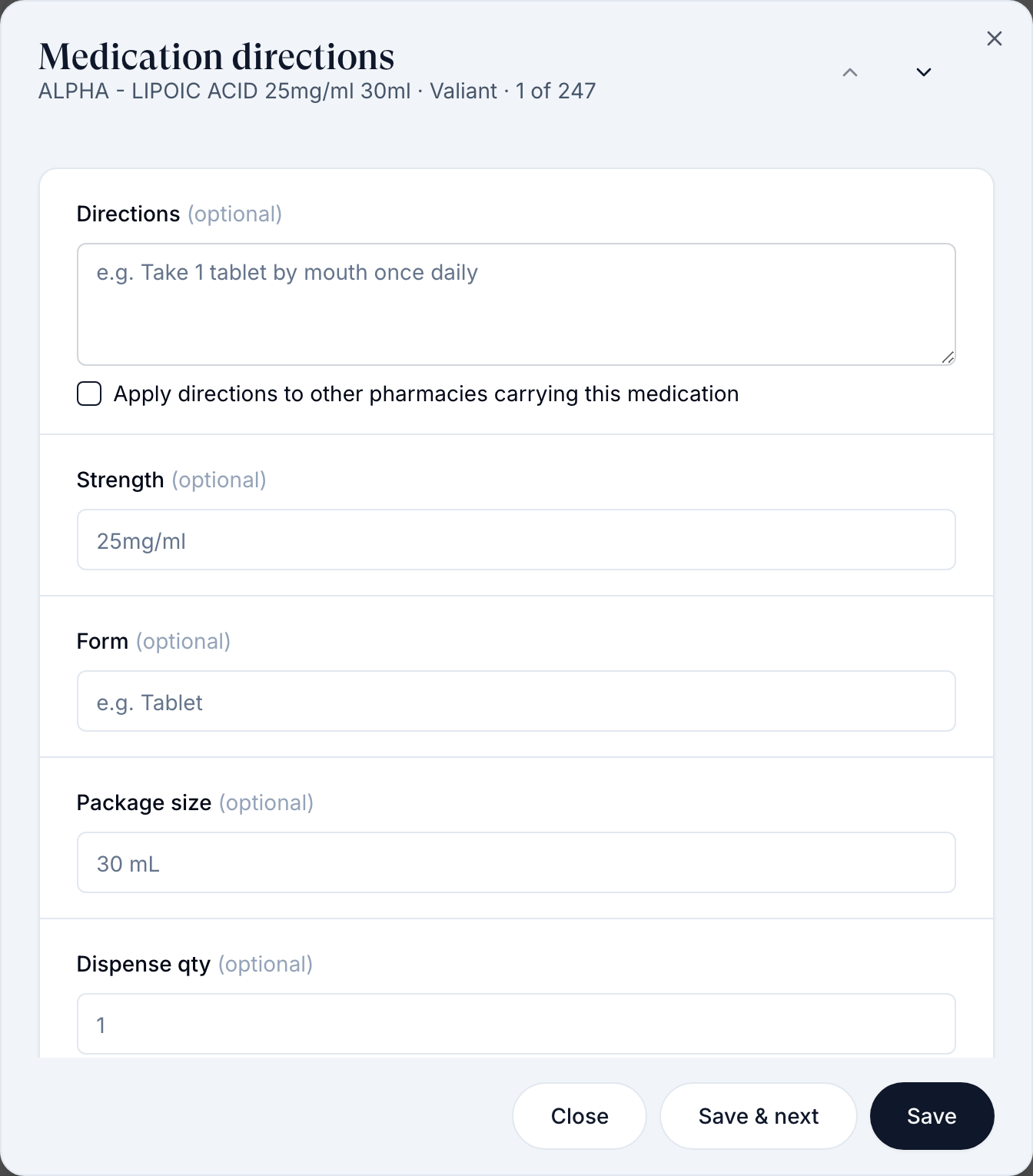
Open Medication directions
Click Directions or the pencil (Edit) on the row.
Fill the defaults
Fill Directions, Dispense qty and Days supply. If the pharmacy sets the quantity, the field says The pharmacy controls the dispense quantity.
Copy directions to other pharmacies if needed
Tick Apply directions to other pharmacies carrying this medication. With several direction options, the label is Apply default directions to other pharmacies carrying this medication.
Add the pharmacy’s clinical explanation if required
Fill Clinical difference and Medical necessity when the pharmacy requires them.
Save
Click Save, or Save & next to move down the list.
You'll know it worked when the row's Directions and Days supply columns show your values.
Who can do this: Provider Network Admin. Providers can still change every field when they prescribe.
Add a medication your pharmacies don't carry
Use this for a medication the patient fills elsewhere.
Open Custom formulary
Click Add custom formulary. The Add custom medication dialog opens.
Fill and add
Enter Medication name and optional Directions, Quantity and Days supply. Before adding it, choose whether to link a ScriptSure compound using the steps below. Click Cancel to close without adding.
Pick or create the compound in ScriptSure
If your network has a ScriptSure practice, use the dialog’s ScriptSure compound section. Click Pick compound, search in Pick a ScriptSure compound, then link the compound. Setup not complete means its ingredients must be finished in ScriptSure first.
Create or change a compound if needed
Use Create compound to open Create ScriptSure compound and save one to your ScriptSure practice. For a selected compound, use Edit compound, Change compound or Unlink compound.
Check the compound ID before adding
Picking or creating fills ScriptSure compound ID. Type an ID only for a compound you cannot pick. If you change a linked ID, the dialog warns Saving replaces the linked compound with this ID. Leave the compound and ID blank for external processing.
Add the medication after checking the link
Click Add medication. A new medication says Links when you add the medication.; an existing one says Links when you save. Saving copies directions, quantity, days supply, refills and the first 210 characters of Clinical difference to the compound.
Retry a compound failure
If ScriptSure did not answer, so compounds cannot be picked yet. appears, click Try again. If Medication saved, but the ScriptSure compound was not updated. appears, the medication is kept. Reopen it with its pencil and save again.
You'll know it worked when Custom medication added appears and the medication is in the table, where it can be paired.
Who can do this: Provider Network Admin. Without a ScriptSure compound ID, a custom medication is save-only: it's recorded on the prescription but never sent to a pharmacy. With one, prescribing opens that compound in ScriptSure.
Add a medication to a pharmacy you hold credentials with
Use this when your network has its own account with a pharmacy and the medication must reach that pharmacy. Unlike a custom medication, it is sent. The button shows only when one of your pharmacies accepts it.
Open the form
Click Add pharmacy medication. The Add pharmacy medication dialog opens.
Choose the pharmacy
Pick it under Choose a pharmacy. The fields that pharmacy requires appear under Medication; copy each value from the pharmacy's price list.
Set prescribing defaults
Under Prescribing defaults, fill Directions (required), Dispense qty, Days supply and Refills. They prefill when a provider picks the medication and stay editable on each prescription. Then save.
You'll know it worked when the medication is in the table and can be paired. Providers can prescribe it right away.
Who can do this: Provider Network Admin. To change one later, click its pencil to open Edit pharmacy medication. Switch Available to prescribe off to retire it: Inactive medications stay on past prescriptions but leave the pickers.
Duplicate or delete a medication copy
Use this to make an editable copy of a medication, or to remove a copy you no longer need.
Duplicate
Click Duplicate on the row. In the Duplicate medication dialog choose Dosing copy, Pharmacy copy or Custom copy. A custom copy is not sent through OnlyScripts; providers prescribe it manually.
Delete
Click Delete on the copy's row, or in its Medication directions sheet. Read what the dialog lists: the paired products, and any that will have no medication at this pharmacy. Type the medication name to confirm, then click Delete medication.
You'll know it worked when the row leaves the table. Its pairings, send timing, and settings are removed. Past prescriptions keep their record. Open orders for the paired products can display differently to patients.
Who can do this: Provider Network Admin. Only copies your network made can be deleted.
Hide a medication you don't offer
Use this to take a medication out of use across your network.
Hide it
Click Hide (the eye icon) on the row, or tick several rows and use Hide in the toolbar.
Review what it removes
The dialog first reads Checking what this hide removes…, then lists the clients on this network and the pairings the hide removes (Removes a count of pairings, or No pairings to remove.). If the check fails, click Retry. Click Hide and remove pairings to confirm.
Bring it back
Click Show hidden, then the eye icon on the row. Showing a medication again does not restore its pairings. Pair it again if you need them.
You'll know it worked when the row leaves the list and Show hidden shows a count.
Who can do this: Provider Network Admin. Hiding is network-wide: the medication disappears from pairing choices and from prescribing for every client's orders with your network.
Find out why a medication can't be prescribed in a state
Use this when a provider says the medication is missing, or sees This medication does not ship to the patient's state.
Check the pharmacy's coverage
In Integrations, hover the pharmacy's state badge. It reads All 50 states, or a count such as 38/50 states; hover it for Does not ship to: and the list. Providers only see pharmacies that ship to the patient's state; nothing reroutes automatically.
Pair a pharmacy that ships there
Pair the same medication from another pharmacy, for the client's product or your protocol.
Check the protocol
On Protocols, make sure the state isn't in the protocol's Unavailable states.
You'll know it worked when the provider can pick the medication for that patient.
Who can do this: Provider Network Admin. Which pharmacies a client has switched on is the client's choice; ask them to enable one that ships to the state.
Every setting on this page
In the Default supply section of Medication directions:
- Supply item (optional): the syringe or pack prescribers get by default. Choose No default (prescriber chooses) to leave it open. The placeholder reads Choose a default supply. If the saved supply is no longer in the pharmacy's list, the dropdown shows it as Saved supply so the saved choice stays visible.
- Default quantity (optional): numbers only. Picking a supply item fills it when empty.
- Default directions (optional): an optional sig for the supply line.
- Clear default supply: removes the supply item, quantity and directions. Editors only.
People who can't edit the medication see the values read-only.
Statuses you will see here
The Default supply section reads the supplies from the pharmacy when the sheet opens:
- Checking whether this medication uses supplies: the sheet is confirming the medication needs supplies before it shows the section.
- Loading supplies from this pharmacy: the list is being fetched.
- No supply items were found for this pharmacy. Prescribers will still pick supplies manually.: nothing to choose from.
- Unable to load supplies for this pharmacy.: the fetch failed. Click Try again.
What can go wrong
| What you see | Why | Fix |
|---|---|---|
| prescription drafts are waiting for a provider when you delete a medication | A draft prescription still uses it. | Ask the prescriber to finalize or cancel the draft, then delete again. |
| Unable to check what this delete changes | The check of what the delete affects failed. | Click Check again. |
| No formulary medications returned for enabled pharmacies. | No pharmacy enabled for your network returns a catalog | Check Integrations → Pharmacies, then ask GEN Health Support. |
| Unable to export the complete formulary. Please try again. | The full list couldn't be fetched for Export CSV | Click Export CSV again. |
| An upload is still running. on Bulk upload | A bulk upload is still being saved, so a second one can't start. | Wait for it to finish, then click Bulk upload again. |
| Choose a .csv file. In Excel use File › Save As › CSV UTF-8. or This file is over 1 MB. Split it into smaller files. | The file isn't a CSV, or is larger than 1 MB. | Save it as CSV UTF-8, or split it into smaller files. |
| We couldn't confirm the upload. Try again; rows already saved won't be added twice. | The network didn't confirm whether the upload saved. | Click Finish upload again. |
| Unable to update the formulary | The upload was rejected and nothing was saved. | Reopen Bulk upload and try again. |
| A medication is in Formulary but not in a client's pairing list | It's hidden by your network or the client | Click Show hidden and unhide it. |
| Remove only, Hidden medication or Inactive pharmacy on a pairing | The medication is hidden or its pharmacy is off, so the pairing can only be removed | Unhide it, or pair a current medication. |
| Pharmacy prices are missing when pairing for a client | The pharmacy hasn't published prices for that item | Pair another pharmacy's version, or ask Support. |
| Every GLP-1 prescription starts with the wrong sig | The default directions on those rows are wrong | Fix them in Medication directions and tick Apply directions to other pharmacies. |
| Unable to load supplies for this pharmacy. in Default supply | The pharmacy's supply list couldn't be fetched | Click Try again. Prescribers can still pick supplies manually. |
| A provider sees only Manual entry | The client's product isn't paired, its pharmacy doesn't ship to the state, or the client's pharmacy keys are missing | Pair it, or message the client to enable a pharmacy. |
Next
Was this helpful?